Mouse Jiggler Detection: How to Spot Fake Activity



Key Takeaways:
- Mouse jiggler detection is really a data-quality issue. The core problem is not just fake mouse movement. It is unreliable productivity data that can distort reporting, reviews, and manager decisions.
- Mouse movement alone is weak evidence of real work. A moving cursor can keep someone “active,” but it cannot prove meaningful progress, real engagement, or actual output.
- A mouse jiggler can fake presence, not believable work patterns. It may stop idle alerts, but it cannot naturally replicate app switching, website progression, screenshots that show real change, or consistent output.
- You need to separate activity evidence from work evidence. Activity data like mouse and keyboard movement should be reviewed alongside app usage, website behaviour, screenshots, and real deliverables.
- The best way to detect fake activity is through a multi-signal approach. Looking at one metric in isolation creates blind spots. Looking at signals together creates a more believable picture of work.
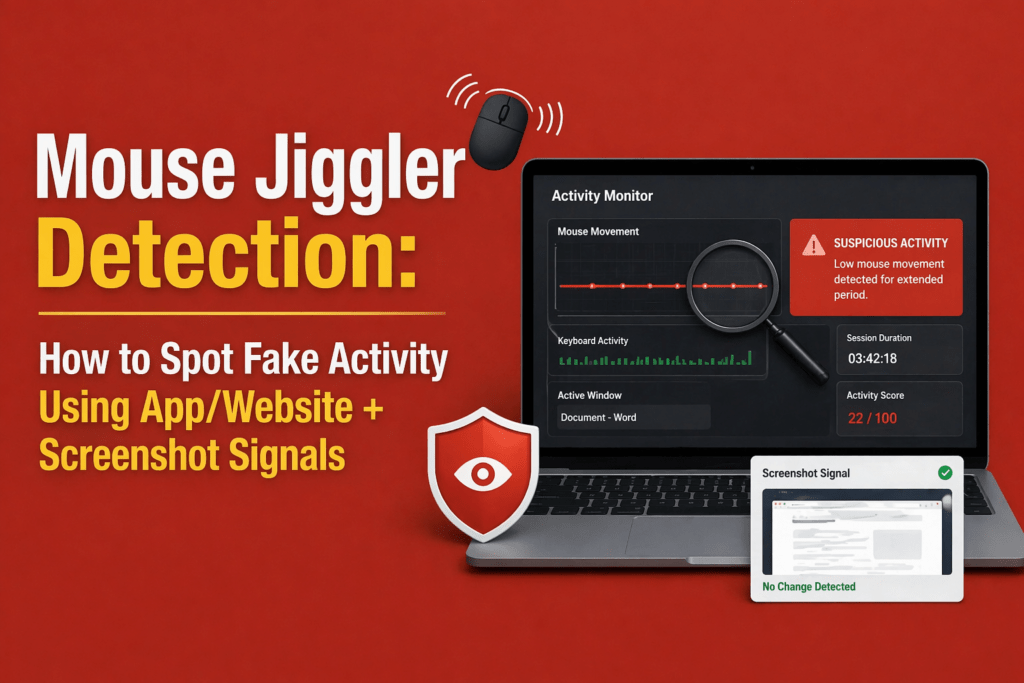
- There are clear red flags to watch for. These include high mouse activity with low keyboard input, static screenshots during “active” time, long sessions in one app with little progression, and suspiciously repetitive activity patterns.
- Patterns matter more than isolated incidents. One strange hour is not enough to judge. Repeated mismatches across days or weeks are much more meaningful.
- False positives are real and should not be ignored. Reading-heavy work, meetings, onboarding, builds, uploads, and role-specific workflows can all look suspicious if you lack context.
- Managers should investigate with context, not accusations. The article recommends reviewing patterns, comparing signals, considering role expectations, and using the data to start a conversation rather than jumping to conclusions.
- Good mouse jiggler detection software should do more than track clicks. It should offer app and website monitoring, screenshots, trend reporting, alerts, role-aware productivity interpretation, and privacy controls.
- Flowace is positioned as a contextual visibility tool, not just an activity tracker. In the article, it is presented as helping teams combine screenshots, app usage, website tracking, and productivity insights to validate work more fairly.
- The final message is simple: better monitoring is not about watching more. It is about understanding more, trusting your data more, and making fairer decisions with better context.
When people talk about mouse jiggler detection, they usually ask one question: how do you catch it?
That is the wrong question.
The better question is this: how do you know the activity you are seeing actually reflects real work?
Mouse jigglers do not just simulate motion. They expose how fragile activity-based monitoring really is. If your system depends on cursor movement to define productivity, it can be gamed. The solution is not tighter surveillance, but better validation.
What a mouse jiggler can and cannot fake
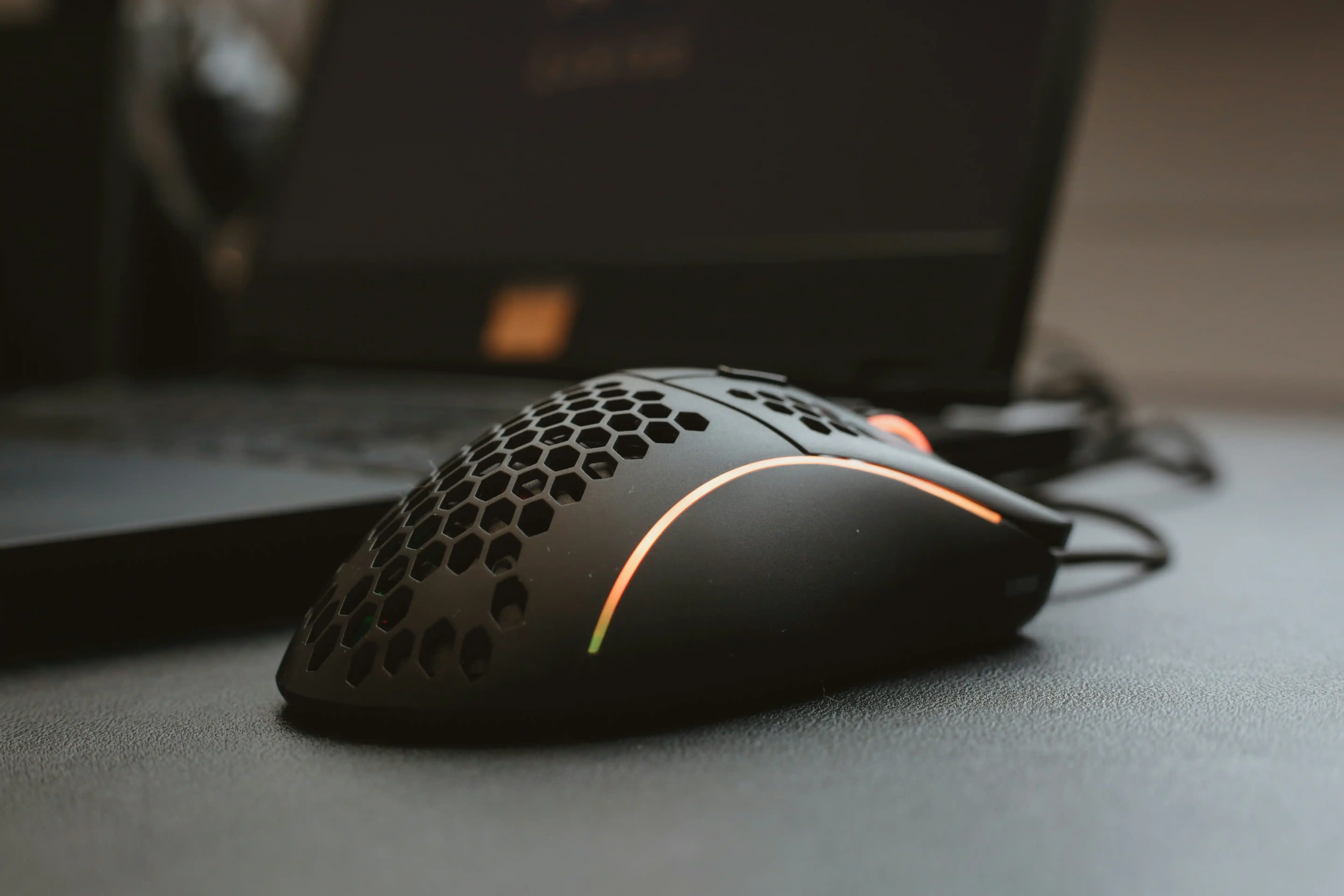
A mouse jiggler is a tool that simulates mouse movement to make a computer look active, even when no real work is happening.
If you manage a team or rely on productivity data, you have likely seen “active” status indicators in tools like time trackers, communication apps, or monitoring software. A mouse jiggler is designed to manipulate those signals. It keeps the cursor moving just enough to prevent the system from marking the user as idle.
From a technical standpoint, it is fairly simple. There are two common types:
- Hardware jigglers: small USB devices that plug into a computer and act like a mouse. They send tiny movement signals at regular intervals.
- Software jigglers: apps or scripts that run in the background and simulate cursor movement digitally.
In both cases, the goal is the same. You appear “active” without actually engaging in meaningful work.
What mouse jigglers can simulate?
Hardware jigglers and software scripts can move the cursor on a screen and keep a computer from going idle. They can alter basic “active” status indicators and reduce idle flags in simple monitoring systems. This makes time‑tracking dashboards show continuous activity even when no work is being done.
What mouse jigglers cannot reliably simulate?
Fake movement does not tell a convincing story of work. Mouse jigglers cannot mimic believable app switching between multiple tools or show meaningful website progression. They cannot generate a natural ratio of keyboard and mouse activity or produce visible changes on the screen that reflect real work. Output signals such as file edits, messages sent, tasks progressed or code commits cannot be faked by moving the cursor alone. Understanding these limits reveals why verifying multiple signals is essential.
Why mouse movement alone is not enough to validate work
Continuous cursor movement without corresponding keyboard input or app interaction is movement without progress. This behaviour artificially inflates active time while projects stagnate. Employees may feel pressured to appear busy due to simplistic monitoring, which can degrade focus and well‑being.
In fact, employees lose up to 25 % of their work week to distractions such as notifications and meetings, so a tool that rewards constant activity can encourage busywork rather than meaningful outcomes.
The difference between activity evidence and work evidence
Treating every click as productivity conflates activity evidence with work evidence. Activity evidence includes mouse and keyboard input and idle patterns. Context evidence adds app and website usage—what programs or websites were used and how often the active window changed.
Visual evidence, such as screenshots, reveals what was on screen and whether it changed over time.
Finally, work evidence covers the actual output: tasks completed, files updated, messages sent and projects advanced. Validating real productivity means correlating these layers instead of relying on a single activity metric.
A reliable monitoring strategy uses a signal stack that correlates multiple types of data:
Input signals
- Mouse activity: patterns of movement (frequency, duration and variation). Mouse jigglers create uniform or repetitive movement that deviates from human behaviour.
- Keyboard activity: typing frequency and keystroke variation. Very low keyboard usage during periods of high mouse movement can be suspicious.
- Idle patterns: frequency of idle periods and whether idle thresholds are bypassed by continuous movement.
Context signals
- App usage: which applications were active and how long they were used. Tools like Flowace offer app and website tracking to show where time is spent.
- Website usage: domains and pages visited, sequence of navigation, and time on each site. Meaningful work typically involves logical progression (e.g., navigating between documentation, code repositories and collaboration tools).
- Active window behaviour: whether the active window changes naturally or remains fixed for hours.
- Switching frequency: human work often involves switching between tasks or applications; unnatural consistency may signal automation.
Visual signals
- Screenshots: periodic captures of the user’s screen provide proof of what is happening. They show whether the screen content changes or remains static while the mouse moves. Flowace’s Basic plan includes unlimited screenshot capture.
- On‑screen progression: whether documents change, code evolves or new email threads appear across screenshots.
- Repeated static screens: identical screenshots over long periods suggest idle behaviour masked by a jiggler.
Pattern signals
- Repeated suspicious blocks: recurring periods of constant activity at the same time each day can indicate automation.
- Over‑consistent activity: very smooth activity curves without spikes or dips may signal artificial movement.
- Recurring mismatches across days or weeks: if the same patterns repeat regularly, they deserve investigation.
Output signals
- Task movement: updates to project boards, commits to code repositories or completion of assigned tasks.
- Communication traces: messages sent via Slack, email or project management comments.
- File updates: modifications to documents, spreadsheets or designs.
- Expected progress based on role: for example, developers should produce code commits; recruiters should update candidate pipelines. Lack of output despite high “activity” is a red flag.
By combining input, context, visual, pattern and output signals, you can distinguish real work from fake activity.
7 signs that help you spot fake activity more accurately
This practical section shows you how to use the signal stack to identify suspicious behaviour without jumping to conclusions.
1. High mouse activity with very low keyboard activity
A high ratio of mouse movement to keyboard input may indicate the use of a jiggler, particularly for roles that require typing. However, some jobs involve primarily clicking (e.g., design or data review), so consider role context.
2. Long time in one app or website with little visible progression
If an employee spends hours in the same browser tab or application without file changes or navigation, check the context. Humans typically switch between tasks; automation may leave the window unchanged.
3. Static screenshots during supposedly active work blocks
Screenshots that remain identical over time, while activity metrics show movement, suggest the mouse is moving. But the screenshot shows you that the user is not interacting with the content. Flowace’s Basic and Standard plans provide unlimited screenshots for this reason.
4. Repetitive or overly consistent activity patterns
Human productivity fluctuates. If activity graphs show identical levels across days or exhibit suspiciously smooth curves, investigate. Over‑consistent patterns may indicate a jiggler scheduled to run at specific intervals.
5. Productive apps are open, but the work pattern does not look real
Sometimes employees open the right apps to appear productive, but they do not move between tasks or generate output. For example, leaving an IDE or project management tool open while browsing social media on another device does not produce deliverables.
6. Active time stays high, but task or communication signals stay weak
If a team member remains “active” for long blocks yet rarely responds to messages, commits code or moves tasks forward, cross‑check their input and visual signals. Real work should produce communication traces and deliverables.
7. Suspicious activity repeats over time
Patterns matter. One unusual hour may be harmless; recurring suspicious blocks across days or weeks suggest something more deliberate. Investigate recurring mismatches between input signals and work evidence before drawing conclusions.
False positives to rule out before assuming fake activity
Before labelling behaviour as deceitful, consider legitimate scenarios that generate similar signals.
Reading‑heavy work
Roles involving research or document review (e.g., analysts, legal professionals) may spend extended periods in the same application with minimal keyboard input.13% productivity gains among remote workers have been linked to fewer interruptions and more focus, which often involves reading and thinking.
Meeting‑heavy or training‑heavy sessions
During video calls or webinars, screens may remain static while participants listen. Employees engaged in meetings or training sessions may not type or switch applications. Hybrid work adoption rates show that 23.4% of U.S. employees work remotely at least part of the time, so meetings often happen online.
Waiting time in legitimate workflows
Software developers may wait for builds to compile; designers may render files; analysts may run queries; marketers may upload large assets. These processes cause long periods with minimal input signals but are legitimate.
Role‑specific work styles
- Developers: may spend hours writing code in an IDE with bursts of typing and long pauses to think.
- Designers: often click more than they type; their workflows can generate high mouse activity with low keyboard activity.
- Recruiters: might toggle between LinkedIn, email and an applicant tracking system while seldom typing long strings.
- Support teams: may handle chats and tickets that require reading and short responses.
- Analysts: often read reports and spreadsheets for extended periods.
Context is crucial. Use pattern signals and output evidence before concluding that behaviour is fake.
How app usage, website behaviour and screenshots work better together
A multi-signal approach works better because no single metric tells the full story. App usage shows where time goes, website behaviour shows workflow movement, and screenshots add visual proof. When these signals come together, you can replace multiple tools with one system and make productivity data easier to trust.
App usage shows where time is spent
Flowace’s Standard plan includes app and website tracking. This feature records which applications and websites are active and for how long. If an employee claims to be working on a project but spends most of their time on unrelated apps or websites, the discrepancy becomes clear.
Website signals show workflow movement
Tracking URLs and navigation paths reveals whether an employee is progressing through research, documentation or collaboration tools. For example, a recruiter should move between LinkedIn, email and the ATS. Lack of movement suggests distraction or automation.
Screenshots show visible proof of progression
Regular screenshots provide visual context. They show whether documents change, code evolves, or design tools update. In the Basic plan, Flowace offers unlimited screenshots, giving managers a visual record without constant surveillance.
Together, they create a more believable picture of work
When app usage, website behaviour, and screenshots align with expected outputs, you can trust your productivity data. By cross‑referencing these signals, managers can spot fake activity more accurately, reduce false positives, and build trust with their teams.
How managers should investigate suspicious activity without breaking trust
Review patterns, not one‑off incidents
Look for recurring patterns of suspicious behaviour rather than reacting to a single anomaly. If high activity with low output repeats across days or weeks, it warrants investigation.
Compare signals instead of relying on one metric
Use the signal stack. Correlate mouse and keyboard activity with app usage, website behaviour, screenshots and output. A jiggler may fool one metric but not all.
Consider role expectations and workload context
Understand what productivity looks like for each role. Deep work may involve long stretches of focused thinking. Support roles may involve spurts of typing punctuated by quiet reading. Sales roles may require calls or video meetings. Evaluate signals against role‑specific patterns.
Use the data to start a conversation, not jump to accusations
When data suggests fake activity, approach the employee with curiosity rather than blame. Discuss the patterns, ask for context and listen. There may be legitimate explanations, such as technical issues, misconfigured tracking or personal challenges. Building trust encourages honest dialogue.
Fix policy gaps and unclear expectations where needed
Sometimes behaviour that looks deceptive stems from unclear policies or unrealistic expectations. Clarify monitoring guidelines, idle thresholds and productivity metrics. Provide training on using tools correctly and set realistic workloads. Encourage employees to use “private mode” or take breaks without feeling penalized.
What to look for in mouse jiggler detection software
When evaluating monitoring solutions, seek tools that support fair and accurate productivity analysis rather than punitive micromanagement.
Multi‑signal visibility, not just activity tracking
Choose software that captures mouse and keyboard activity, but also app and website usage, active window data, screenshots and output metrics. Single‑metric tools are easier to trick and generate more false positives.
App and website monitoring
Ensure the tool records which applications and websites are used and for how long. Flowace Standard plan includes this feature.
Screenshot‑based validation
Screenshots provide visual context to verify whether active time corresponds to real work. Unlimited screenshot capture in the Basic and Standard plans helps validate activity without storing keystrokes.
Role‑aware interpretation
Look for solutions that let you configure productivity ratings or categories based on role. Flowace Standard introduces configurable productivity ratings, allowing teams to classify apps and websites as productive or unproductive for specific functions.
Alerting for suspicious patterns
Software should offer custom alerts for unusual behaviour—such as long periods of activity without keyboard input or repeated idle overrides—so managers can investigate early.
Reporting that helps managers review trends over time
Tools need dashboards and trend reports to highlight patterns across days and weeks. Flowace provides dashboards and productivity reports even in the Basic plan and adds executive dashboards in Premium.
Privacy controls and clear policy support
Choose software that balances transparency and privacy. Flowace includes a private mode that allows employees to pause tracking and shows users what data is collected. Transparent policies build trust and compliance.
How Flowace helps teams spot fake activity more accurately
Flowace positions itself as a productivity and workforce analytics platform rather than just an activity tracker. Here’s how its features map to the signal stack and detection guidelines.
App and website usage visibility adds context
From the Standard tier onward, Flowace tracks app and website usage, letting managers see exactly where time is spent. This context helps distinguish deep work from multitasking or distraction and highlights when employees are using unauthorized tools or known jiggler software.
Screenshots help validate whether active time reflects real work
Flowace’s Basic plan includes unlimited screenshots. Screenshots capture the screen at regular intervals, providing a visual record that complements activity data. Managers can verify that mouse movements correspond with changing screens and real progress.
Productivity data becomes more reliable when signals are reviewed together
Flowace combines silent automated tracking with productivity ratings and dashboards across all plans. Standard and Premium tiers add idle alerts, inactivity notifications and advanced reports. By correlating multiple signals, Flowace helps managers trust their data and reduces reliance on raw activity metrics.
Managers can investigate patterns fairly instead of guessing
Dashboards show trends over time; alerts surface outliers; and role‑aware productivity ratings align signals with job expectations. When suspicious patterns emerge, managers can review screenshots and app usage logs, then have informed conversations rather than guess based on a single metric.
Privacy‑first controls help teams use monitoring responsibly
Flowace provides a private mode and transparent data policies. Employees know what is collected and can pause tracking for personal activities. This approach supports responsible monitoring and reduces the temptation to circumvent systems with mouse jigglers.
Final Takeaway
A moving mouse can keep a status light green. But, it cannot prove that meaningful work is happening. If your system can be fooled by motion alone, the real problem is not the employee. It is the quality of the signal. The teams that make better decisions do not rely on surface-level activity. They look for context, progression, and believable work patterns.
If your current monitoring setup can track motion but cannot verify real work, it may be time for a better signal stack. Want cleaner productivity data and fewer false signals?
See how Flowace helps teams validate activity using app usage, website behaviour, and screenshot context. Book a free demo today to explore how Flowace can help you spot fake activity more accurately and make fairer decisions with better context.
FAQs:
What is mouse jiggler detection?
Mouse jiggler detection is the process of identifying artificial mouse movement designed to keep a computer from going idle. It involves analysing multiple signals—input patterns, app usage, screenshots and output—rather than relying on mouse movement alone.
Can employee monitoring software detect a mouse jiggler?
Yes, modern monitoring solutions can flag suspicious patterns such as high mouse activity with low keyboard input, static screenshots during active periods, or repetitive activity curves. Tools like Flowace track app usage and capture screenshots, making it easier to detect fake activity.
Are screenshots useful for detecting fake activity?
Absolutely. Screenshots provide visual evidence of what was on screen at a given time. When activity data shows movement but screenshots remain unchanged, it suggests that a mouse jiggler or similar tool may be in use.
Can app and website usage reveal suspicious work patterns?
Yes. Tracking app and website usage shows whether an employee’s time aligns with expected tasks. For example, recruiters should spend time in the applicant tracking system and communication tools. A mismatch between claimed tasks and actual app usage is a red flag.
What are false positives in mouse jiggler detection?
False positives occur when legitimate behaviour—such as reading documents, attending meetings, waiting for processes to complete or working in roles with high mouse activity—resembles jiggler patterns. Reviewing context and output signals helps avoid false accusations.
How can managers investigate fake activity fairly?
Managers should look for recurring patterns, compare multiple signals, consider role context and use data to start a conversation rather than accuse. Clear monitoring policies and private modes also promote fairness.
What should businesses look for in mouse jiggler detection software?
Choose software with multi‑signal visibility (input, context, visual and output), app and website tracking, screenshots, role‑aware productivity ratings, alerting and privacy controls. Tools like Flowace combine these features at affordable pricing