Fix Idle Time False Positives: App & Website Guide




Remote and hybrid teams often see idle time false positives – times when employee monitoring tools mark employees “idle” even though they’re working (for example, listening on a Zoom call).
Employee monitoring tools typically flag idle time when there is no keyboard or mouse activity for a set interval. Sometimes, an employee could be on a silent call or reading a document and still get tagged “idle.” These idle time false positives distort productivity data and can upset employees.
A simple fix is to tweak the tool’s settings: set realistic idle thresholds for each role, and tell the system to ignore idle time for known meeting or passive-work apps. In this article, we’ll show you a 3-step framework to fix it.
What Are Idle Time False Positives? (and Why They Matter)
Idle time generally means “logged-in time with no activity.” However, many work activities (video calls, phone calls, reading, thinking) generate little or no monitor input. When these are incorrectly flagged as idle, that’s an idle time false positive.
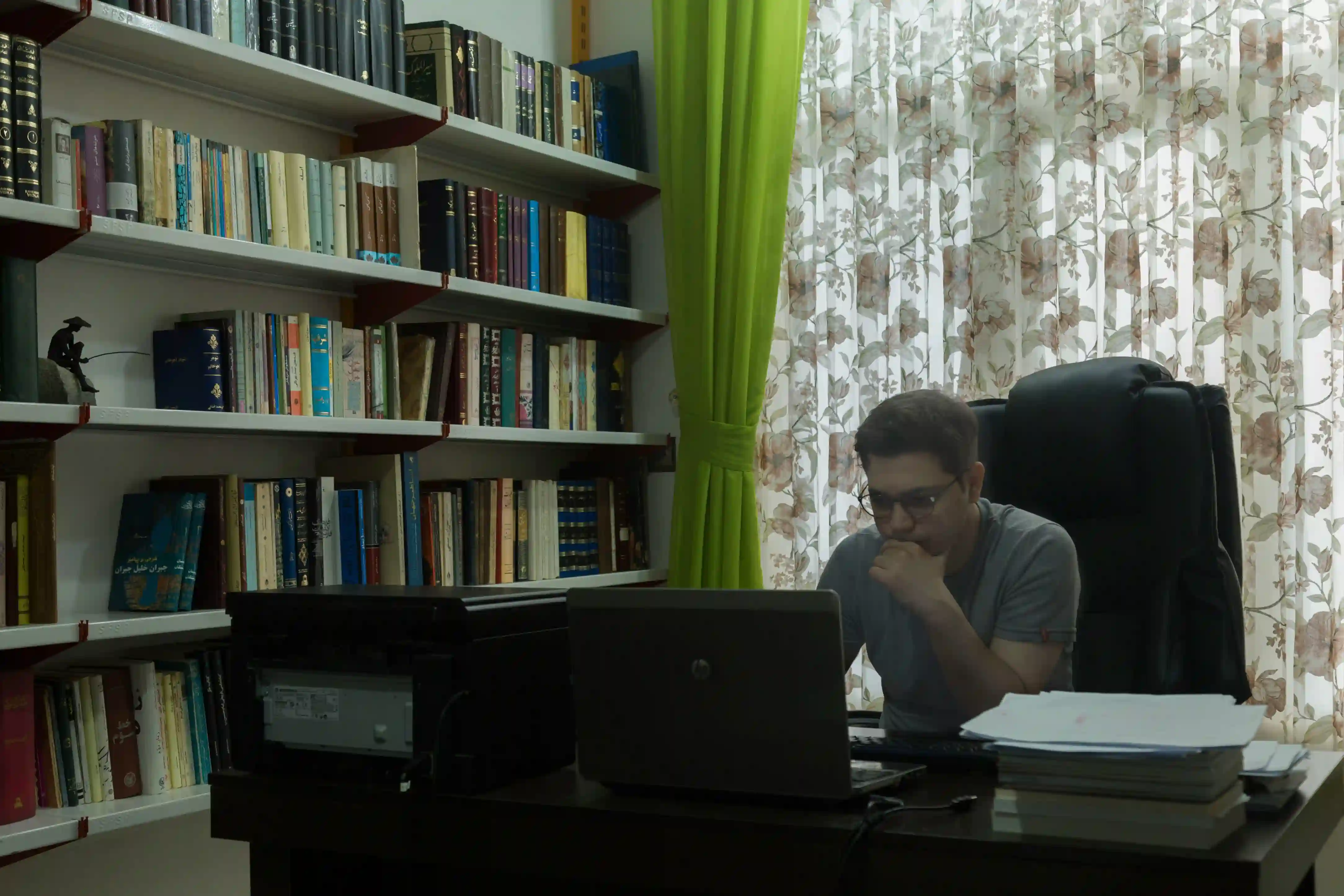
False positives have real business impact: they can undercount billable hours, skew productivity reports, and even trigger needless break checks.
For example, a salaried employee on a long client call may see a portion of their day marked “idle,” which looks like time theft. Over time this erodes trust and morale.
A Smart 3-Step Framework for Accurate Idle Time Tracking
In office and hybrid environments, meaningful work regularly gets mislabeled as inactivity. The core problem is simple: knowledge work isn’t mechanical. When tools ignore context, they misclassify effort. And once leaders start acting on bad signals, credibility takes a hit.
Here’s a practical 3-step framework to eliminate idle time false positives without compromising visibility, accountability, or trust:
Step 1: Adjust Idle Threshold Settings
Managers should start by calibrating how long the system waits before marking someone idle. Many idle time tracking tools default to short intervals (1–2 minutes), which is often too strict. Instead, set custom thresholds by role and workflow. For example, Flowace suggests 5 minutes for roles with constant typing (data entry or support), 10 minutes for general office work, and 15–20 minutes for higher-level or creative roles. These longer intervals mean a brief pause (e.g., listening on a conference call) won’t instantly count as idle.
- Review Work Patterns: Gather examples of typical tasks. If a team member spends time in meetings or doing paperwork, note those as passive activities.
- Set a Role-Based Threshold: In your tracking tool (e.g., Flowace’s settings), choose an idle interval based on job role. (For instance, 10 min for a general employee, 15–20 min for managers.)
- Test and Refine: Pilot the new setting for a few days. If too much legitimate work is still tagged idle, increase the interval slightly; if you see almost no idle time (meaning the threshold is too long), dial it back.
By adjusting the interval to match reality, you fix idle detection for normal workflow pauses. This simple step alone often cuts down false idle reports drastically.
Step 2: Enable Ignore Idle on Specific Apps and Websites
Some apps shouldn’t trigger idle at all, because they represent active work with no input. Common examples are video conferencing and some learning/training tools. Flowace’s “Exclude Idle” feature lets you bypass idle detection for chosen apps and sites. For example, we suggest that hours spent on Google Meet or Zoom should remain “active” time even if the user isn’t typing. In practice, excluding these apps ensures your meeting time is correctly logged as work.
- Identify Passive-Work Apps: List the tools where employees are engaged but not typing: video conferences (Zoom, Meet, Teams, Webex); e-learning or webinars; design software; reading long documents. These are productive, not idle.
- Add to Ignore List: Flowace has a special feature where you can ignore idle time when you are using a particular tool. Go to the app/website productivity settings and turn on “Ignore Idle” for these.
- Communicate the Change: Let teams know which apps are now excluded. Encourage people to open meetings or client calls in those apps to avoid false idle time.
For instance, imagine a remote sales team spends an hour on a Zoom demo. Without exclusion, the tool might mark that hour as idle (no keyboard clicks). After adding Zoom to the ignore list, that same 60-minute meeting stays active time. This fixes many false positives for meetings and training sessions, so your reports reflect true work.
Step 3: Use Idle Alerts Instead of Hard Cutoffs
Even with good settings, occasional oversights happen. Rather than instantly cutting off tracking when idle is detected, use idle alerts as a softer approach. Flowace, for example, can pop up a warning 30–60 seconds before marking time as idle.
This alert prompts the user: “Are you still working?” If yes, they can extend the timer or move the mouse, preventing an unwanted idle marker.
- Enable the Alert: In your software’s admin settings (Flowace → Desktop App → Idle Alert), turn on notifications.
- Set a Grace Period: Configure the alert timing (e.g., 30 sec before the cutoff). This gives people time to tap a key if they’re actually active.
- Train the Team: Teach employees to respond to the alert. It’s a useful reminder to resume activity or manually confirm they’re still working.
Using alerts rather than an abrupt stop makes the system more user-friendly. It reduces accidental idle periods without letting people game the system (they still need to take action). Over time, this builds trust: employees see the tool as fair rather than punitive.
When Not to Ignore Idle Time?
You should not blanket-exclude entertainment or personal apps from idle detection. The goal is accuracy, not artificially inflating productive hours.
Only ignore idle time on apps that represent legitimate work, where keyboard and mouse activity is naturally low. Think video conferencing tools, webinar platforms, or specific training software. In those cases, no input still means real work is happening.
Now compare that with Netflix, casual YouTube browsing, gaming apps, or social media. If you exclude those from idle detection, you are effectively telling the system to treat non-work time as productive time. That distorts your data and defeats the entire purpose of employee productivity software.
Instead, classify those apps as unproductive and allow idle detection to work normally. If someone is streaming a movie during work hours, you want that reflected accurately in your reports. Clean workforce analytics depend on honest categorization.
Checklist to Audit Your Idle Time Accuracy
Use the following checklist to verify and fine-tune your idle tracking setup:
- Review Idle Settings: Confirm your idle interval matches each role’s work style. Adjust if needed.
- Confirm App Exclusions: Ensure all passive-work apps (video conferencing, design tools, etc.) are in the ignore list. Remove any from the list that aren’t truly work-related.
- Test with Real Scenarios: Have someone join a meeting or read a document without typing. Check the tracker logs: that period should register as active if the app was excluded. If it still shows idle, double-check your ignore settings.
- Use Raw Activity Logs: If your tool (like Flowace Standard) offers 1-second-precision logs, review them to pinpoint false idle events. You can match these logs with screenshots (if enabled) to see what app was open during “idle” moments.
- Compare to Timesheets: Look at your automatic timesheet or payroll report. Unusually low hours or missing expected blocks (like a 1-hr client call) signal an idle false positive. Adjust and re-run as needed.
Must-Have Features in Idle-Tracking Software
When choosing or auditing an idle-management tool, ensure it offers:
- Custom Idle Thresholds: The ability to set different idle intervals by role or team. (Flowace lets you configure this per job function.)
- App/Website Exclusions: An easy “ignore idle” list for specific apps and URLs. You should be able to whitelist meeting tools, training sites, etc.
- Idle Alerts: A pop-up or notification before marking time idle. This helps prevent accidental cut-offs. Flowace includes idle pop-up alerts as a built-in feature.
- 1-Second Raw Activity Logs: Granular logs for auditing. Flowace’s Standard plan, for example, records activity in 1-second increments, so you can precisely see when “idle” periods occurred.
- Automatic Timesheets: The software should compile the tracked time into timesheets or reports without manual input. This saves admin work and ensures no data is missed.
- Productivity Ratings & Insights: Look for built-in analytics that turn app usage into productivity scores and benchmarks. (Flowace includes productivity dashboards and workload insights in its Workforce Analytics module.)
- Burnout Alerts: Advanced systems use AI to flag overwork. For example, Flowace can warn managers if an employee’s active time is unusually high day after day.
- Privacy Mode: Crucially, ensure the tool respects privacy. It should not log keystrokes or capture unnecessary personal info. Flowace, for instance, emphasizes its privacy mode to track work hours without spying on content.
- Hybrid/Remote-Friendly Features: If you have mixed on-site and remote teams, look for auto-detection of remote status, GPS geofencing for field work, etc. Flowace includes features for hybrid team monitoring and remote team tracking, such as offline tracking and mobile apps.
Having these features ensures your employee monitoring is precise, flexible, and ethical. With them in place, fixing idle false positives becomes straightforward.
Final Thoughts
When employee monitoring tools misclassify meaningful work as inactivity, the result isn’t just inaccurate data. It leads to flawed productivity insights, payroll inconsistencies, and unnecessary friction between teams and leadership.
The solution is not stricter employee monitoring, but smarter configuration. By setting realistic idle thresholds, excluding legitimate passive-work apps, and using alerts instead of hard cutoffs, you create a system that understands how modern knowledge work actually happens.
To see these ideas in action, try Flowace. Its customizable idle settings and app-level ignore feature let you tailor employee monitoring to your team’s needs. Flowace’s Standard plan includes AI-powered tracking with 1-second activity logs and automated timesheets, plus productivity insights, burnout alerts, and privacy mode to protect employee trust.
Book a demo or start a free trial with Flowace and experience reliable idle tracking firsthand.
FAQs:
Q: What if my team finds alerts annoying?
A: Idle alerts are brief and only show if no activity is detected. They save time by preventing wrong idle marks. Encourage a quick tap or mouse move to dismiss if the person is truly active.
Q: Can employees cheat by telling the tool to ignore idle on non-work apps? \
A: You should only whitelist genuine work apps. Good practice is to use productivity ratings (mark YouTube/Netflix as unproductive) so unapproved passive apps still look like idle. Periodic audits also catch abuse.
Q: How often should we review idle settings?
A: Ideally, review quarterly or when roles change. Work patterns evolve; what was a good threshold 6 months ago might need adjustment. The audit checklist above is a handy quarterly routine.
Q: Does Flowace invade privacy?
A: Flowace is designed for privacy; it tracks activity levels and app usage without capturing personal content. It offers a privacy mode and only logs idle vs active time for work apps, ensuring monitoring is ethical.
Q: Do I need different idle settings for on-site vs remote staff?
A: Possibly. Some teams find remote workers have different rhythms. Flowace lets you set company-wide defaults and also override per team or person, so you can tailor thresholds for field teams, hybrid roles, etc. The goal is consistency, not one-size-fits-all rules.