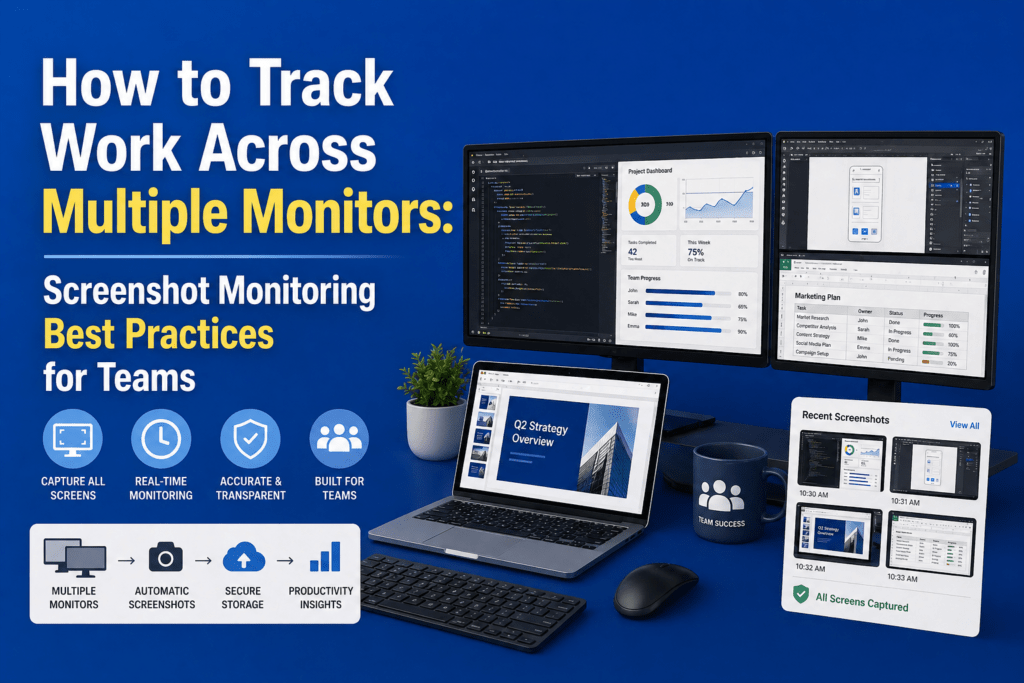
How to Track Work Across Multiple Monitors



Key Takeaways:
- Multi-monitor work creates a visibility gap. When you rely on a single screen, you miss how work actually happens across tools, leading to misinterpretation of productivity.
- Screenshots alone are not enough. You need to combine them with app usage, time tracking, and workflow data to build a complete and fair view of work.
- Capturing everything by default is a mistake. Over-recording creates noise, increases privacy risk, and makes data harder to use effectively.
- The goal is minimum effective visibility. You should capture only what is necessary to understand work, not everything that is technically possible.
- Role-based monitoring is essential. Different roles require different levels of visibility, and your setup should reflect actual workflows.
- Use a selective capture approach. Capture all monitors only when required for compliance or billing; otherwise, limit capture to the active screen.
- In some cases, screenshots are not needed at all. For outcome-driven roles or teams with strong app-level analytics, other data signals can be enough.
- Privacy must be built into the system. Use masking, exclusion zones, role-based access, and retention rules to protect sensitive information.
- Screenshots should support decisions, not drive them. Focus on patterns, context, and outcomes rather than isolated images.
- Monitoring should be used for coaching, not control. The real value lies in improving workflows, identifying bottlenecks, and supporting team performance.
- Avoid common pitfalls. Don’t rely on screenshots without context, apply blanket policies, or treat screenshots as a productivity score.
- Transparency builds trust. When employees understand what is tracked and why, adoption and acceptance improve significantly.
- The best setups balance accountability and trust. When done right, screenshot monitoring becomes a visibility system that supports productivity without feeling intrusive.
Multi-monitor setups are now the norm for remote and hybrid teams. A single screen often misses part of the work context, but capturing every screen by default can erode privacy and create review noise.
The real challenge is not whether to monitor, but how to do it responsibly. Teams need a screenshot approach that gives managers enough visibility to understand work patterns, while still respecting employee privacy, minimizing distractions, and avoiding unnecessary surveillance. That means setting clear rules for when screenshots are taken, what gets captured, who can view them, and how the data is used.
In this guide, we’ll look at how to track work across multiple monitors in a way that supports productivity, fairness, and trust.
Why Multi‑monitor Work Creates A Visibility Gap For Managers
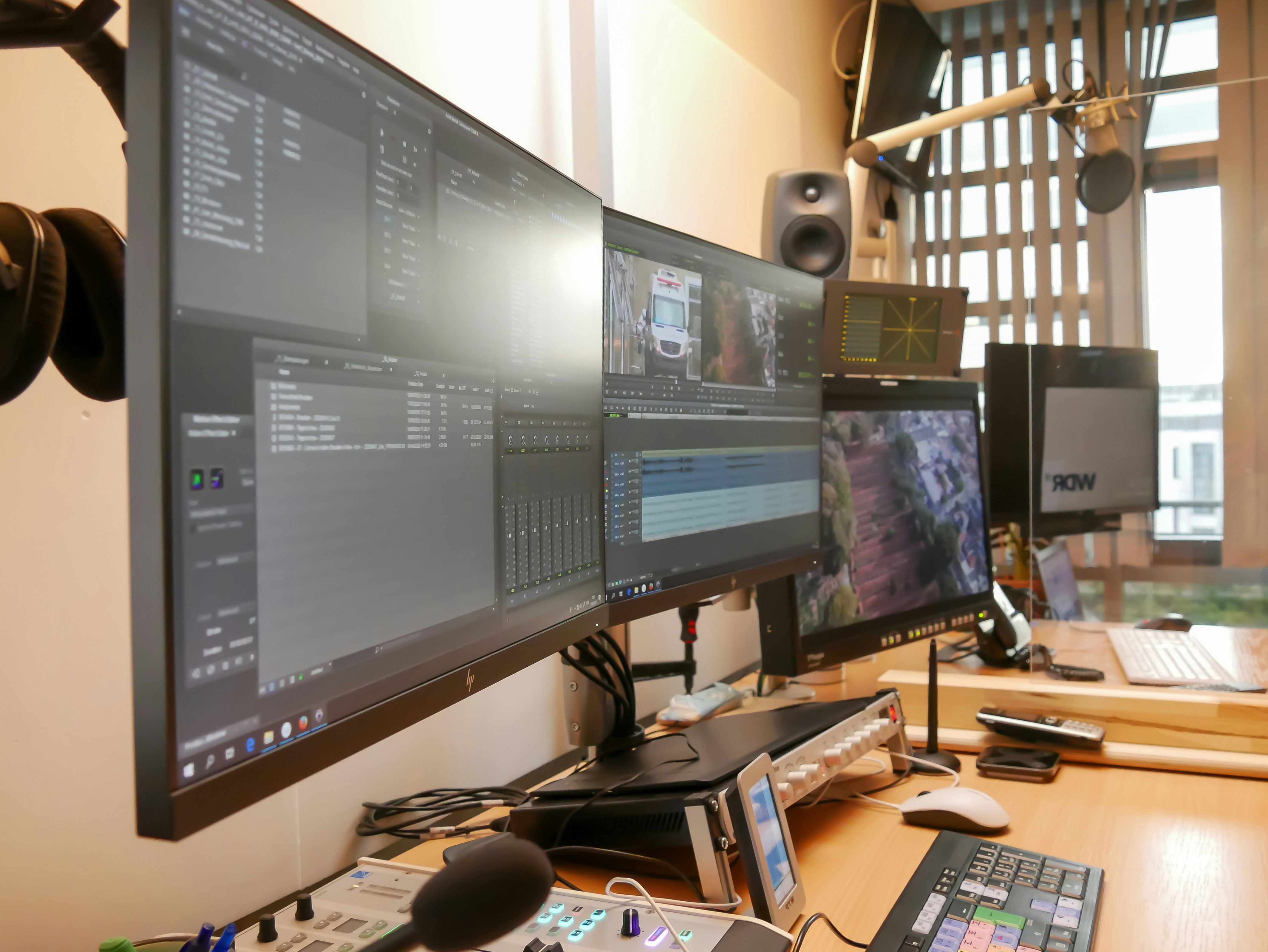
Digital work rarely fits onto one display. Many knowledge workers research on one screen while executing on another, or keep communication tools open on a secondary monitor. Studies show that multi‑monitor setups can boost productivity by 25–30% for multitasking professionals and 42% for complex tasks. These gains come from reduced window‑switching and better workflow organization. However, when managers rely on single‑screen monitoring, they lose this context.
One‑screen visibility misses the real workflow
For example, a developer might write code on one display and consult documentation or communication tools on another. A support agent could have the CRM open on one screen while referencing a knowledge base or ticketing system on a second. Meeting notes and chat applications often reside on a secondary monitor.
Without multi‑monitor visibility, managers see only half the picture and risk misinterpreting idle time as unproductive.
Why it matters for accountability and coaching
Clients often demand proof of work, especially in agency, BPO, and IT services environments. A single screenshot may show the worker on a communication app, but not that they are referencing a client brief or quality guidelines. Multi‑monitor insights provide better context for billing, auditing and coaching decisions. They also reduce false assumptions about employees “slacking off” when their main screen appears inactive.
Second screens are not automatically distractions
Recent productivity research notes that dual monitors help multitaskers stay organized and reduce toggling, while ultra‑wide or triple screens offer diminishing returns. In other words, the extra monitor often carries support context, not wasted time.
Why Screenshot Monitoring Alone Is Not Enough
A screenshot is merely a snapshot—it doesn’t tell the whole story. Ethical employee monitoring means combining multiple data points to build a fair picture of work.
- A screenshot is one piece of evidence. Static snapshots can mislead without context. A screenshot of a messaging app might look unproductive, yet the same moment may include critical reading or referencing on a second screen.
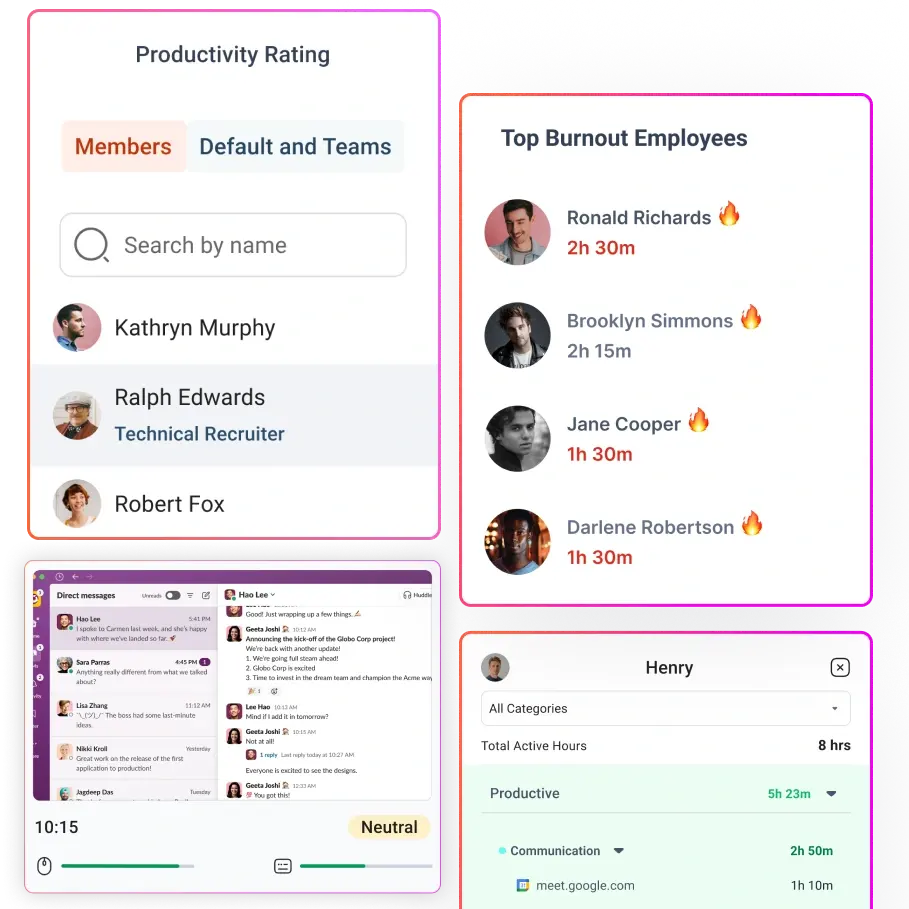
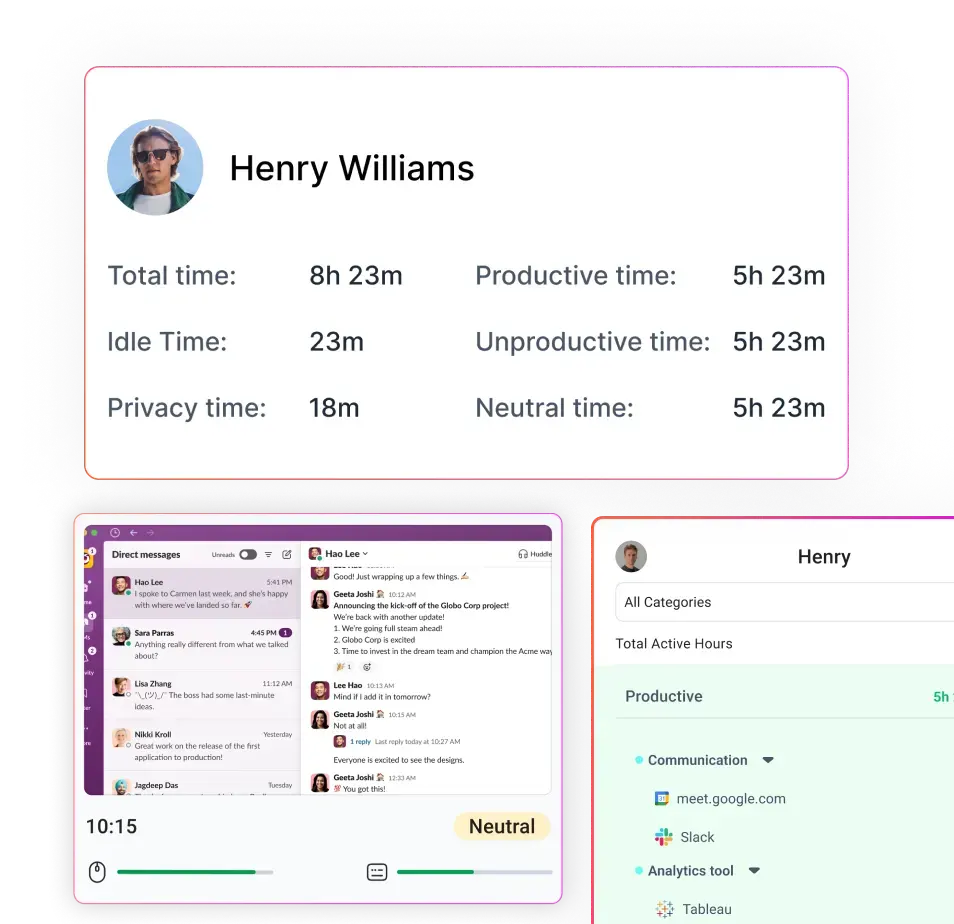
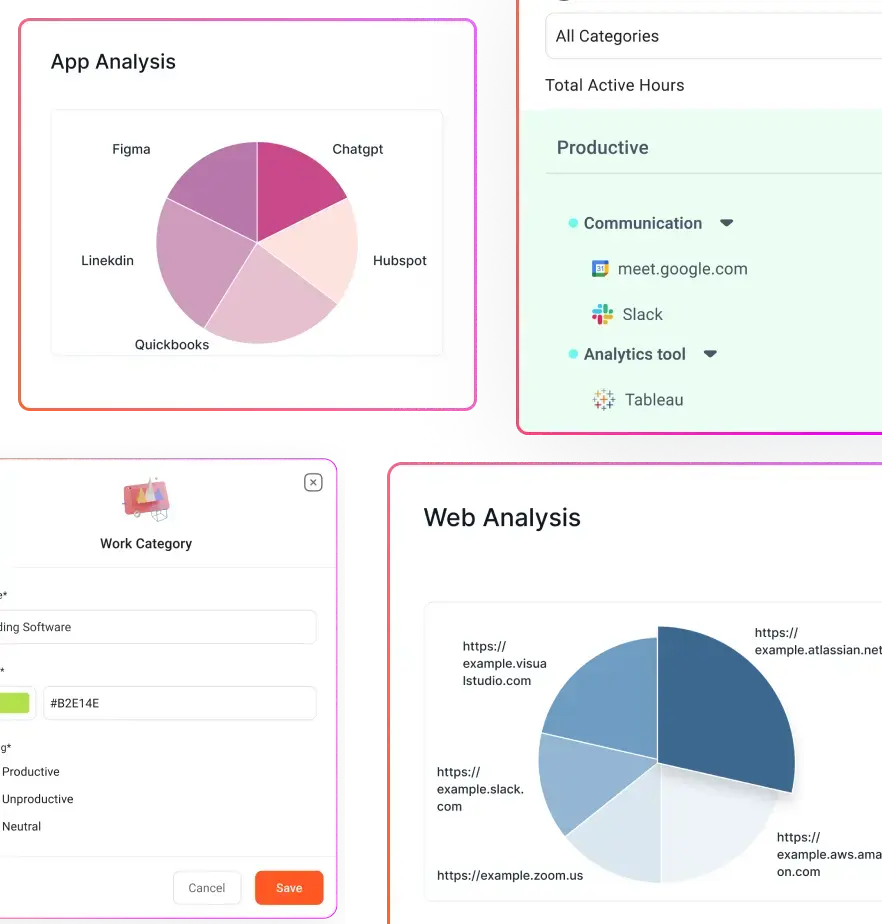
- Pair screenshots with additional signals. The best monitoring setups combine time tracking, app usage, website analytics, idle‑time patterns, project/task context and attendance data.
- Build an evidence stack. Screenshots should support interpretation rather than replace judgment. By aligning screenshots with app and URL data and linking them to specific tasks, managers and clients get a fuller “evidence stack.” This reduces disputes and fosters trust.
When To Capture All Monitors And When Not To?
Knowing when to capture all monitors—and when not to—is where most screenshot monitoring strategies succeed or fail. Capturing every screen by default may seem like the safest option for visibility, but it often creates more noise than insight and can quickly feel intrusive to employees.
On the other hand, capturing too little can leave critical gaps in understanding how work actually gets done across tools and workflows. The goal is to strike a balance:
When capturing every monitor makes sense
- Client-facing agency work: You need clear proof of work when billing by the hour. If your team works across multiple tools simultaneously, capturing all monitors ensures transparency and avoids billing disputes.
- BPO/KPO workflows: You often operate in process-driven environments with strict compliance. Capturing every screen helps you verify that the right tools, data sources, and steps were followed.
- Quality assurance or compliance roles: If you’re responsible for audits or regulated processes, you may need complete workflow visibility. Full-screen capture helps you maintain proper audit trails and resolve disputes confidently.
- Audit-ready proof-of-work environments: When clients or regulators demand detailed evidence, you can justify capturing all monitors to protect against legal or contractual risks.
When capturing the active monitor is enough
- Deep work and research roles: If your work involves focused tasks like writing, coding, or analysis, capturing just the active screen is usually enough. Secondary screens (like reference material) can often be inferred from app usage, so capturing everything adds noise.
- Workflow validation (not compliance): If your goal is to improve productivity rather than enforce strict compliance, you can rely on periodic snapshots of the active screen. This gives you enough context without overwhelming your reports.
- Privacy-sensitive tasks: When you handle confidential data like HR records, personal communication, or sensitive client info, you should limit capture. Use selective screenshots, blurred areas, or exclusions to protect privacy.
Cases where screenshots may be unnecessary
- Outcome-driven roles: If your performance is measured by output (like tickets resolved, code shipped, or designs delivered), you don’t need screenshots. Your results already speak for your work.
- Teams using app and URL analytics: If you already use tools like Flowace that track app usage, time, and productivity patterns, you can often rely on that data instead of screenshots, especially for roles where visibility doesn’t require visual proof.
Screenshot Monitoring Best Practices For Teams Using Multiple Monitors
This section provides a blueprint for ethical, effective multi‑monitor monitoring. Flowace implements many of these controls, but the principles apply regardless of the software you use.
1. Start with a clear purpose
Before you turn on screenshot capture, define why you need it. Are you trying to prove billable work, improve client transparency, coach workflows, meet compliance requirements, or gain operational visibility? If you don’t have a clear goal, you’ll end up collecting data you won’t use and that can quickly erode trust.
2. Apply role-based rules
You shouldn’t monitor every role the same way. Each team works differently, so your rules need to reflect that.
- Define which monitors to capture: You might capture all monitors for BPO agents handling structured workflows, but only the active screen for developers or designers doing deep work.
- Decide when to blur or mask data: If your team handles sensitive information (finance, HR, legal), you should use masking or blur features to protect confidentiality.
- Control who can access screenshots: Not everyone needs full visibility. You should restrict access to managers or stakeholders who actually need it—and anonymize where possible.
3. Capture only during work hours
You should always respect boundaries. Limit screenshot capture to active work sessions or defined work hours. Avoid capturing during breaks or outside scheduled time. This keeps the user activity monitoring focused and prevents unnecessary privacy concerns.
4. Set a sensible screenshot frequency
You need to balance visibility with noise.
- Short intervals (like every 5 minutes) give you detailed visibility but create more data and potential clutter.
- Longer intervals (10–15 minutes) reduce noise and privacy risks but may miss quick context switches.
Choose a frequency based on how critical the work is and how much context you actually need.
5. Protect sensitive content on secondary monitors
Secondary screens often contain the most sensitive information—messages, financial data, or personal tabs. You should take extra care here.
- Use blur or masking features to hide confidential data
- Set exclusion zones to avoid capturing specific parts of the screen
- Be especially cautious with roles handling client or personal information
The goal is simple: give enough visibility to understand work without exposing unnecessary or sensitive details.
6. Use privacy-first controls
You should design your monitoring setup to protect privacy from the start, not as an afterthought.
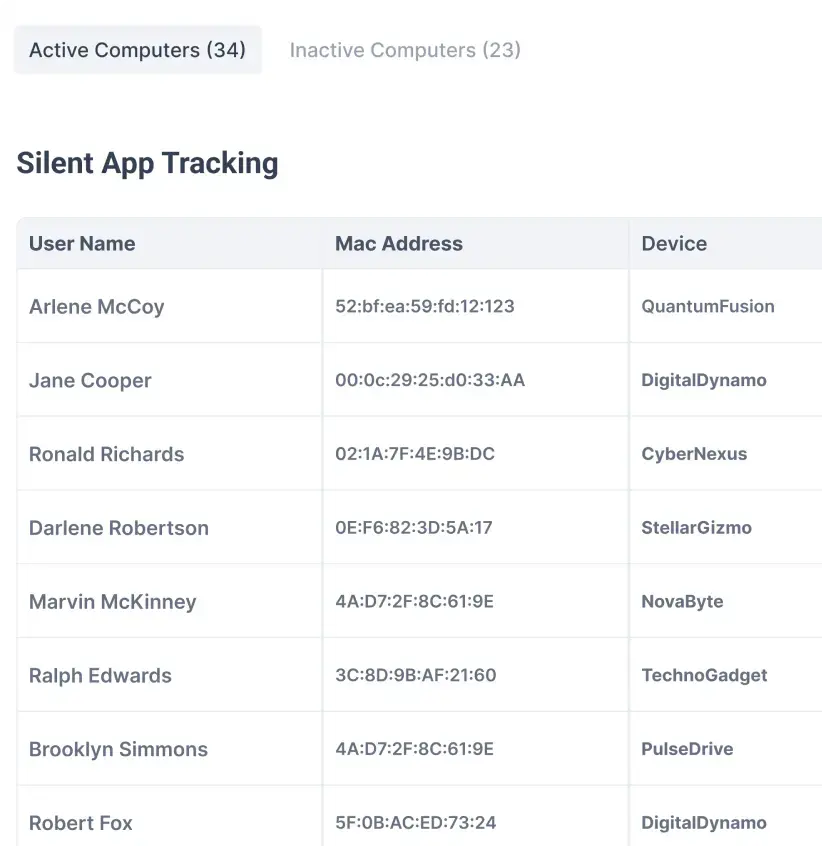
- Be intentional about visibility: You can choose whether to show or hide the tracking indicator. While silent monitoring is possible, you’ll usually get better acceptance when you’re transparent about what’s being tracked and why.
- Secure your data properly: You should store screenshots securely and limit access based on roles. Only the people who need the data to make decisions should be able to view it.
- Set clear retention rules: You don’t need to keep screenshots forever. You should define how long data is stored and automatically delete it once it’s no longer needed.
- Give employees access to their own data: You should let employees see what’s being captured about their work. This builds trust and helps them understand how performance is evaluated.
7. Train managers on interpretation
Screenshots on their own don’t tell the full story. Without context, it’s easy for managers to misinterpret what they’re seeing.
- You should evaluate context, not isolated screenshots
- You should look at patterns over time, not single moments
- You should consider whether someone is researching, waiting, or switching tasks
- You should use screenshots to guide conversations, not make assumptions
8. Use screenshots for coaching, not just enforcement
You shouldn’t treat screenshots as a policing tool. Their real value is in improving how work gets done.
- You can identify bottlenecks in workflows
- You can spot tool-switching inefficiencies
- You can uncover training gaps or process issues
When you use screenshots as part of a feedback loop, you create opportunities to improve productivity instead of just tracking behavior.
Common Mistakes Teams Make When Monitoring Multiple Monitors
Even if your intent is right, you can still get the setup wrong. Watch out for these common pitfalls:
Capturing everything by default
You might think more data gives you more clarity, but it usually does the opposite. When you capture every screen all the time, you create noise, increase review effort, and make employees feel over-monitored. Start with what you actually need, not what you can technically collect.
Relying on screenshots without context
A screenshot is just a moment in time. On its own, it tells you very little. You should always pair screenshots with app usage, URLs, and time data so you can understand what’s actually happening, not just what it looks like.
Applying the same policy to every role
Different roles work differently. If you apply one blanket rule, you will over-monitor some teams and under-monitor others. You should tailor your approach based on how each role actually gets work done.
Ignoring privacy risks on secondary screens
Secondary monitors often contain the most sensitive information like chats, financial data, or personal tabs. If you don’t account for this, you risk exposing data you never intended to capture. You should use blur, masking, or exclusion zones where needed.
Keeping screenshots longer than necessary
Holding on to data just because you can is a mistake. You should define retention periods based on actual business needs and delete screenshots once they no longer serve a clear purpose.
Treating screenshots as a productivity score
You should not judge performance based on isolated images. Screenshots don’t show outcomes, effort quality, or context. Focus on patterns, outputs, and supporting data, and use screenshots as a supporting signal, not a final verdict.
If you avoid these mistakes, your monitoring setup becomes more focused, more useful, and far easier for your team to trust.
How Flowace Helps Teams Monitor Multiple Monitors More Responsibly
If you’re trying to implement screenshot monitoring across multiple monitors without creating noise or overstepping privacy, you need a system that is both flexible and intentional. Here’s how Flowace supports that balance:
You get proof of work with real context
Flowace captures randomized screenshots during active sessions and connects them to time entries, app usage, and URL data. This means you’re not relying on isolated images. You can see what work was done, when it happened, and in what context, without recording everything continuously.
You stay in control with privacy-first settings
You can decide how monitoring works instead of applying a rigid setup. You can set screenshot intervals, blur or mask sensitive information, and choose whether the tracking indicator is visible. Data is encrypted and access is restricted by role, so you control who sees what.
You avoid unnecessary data with built-in retention and transparency
You don’t have to manage data manually. Screenshots are automatically deleted after a defined period, and employees can access their own activity through dashboards. When people understand what is being tracked, they are more likely to trust and accept it.
You see the full picture beyond screenshots
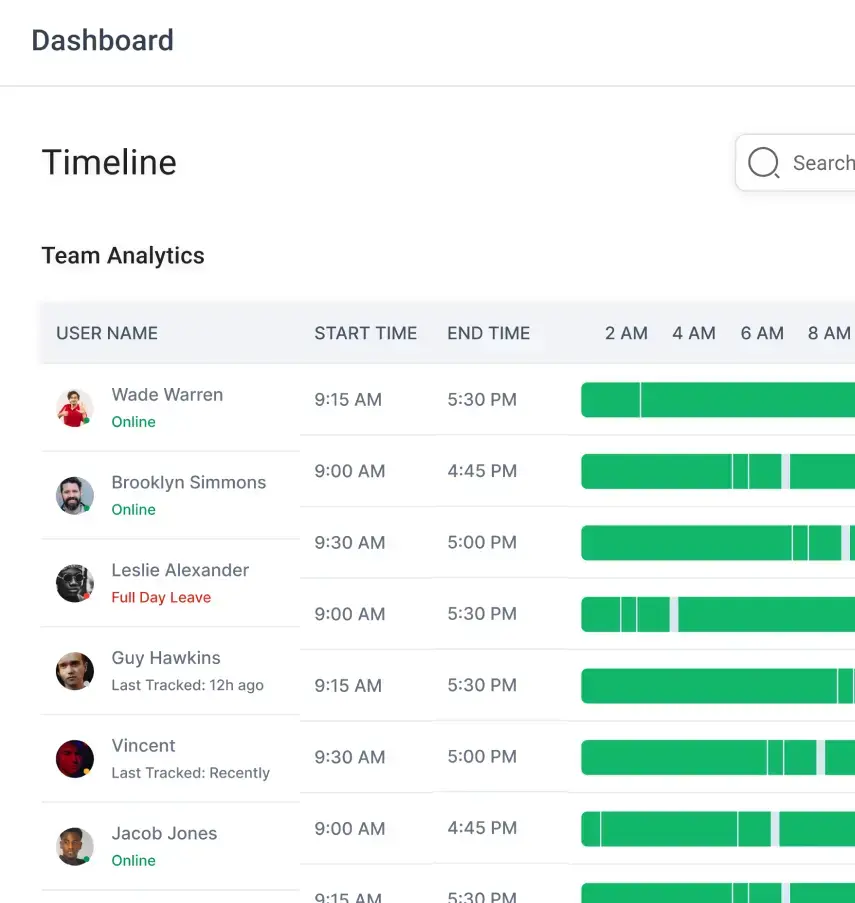
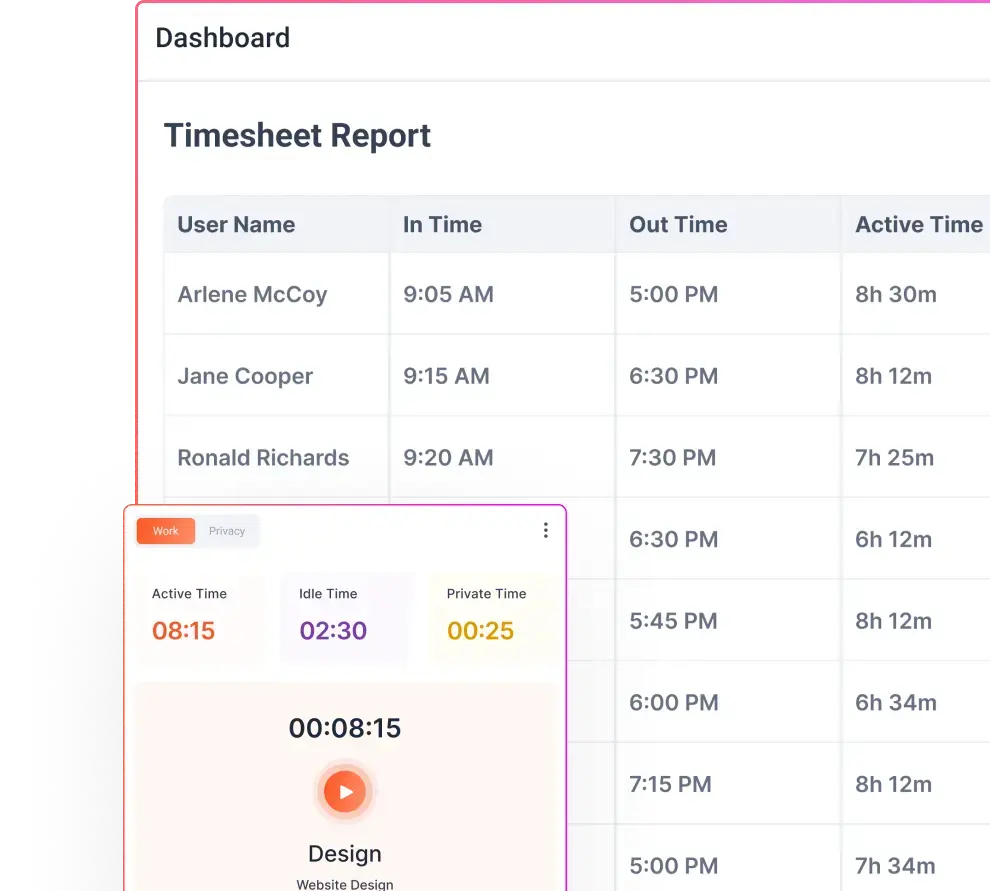
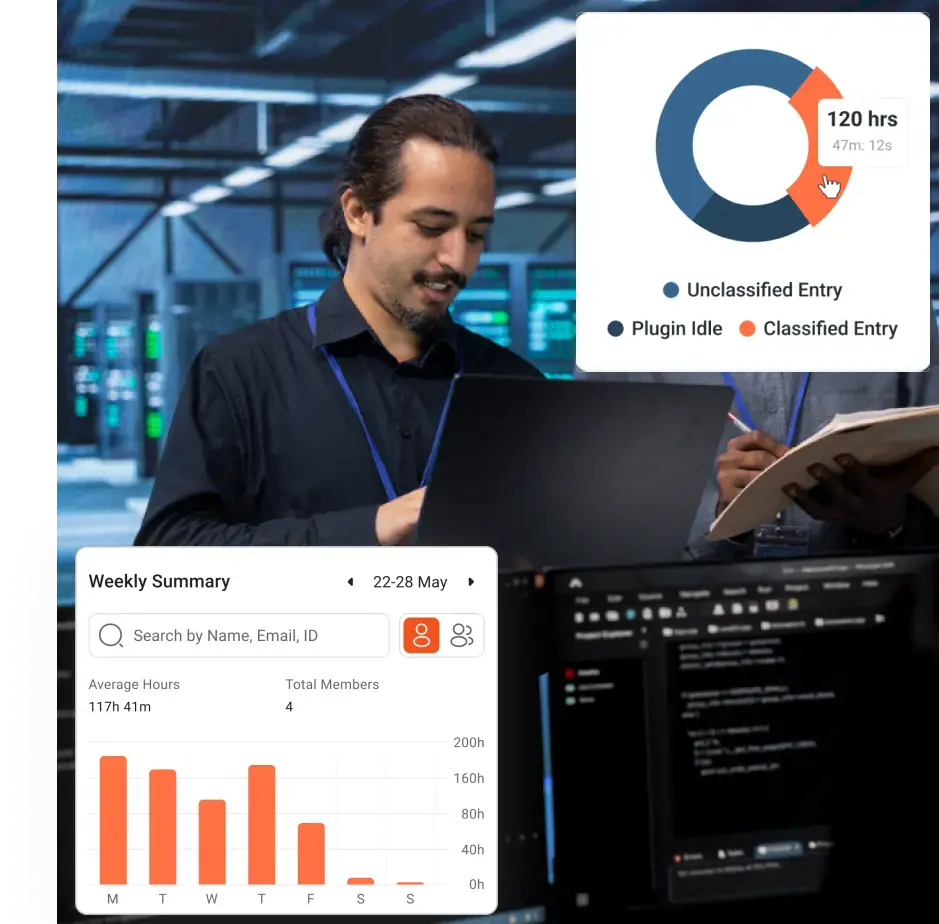
Screenshots alone are not enough. Flowace also tracks app and website usage, active versus idle time, and attendance. This helps you understand patterns, not just moments, so your decisions are based on complete data.
Flowace works well if you’re managing agencies, BPO or KPO teams, support functions, or distributed knowledge workers. You can meet proof-of-work requirements while still keeping your monitoring approach measured and respectful.
Final Takeaway
The best screenshot monitoring setups are designed thoughtfully, not turned on by default. A “capture everything” mindset leads to privacy breaches and review fatigue. Instead, focus on capturing the right level of evidence for the right roles, with the right privacy controls and workflow context.
Ultimately, accountability and trust aren’t opposites; they are two sides of the same coin. Use multi‑monitor screenshot monitoring to empower your team and clients with visibility—not to watch every pixel they click.
If you’re comparing screenshot monitoring tools for remote or hybrid teams, focus on configurability, privacy controls, and workflow context, not just the ability to capture more screens.
Want to see how Flowace handles screenshot-based proof of work with privacy-first controls? Book a demo or start your free trial to see how it fits your team’s monitoring policy.
FAQs:
How do you monitor employees with dual monitors?
Choose a tool that supports multi‑monitor capture with flexible settings. Define which monitors to capture per role, set reasonable screenshot intervals and pair screenshots with app/URL data. Use blurring and exclusion zones to protect confidential information.
Should teams capture all monitors or only the active screen?
Capture all monitors when compliance or client proof demands complete visibility (e.g., BPO or audit roles). For deep‑work or research roles, capturing only the active monitor may suffice. Selective capture based on role is often the best compromise.
Is screenshot monitoring legal for remote employees?
Legality varies by jurisdiction, but most laws permit monitoring when it is transparent, proportionate and tied to a legitimate business interest. Always inform employees about what is captured, why and for how long. Use privacy controls and allow employees to access their own data.
How often should screenshot monitoring tools take screenshots?
There’s no universal rule. Shorter intervals (5 minutes) provide more detailed visibility but create larger data volumes and privacy concerns. Longer intervals (10–15 minutes) reduce intrusiveness. Many teams start with 10‑minute intervals and adjust based on workflow needs.
What privacy controls should screenshot monitoring software include?
Look for tools that offer blurring or masking of sensitive areas, exclusion zones, role‑based access, encrypted storage, and configurable retention periods. Transparency dashboards that let employees see their own data increase trust.
Is screenshot monitoring enough to measure productivity?
No. Screenshots provide context but should be combined with time tracking, app and website usage, idle‑time patterns and output metrics. eMonitor research shows that productivity gains are greater when monitoring is paired with feedback loops and coaching