Exclude Apps & Websites from Idle Detection



Key Takeaways:
- Idle detection measures activity, not engagement. It tracks keyboard and mouse movement, which means listening, reading, thinking, or attending meetings can be wrongly flagged as idle.
- Unconfigured idle tracking distorts performance data. Without context, meetings, research, AI usage, and deep work inflate idle percentages and mislead your workforce analytics.
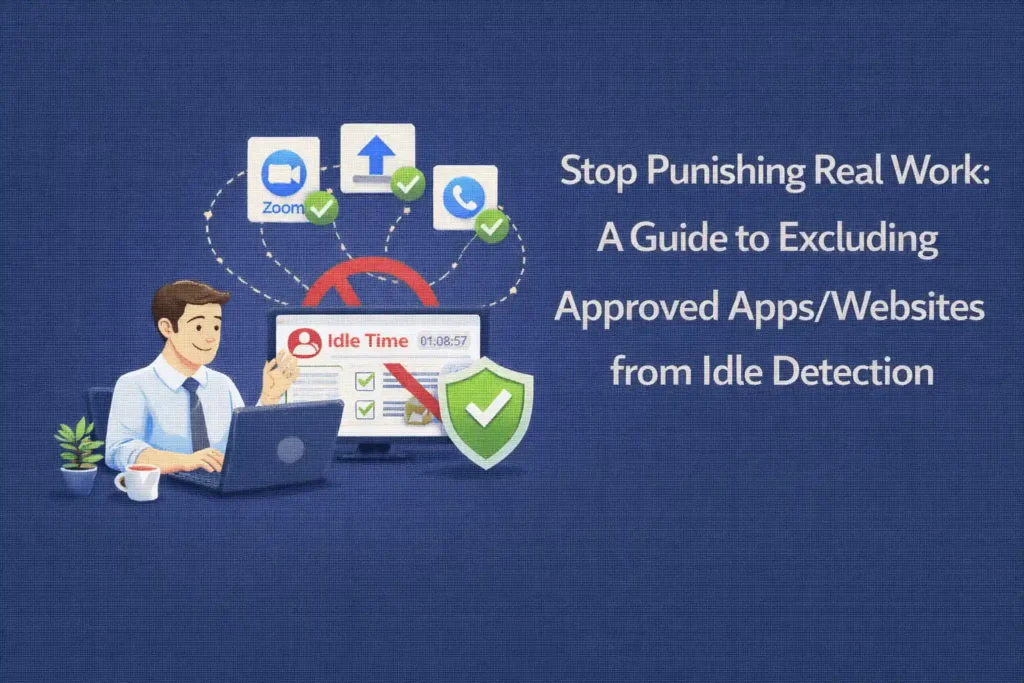
- You must exclude approved apps from idle detection. Meeting platforms like Zoom, Teams, and Google Meet should not be treated as inactive simply because there is no constant input.
- Categorize applications intentionally. Define productive vs unproductive apps at the right level of detail. Configure by company, team, and role so the setup reflects real workflows.
- Adjust idle time tracking settings by role. A five-minute threshold may work for transactional roles. Knowledge workers often need ten to fifteen minutes or more.
- Use pre-idle alerts to reduce false inactivity. A short confirmation window prevents accidental idle logging during calls or deep reading sessions.
- Do not evaluate performance based on idle percentage alone. Review meeting time, manual entries, project context, and attendance patterns together for a complete picture.
- Allow structured manual time entries for offline work. In-person meetings, paper-based reviews, and disconnected work need formal logging to avoid data gaps.
- Poor configuration damages trust. When engaged employees are repeatedly flagged as idle, morale drops, and managers begin optimizing for visible activity instead of outcomes.
- Idle tracking should be one signal, not the decision-maker. The smartest approach layers idle data with app usage, meeting context, role expectations, and output quality.
- Tools like Flowace allow flexible configuration. You can set role-based idle thresholds, exclude specific apps, categorize tools at multiple levels, and combine idle insights with broader utilization reports to avoid punishing real work.
Idle detection measures keyboard and mouse movement. It does not measure engagement. So when someone joins a client call, reviews a long proposal, or works through an AI workflow, the system may mark that time as idle.
But your team’s work may not always be measured by the number of clicks in the keyboard. Your employees may be listening, reading, thinking, planning, analyzing, and collaborating across tools that don’t always generate continuous input signals.
So, if you rely on idle metrics without context, you risk optimizing for busyness instead of outcomes. The smarter approach is to treat idle detection as one signal and layer it with app usage, meeting data, task context, and role-specific expectations.
What Is Idle Detection in Employee Monitoring Software?
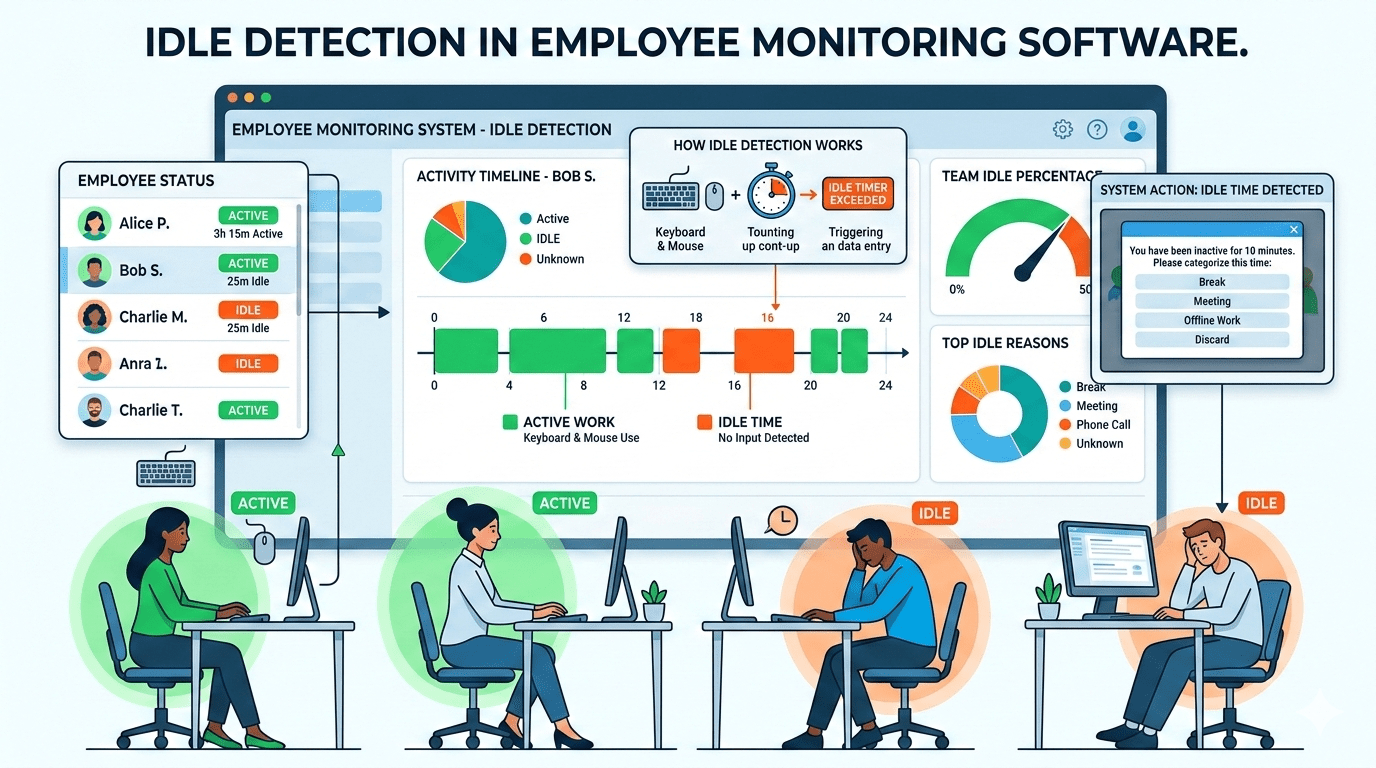
Idle detection flags periods of computer inactivity in employee monitoring software. In other words, idle detection means your computer shows no keyboard or mouse activity for a configured duration. A typical setting is 5–10 minutes. If you stop typing or moving the mouse for that interval, the system marks the entire span as idle. Many trackers check activity minute-by-minute, automatically tagging any full minute without input as inactive.
However, this mechanism can misclassify real work. Many valuable activities don’t involve constant typing or clicking. For instance, joining a Google Meet presentation, listening to a webinar, or reviewing a long report may involve extended periods without input.
Why Are Meetings and Approved Tools Getting Marked as Idle?
When you join a Zoom, Teams, or Google Meet call and spend most of the time listening or presenting, you are not constantly typing or moving your mouse. If your system relies purely on input activity, that entire session can quietly accumulate as idle time.
The same thing happens when you are reading a long contract, reviewing a proposal, writing a detailed report, or researching a complex topic. You might be fully engaged, but if your keyboard and mouse stay still beyond the idle threshold, the system flags you anyway.
Developers debug mentally before touching the code. During those moments, activity drops, but cognitive load is high. Unless your IDE and related tools are explicitly treated as productive, you can end up with large blocks of “idle” attached to some of your most demanding work.
And if you step away from your computer for an in-person meeting or to work through notes on paper, the system has no context unless you manually log that time. From the tracker’s perspective, you are simply not working.
Over time, these misclassifications inflate idle percentages and trigger alerts that do not reflect reality.
If you want reliable insights, you need context layered on top of the activity data. That means excluding specific meeting tools, classifying core work applications correctly, allowing structured manual time entries for offline work, and setting thresholds that reflect how your team actually operates.
How to Exclude Approved Apps & Websites from Idle Detection?
You should map every major application your organization uses into clear categories. CRM systems, email, Slack, Zoom, Teams, Jira, GitHub, and your core AI tools should typically be marked as Productive. Research portals and reference databases can sit in a Neutral category. Social media or non-work platforms should be Unproductive unless they are part of someone’s role.
The key is not just labeling tools, but doing it at the right level of granularity. If your platform allows it, set defaults at the company level and then override them for specific teams or roles. A marketing team might legitimately use social platforms as productive tools. A developer will not. The configuration should reflect actual job reality, not generic assumptions.
Next, configure how idle time interacts with those tools.
If your idle time tracking system supports it, enable the option that ignores idle time within approved apps and websites. This tells the system that even without keyboard or mouse movement, time spent inside specific tools should still count as active work.
This is critical for meeting platforms such as Google Meet, Microsoft Teams, Zoom, Slack huddles, training portals, and web conference tools. Without this setting, long calls or passive engagement sessions will distort your data.
Most systems default to a five to ten-minute threshold. That may be reasonable for data entry or highly transactional roles. But it is often too aggressive for knowledge work.
For example, five minutes may work for intensive operational roles, ten minutes may fit general office work, and fifteen minutes or more may make sense for managers, designers, or coding-heavy roles.
You should also consider enabling pre-idle alerts if your system supports them.
Instead of automatically logging idle time the moment the threshold is crossed, use a brief warning window. A pop-up that appears thirty to sixty seconds before idle is recorded gives the user a chance to confirm they are still working. If they are on a call or reading something deeply, they can respond. If they are genuinely away, the timer proceeds. This small intervention dramatically reduces accidental idle logging.
Finally, resist the temptation to judge performance by idle percentage alone. Look at comprehensive reports that break down the workday into active time, idle time, meeting time, project time, and attendance patterns.
Consider a simple example. In an eight-hour day, someone may log six hours of active work, one hour in meetings, and one true idle hour. If meetings are not excluded from idle logic, your report could show misleading distributions. Proper configuration separates meeting engagement from actual inactivity, giving you a more accurate picture.
What Happens If You Don’t Configure Idle Rules Properly?
If your teams spend a significant portion of their day in meetings, planning sessions, or client calls, they will appear less productive on paper. Sales, BPO, customer support, and remote service teams are especially vulnerable to this distortion. Idle percentages rise, dashboards flash warning signs, and you end up with a narrative of low engagement that simply is not true.
When engaged employees are repeatedly flagged as idle, it affects their morale. Such mislabelling increases disengagement. When people feel micromanaged, they shift toward what some call a presence theater. They focus on being present and looking active rather than doing meaningful work.
Inflated idle reports also lead to poor decisions. If meetings are not excluded, you may end up coaching or reprimanding strong performers who were simply on long client calls. You might see patterns that look like time theft when they are actually normal workflow.
When the idle percentage becomes the dominant metric, leaders fixate on reducing it. Instead of evaluating outcomes, quality, and client impact, attention shifts to policing activity signals. That misalignment pulls focus away from real operational improvements.
How Different Industries Should Configure Idle Exclusions?
Without proper idle exclusions you punish exactly the work you want to encourage. Each sector can tweak their idle settings for its workflow:
IT Services/Development
- Set role-appropriate idle thresholds: For developers, use longer idle timers such as 10 minutes or more. Code compilation, testing, and deep debugging often involve low input but high cognitive effort.
- Mark core development tools as Productive: Classify IDEs, code editors, Git repositories, Jira, and related development platforms as Productive so focused work is reflected accurately.
- Exclude communication tools from idle logic: Ensure tools used for design reviews, sprint discussions, and pair programming sessions count as active time, even if there is minimal keyboard or mouse movement.
BPO/Call Centers
- Integrate telephony or VoIP systems: Sync phone logs with your employee monitoring platform so call duration is automatically captured and attributed correctly.
- Ignore idle during active calls: Treat live call time as productive engagement, even if there is little keyboard or mouse activity.
- Track wrap-up time separately: Measure post-call documentation or after-call work as its own activity segment for clearer reporting.
- Mark CRM and ticketing tools as Productive: Classify CRM systems and support platforms appropriately so customer handling time reflects as active work.
Staffing & HR
- Classify LinkedIn by role: Mark LinkedIn as Productive for recruiting teams, while keeping it Neutral or restricted for non-recruitment roles.
- Mark interview platforms as Productive: Ensure applicant tracking systems and interview tools are categorized correctly so sourcing and screening work is reflected accurately.
- Ignore idle during interviews and screening calls: Treat live interview sessions and candidate calls as active work, even if there is minimal keyboard or mouse activity.
Accounting & Legal
- Classify documentation and reference tools appropriately: Mark legal research platforms, accounting systems, and document management tools as Productive or Neutral based on actual usage patterns.
- Support manual time entries: Allow professionals to log offline research, client meetings, or paper-based work to avoid gaps in reporting.
- Set a balanced idle threshold: Use a mid-range idle timer, such as 10 to 15 minutes, to reflect long document reviews and detailed financial analysis without over-flagging inactivity.
Creative Teams & Design Agencies
- Account for deep focus workflows: Recognize that designers and architects often spend extended periods thinking, sketching, or reviewing between clicks, with minimal keyboard input.
- Classify creative software as Productive: Mark tools such as Photoshop, CAD platforms, and other design applications appropriately, so project work reflects as active time.
- Exclude creative tools from idle logic: Add approved design and planning applications to your idle-exclusion list so focused work is not misclassified as inactivity.
- Adjust settings by role: Configure employee monitoring policy and rules specifically for creative teams, since deep visual or conceptual work naturally generates less device activity.
Where Flowace Fits In
If you are trying to solve idle misclassification without creating a surveillance-heavy culture, this is where Flowace becomes relevant.
You can configure idle intervals anywhere from 1 to 99 minutes and set them by role, not just globally. That means your developers, recruiters, designers, and operations teams do not have to live under the same threshold. You can also exclude idle for specific apps and websites, so approved tools remain active even without constant keyboard or mouse movement.
You are not limited to basic categorization either. You can label applications as Productive, Neutral, or Unproductive at the company, team, or individual level. That flexibility matters when LinkedIn is productive for recruiters but irrelevant for finance, or when certain research tools are critical for legal but neutral elsewhere.
Flowace also gives you visibility beyond a single idle metric. You can track productivity ratings across applications, enable idle alerts inside the interactive app, and review detailed breakdowns of active time, idle time, and manual entries across dashboards and attendance reports. If you exclude Zoom, for example, a full one-hour client call remains active instead of inflating idle percentages.
Reporting is structured for operational clarity. You can see in time, out time, active hours, idle hours, productive time, and overall utilization in one place. At the same time, employees have access to a privacy mode switch so they can pause tracking during breaks. That balance helps you maintain transparency without crossing into excessive monitoring.
If you want to see what properly configured idle tracking looks like in practice, you can start with a 7-day free trial or request a demo tailored to your team’s workflow.
FAQs:
Can meetings be counted as active time even with no keyboard input?
Yes. If you mark meeting platforms (Zoom, Teams, Google Meet) as excluded from idle detection or sync calendar events, those meeting blocks will count as active time despite low input.
What idle time tracking settings should I use for knowledge workers?
Start with a 10–15 minute threshold for designers, developers, and analysts. Test and adjust by role: 5–10 minutes often works for transactional roles, while deep-focus roles need longer windows.
Will excluding apps let employees “cheat” the system?
Not if you combine exclusions with other signals. Use app usage, meeting data, task context, manual entries, and manager approvals to validate time and prevent misuse.
How do I handle in-person meetings and offline work?
Allow structured manual time entries and sync calendar events. That way employees can log offline meetings and disconnected work so their time shows correctly in reports
Should idle percentage be the main productivity metric?
No. Idle is one signal. Layer it with app categorization, meeting time, project output, and utilization reports to make fair, outcome-focused decisions.
What apps should be Productive, Neutral, or Unproductive?
Productive: CRMs, IDEs, Slack, Zoom, Jira, AI tools used for work. Neutral: research portals, documentation hubs. Unproductive: non-role social media unless explicitly part of the job.
How do pre-idle alerts work and why use them?
Pre-idle alerts pop up 30–60 seconds before the system marks time as idle so users can confirm they are still working. They cut down accidental idle logs during calls or long reads.
Does silent employee monitoring affect idle detection behavior?
The detection logic is the same, but silent mode hides alerts and controls. Interactive mode shows pre-idle prompts and privacy toggles, which help reduce false idle records.
How often should I review and update app classifications?
Review quarterly or whenever tools change. Reclassify apps when new workflows or AI tools are adopted so categories stay aligned with actual work.
Is it legal to exclude apps or to monitor employees this way?
Laws vary by region. In most places you should disclose employee monitoring in policy and consent documents. Excluding apps for accuracy is generally more privacy-friendly than blanket surveillance.
How do I fix a culture that distrusts employee monitoring?
Communicate changes, show how exclusions improve fairness, allow privacy mode and manual edits, and share aggregated dashboards. Transparency and employee input rebuild trust.