Idle Time Tracking Rules That Don’t Backfire



Key Takeaways:
- Idle time tracking is not the problem. Poor configuration is: When you disable idle detection or stretch thresholds too far, you create loopholes that distort workforce analytics and weaken accountability.
- Meetings and training sessions are often misclassified by design: Idle tracking only measures keyboard and mouse input. So time spent in Zoom, sales calls, or structured training can look idle even when someone is fully engaged.
- You should never turn off idle detection completely: Removing it opens the door to inflated hours, inaccurate payroll, and unreliable productivity insights. Smart configuration is safer than blanket deactivation.
- Role-based idle thresholds are essential: Different jobs have different input rhythms. A 5-minute trigger might make sense for support teams, while managers or creative roles may need 15 to 20 minutes.
- Use targeted app exclusions, not blanket exceptions: Exclude video conferencing and approved training tools from idle detection. Do not exclude entertainment or personal apps, which should remain visible as unproductive or idle time.
- Enable idle alerts to reduce false positives: Prompting employees before time is marked idle improves accuracy and transparency without sacrificing oversight.
- Classify apps correctly to protect learning time: Tag mandatory training platforms as productive and optional learning as neutral. This ensures development time shows up clearly in reports without being mistaken for downtime.
- Monitor patterns, not just minutes: Review idle percentages, activity logs, and screenshots when needed. Extremely low idle time or unnatural activity patterns may signal misuse of the system.
- Documentation and communication matter: When employees understand how idle tracking works and which tools are excluded, they are less likely to misinterpret reports or attempt to bypass controls.
- The Smart Idle Time Configuration Model works because it is adaptive: Assess real work patterns, configure role-based thresholds, enable alerts, review reports, and refine settings regularly. This approach protects meeting time and training engagement without sacrificing accountability.
The mistake many teams make while using idle detection is that they either turn off idle detection completely or raise the threshold so high that it becomes meaningless. That creates loopholes in the system and distorts your workforce analytics. The goal is not to remove idle tracking. The goal is to configure it intelligently with idle time tracking rules.
You need role-based idle thresholds that reflect how different teams actually work. You need alerts that prompt confirmation instead of silently misclassifying time. And you need clear productivity categories so approved learning platforms are treated differently from entertainment apps.
This guide walks you through exactly how to set idle time tracking rules that do not backfire. You will learn how idle detection works, why meetings get misclassified, and how to exclude Zoom, sales calls, and training tools without losing control.
What Is Idle Time Tracking, and Why Does It Misclassify Meetings?
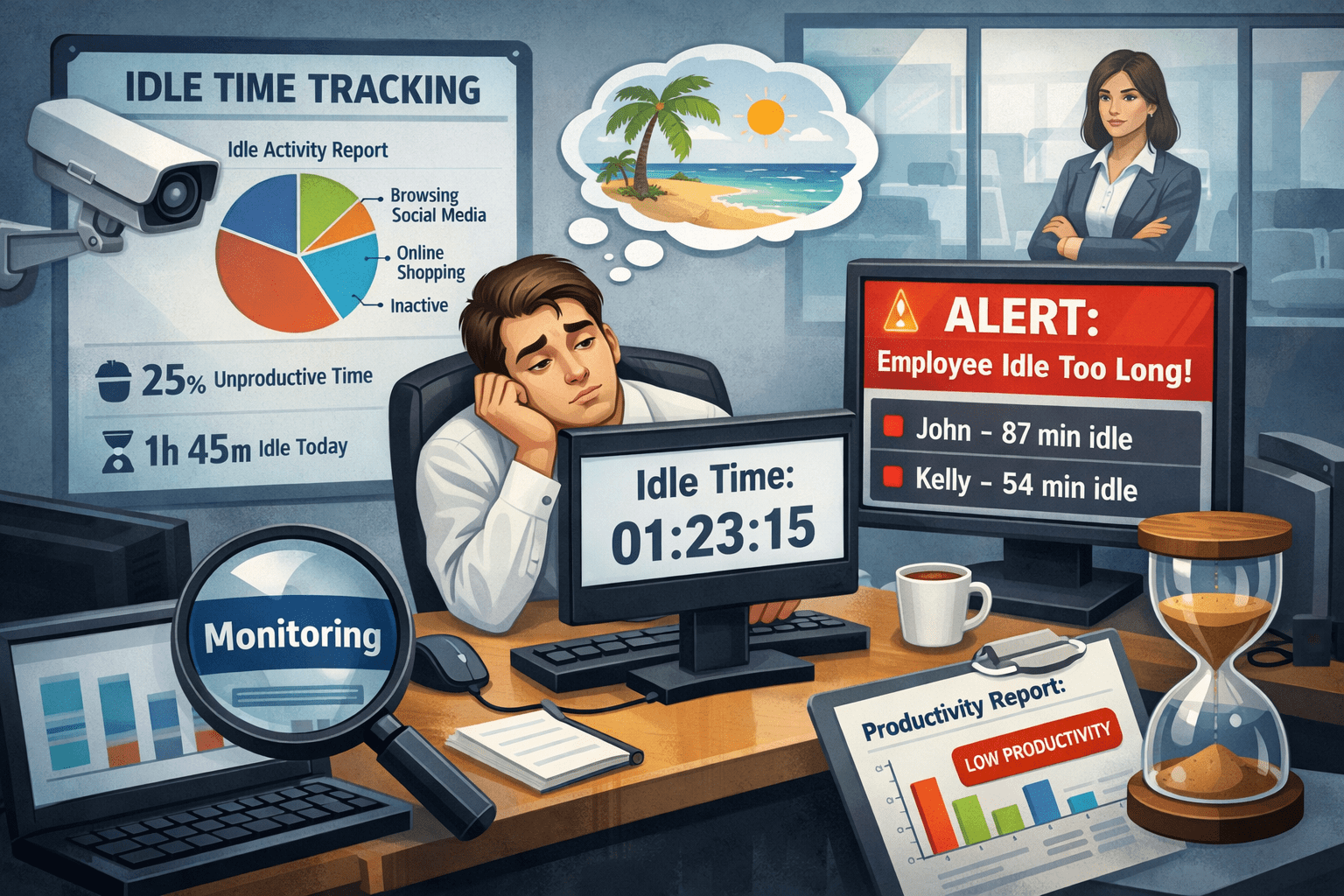
Idle time tracking simply marks any period with no mouse or keyboard activity as “idle,” by design.
For example, if an employee isn’t typing or clicking, the system assumes they’re not actively working.
Our data shows that typical idle-minute percentages vary wildly by role. Client support might see only 10–20% idle time, while sales or management might show 40–70%. High idle isn’t always low productivity – it often includes tasks like phone calls or thinking time.
The problem is that meetings and training often look like idle time. When your team sits in a Zoom, Teams, or Google Meet call, most people listen, take notes, or speak up only occasionally. Which means their keyboard/mouse is mostly idle. By default, these minutes get flagged as idle.
But, if you tell the tracker to ignore Zoom (enable “Exclude Idle” for that app), the same hour stays active. This distinction is important because the average knowledge worker spends about 6 hours per week in meetings. So if we simply treated all meeting minutes as “idle,” we’d misreport huge chunks of genuine work.
Risks of Disabling Idle Detection Completely
You might wonder: “Why not just turn off idle detection and call every minute productive?”
That’s risky. Without any idle time monitoring, employees (even inadvertently) could pad hours or avoid work breaks.
For example, people using hardware or software mouse jigglers can make a computer show continuous activity when it’s really unattended. In fact, industry research finds that inaccurate time tracking costs firms nearly $60,000 per employee per year. Disabling idle detection opens the door to many such errors.
Smart Idle Time Configuration Model
Instead of all-or-nothing, use a Smart Idle Time Configuration approach. This means adapting idle time tracking rules to actual work.
Follow this:
Analyze work patterns:
What do your teams actually do? Salespeople spend time pitching, engineers debugging – these have different input rhythms. We would advise you to “assess your work patterns” first. Check how much idle time roles get now.
Set role-based thresholds:
Choose idle time triggers that fit each role (5, 10, 15+ min). For example, 5 min for data entry/support, 10 for general office, 15–20 for management/creative roles.
Exclude specific apps/websites:
Identify tools where inactivity is normal but productive. These typically include video conferencing (Zoom, Teams, Meet), learning platforms, e-learning tools, documentation/viewing software, etc.
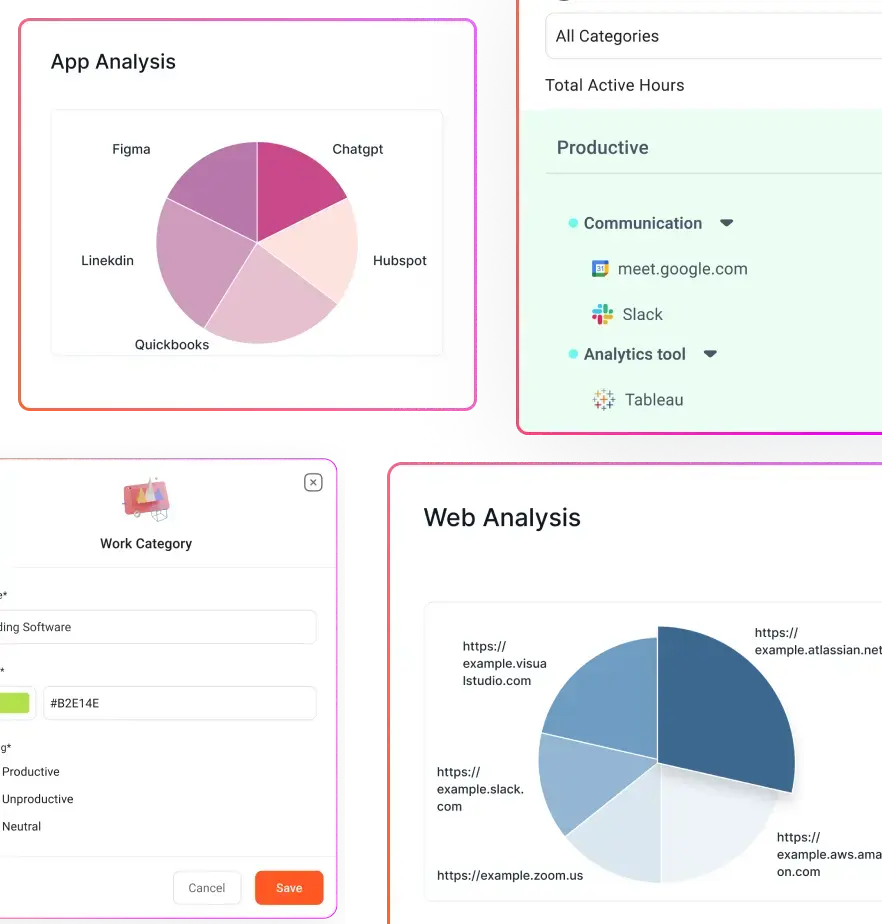
You can do this in Flowace via Productivity Settings → Apps & Websites → Exclude Idle and add these apps. This way, someone watching training or in a meeting with no keystrokes stays marked active. (By contrast, without exclusion, all that time would appear idle.)
Enable idle alerts:
Many desktop trackers can pop up a notification when you’re about to be marked idle. Flowace has an “Idle Alert” feature that warns you seconds before idle time triggers. Using idle alerts lets employees confirm they’re away or extend time if needed. It prevents surprise idle flags while still catching when someone truly steps away.
Tag productivity for each app:
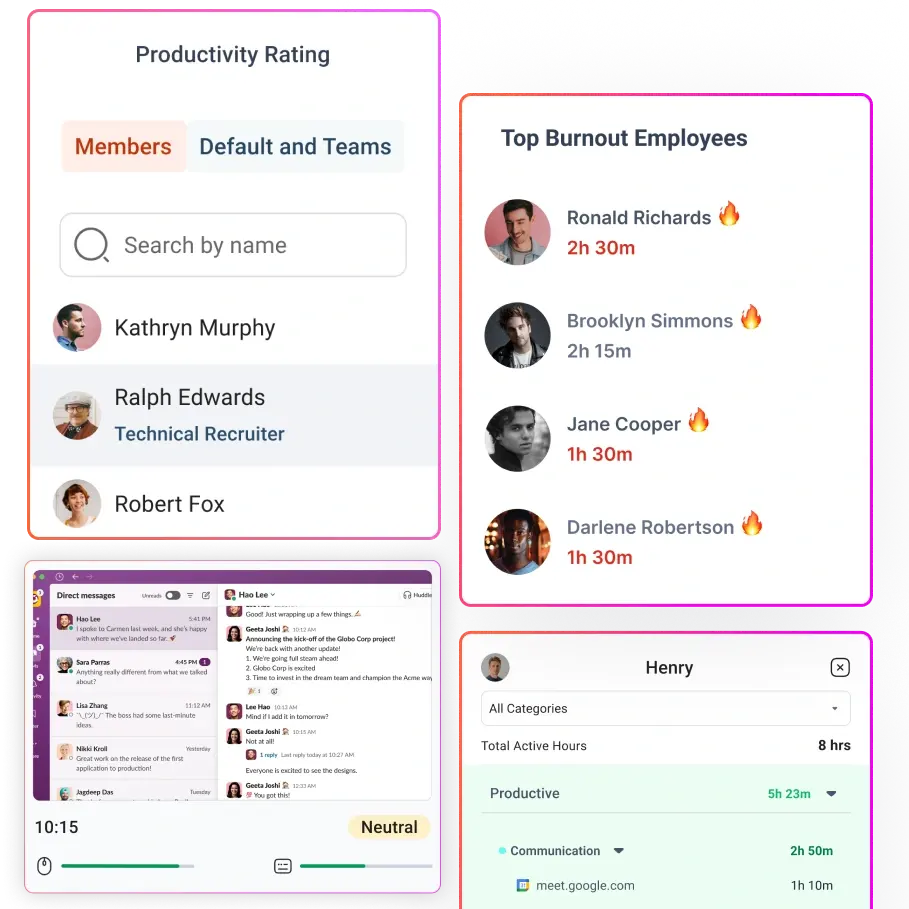
Use your tracking tool’s app-rating feature (often under “Productivity Ratings”) to label each app as productive, neutral, or unproductive. You can mark training sites and meeting tools as productive or neutral in Flowace, depending on your policy.
For instance, a mandatory compliance video could be “productive” (work-related), while casual browsing tools might be “neutral”. This way, time spent on learning is visible in reports but not treated as leisure or idleness.
Document policies and training:
Communicate how idle time works and which tools are excluded. Make sure everyone knows that time in Zoom counts, or that a training session isn’t “wasted”. Regularly review metrics and adjust settings.
For example, compare two employees in similar roles – wildly different idle %s might mean one isn’t using an exclusion or is gaming the system. Keep these settings consistent across similar teams and revisit them as workflows change.
Monitor and refine:
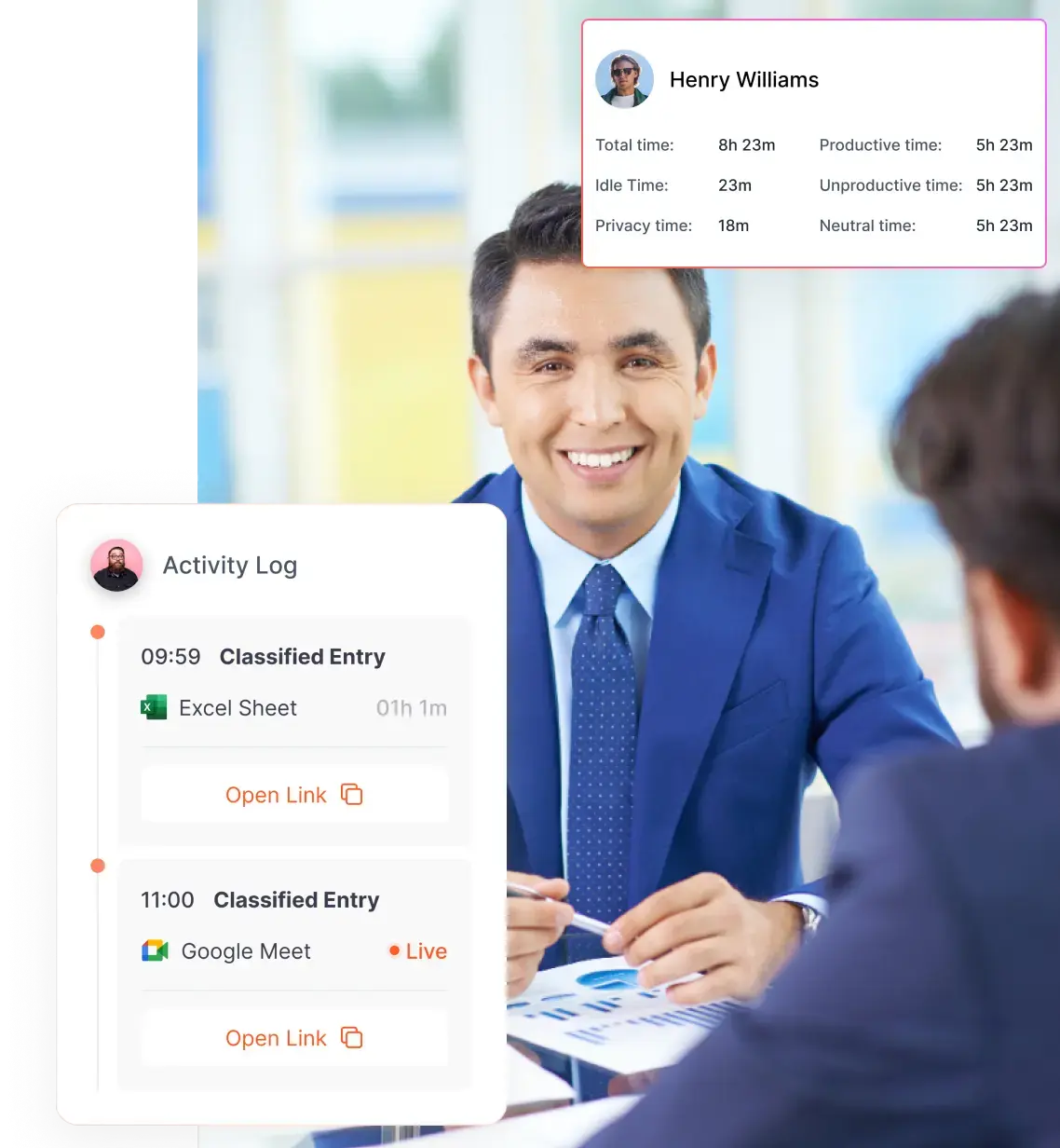
Use activity logs and reports to catch anomalies. If someone’s idle percentage is near zero, it could indicate they’re using a jiggler or script. Similarly, if idle % is sky-high, maybe you forgot to exclude an app. Check time sheets vs. screenshots.
Flowace can enable periodic screenshots to visually confirm what someone was working on. Or, if you prefer a lighter approach, you can rely on detailed raw activity logs that show second-by-second engagement across apps and websites.
This Smart Idle Configuration Model (assess, configure, alert, review) ensures idle tracking is fair. It prevents meeting time from counting as downtime, without opening loopholes for time theft.
Productive vs. Neutral: How to Classify Training Platforms
Training platforms and learning apps complicate time tracking. Is an online course “work” or a break? Most companies solve this by classifying them as productive or neutral. In Flowace, you go to Productivity Ratings → Websites & Apps and set each site’s rating.
Best practice: call mandatory training or skill-development productive (it advances the business), and self-directed or non-work learning neutral.
Either way, these apps shouldn’t count as idle if your team is engaged with them. By tagging learning tools properly, you ensure time spent upskilling shows up in dashboards, so a manager won’t mistake it for an internet distraction.
Over time, this helps you analyze how much time teams invest in training versus project tasks, improving workforce analytics without false idle flags.
How Employees Might Game Idle Detection (and How to Prevent It)
Whenever there’s an idle guardrail, savvy employees will test it. Common workarounds include:
- Mouse jigglers or auto-movers. These devices/apps simulate activity to keep a system “green.”
- Idle-time pad/fake keypress. Some people place a weight on the keyboard or write a small script to trigger a keystroke every few seconds, fooling simple trackers.
- Locking the workstation or fake tasks. If an employee knowingly steps away, they might leave a decoy program running (music or video) to appear busy.
To counter these tricks:
Use random checks
Many tools (including Flowace) can capture periodic screenshots or short screencasts. Reviewing a random idle-period screenshot can reveal whether someone is watching a training video (legit) versus an empty desk (possibly cheating). Even automated snippets (1-3 sec) during flagged idle times help verify activity context.
Correlate with collaboration tools
If an employee stays “active” on paper but repeatedly misses scheduled meetings or Slack messages, something’s off. You can require team check-ins or ping them to respond.
For example, some firms use built-in idle alerts asking “Are you still there?” or tie idle alerts to chat: if someone stays idle for 4 hours but misses two standup calls, review that user.
Analyze usage patterns
Look for unnatural behavior: e.g., constant mouse movement without switching windows or typing for 90+ minutes.
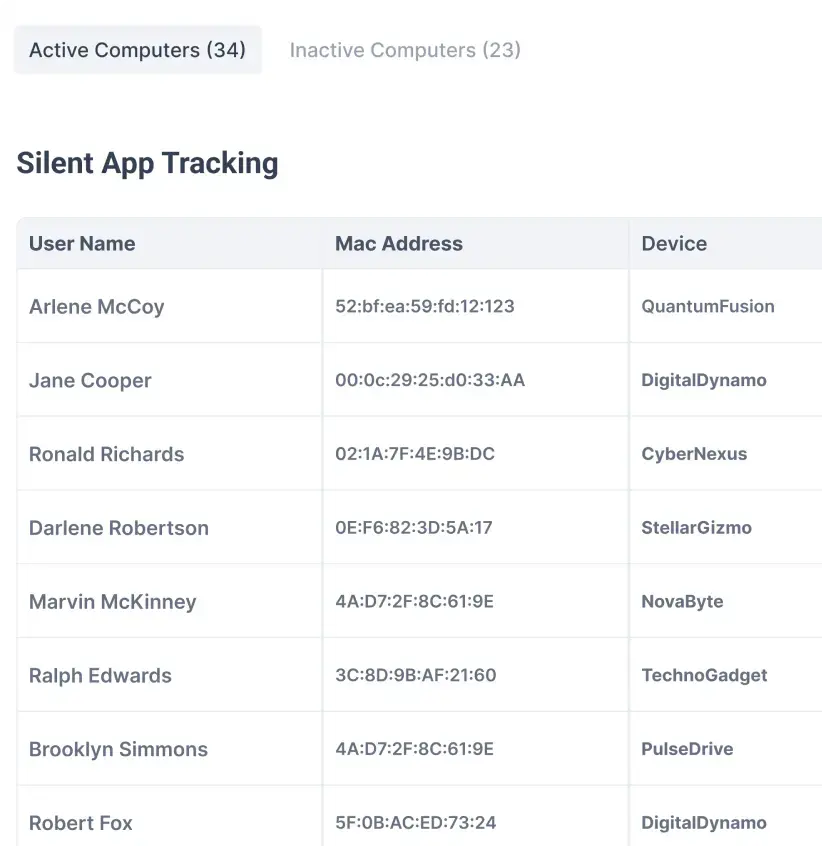
Most real work involves switching between apps, typing, and scrolling. A jiggler often only moves the cursor. Flowace detects this by logging both input and app changes.
Enforce reasonable policies
Make it clear to your team that idle-bypassing gadgets are against policy. Frame employee monitoring as a support tool, with an ethical employee monitoring policy. If trust is high, employees will self-regulate, and weeding out jiggler cheats becomes easier.
Setting the Right Idle Time Thresholds by Team
One size doesn’t fit all. Choose idle-time thresholds based on job function. A good rule of thumb is:
- Data entry / Customer Support / Call Centers: 5 minutes (these roles often have near-constant typing or clicking).
- General Office / Knowledge Work: 10 minutes (typical for most teams).
- Managers / Sales / Creative: 15–20 minutes (these involve thinking, meetings, or research without keyboard).
Adjust as needed – for instance, a dev team doing deep design work might legitimately have longer idle stretches, so bumping their idle timer to 15+ min avoids penalizing creative focus.
Where Flowace Helps
Flowace’s features make implementing these best practices easier. It lets you exclude specific apps (Zoom, Teams, Google Meet, learning platforms, etc.) from idle tracking with a simple toggle – so your team’s meeting time stays marked “active.”
You can also set different idle intervals per role (e.g. 10m for staff, 15m for managers) directly in the admin settings.
Flowace automatically labels apps and websites as productive, neutral or unproductive, so training tools can be classified appropriately. It even supports idle alerts (pop-ups before inactivity) to keep people informed.
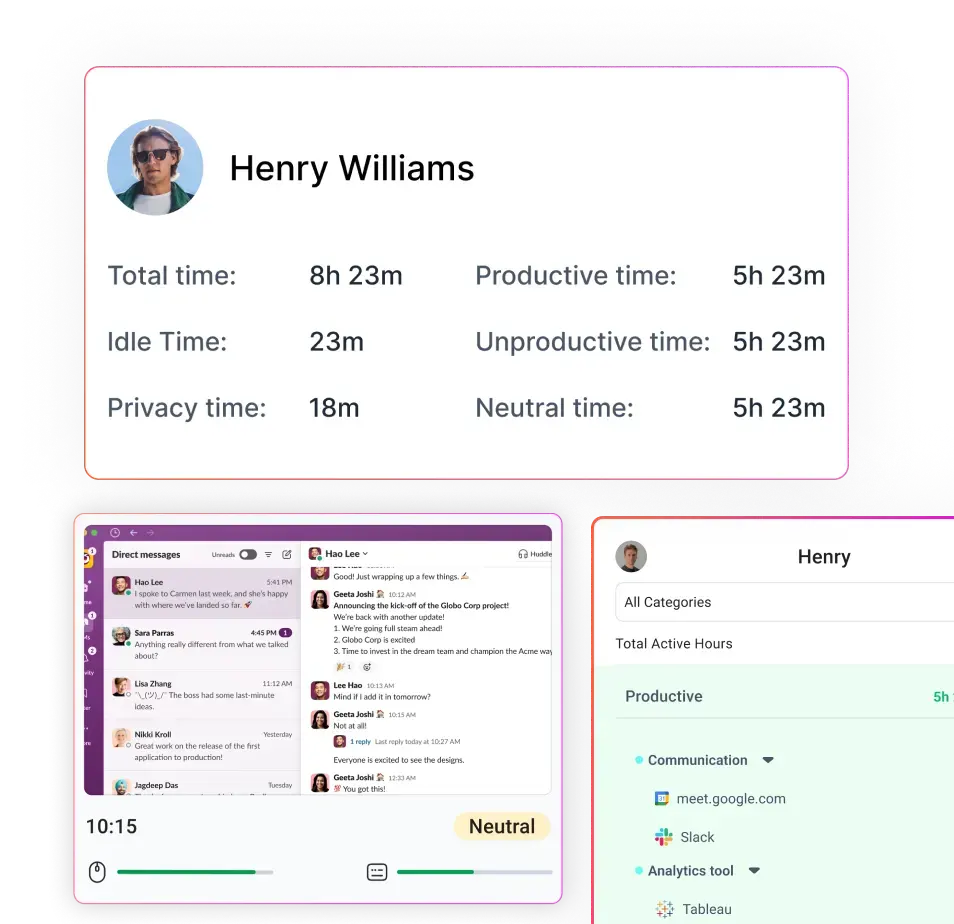
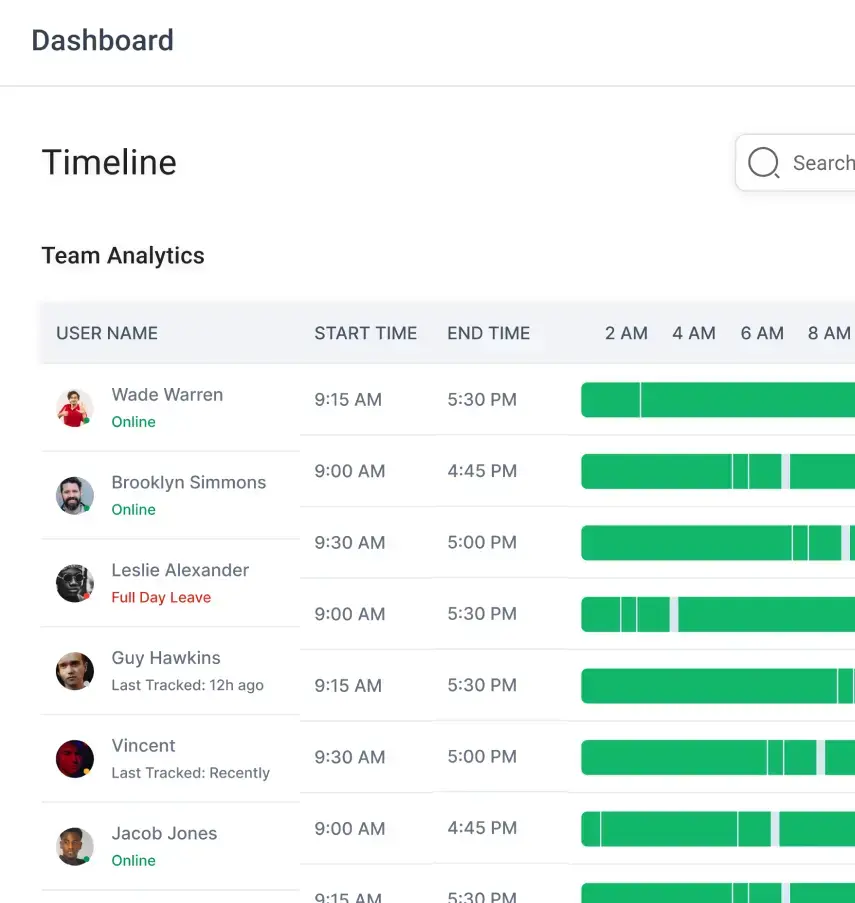
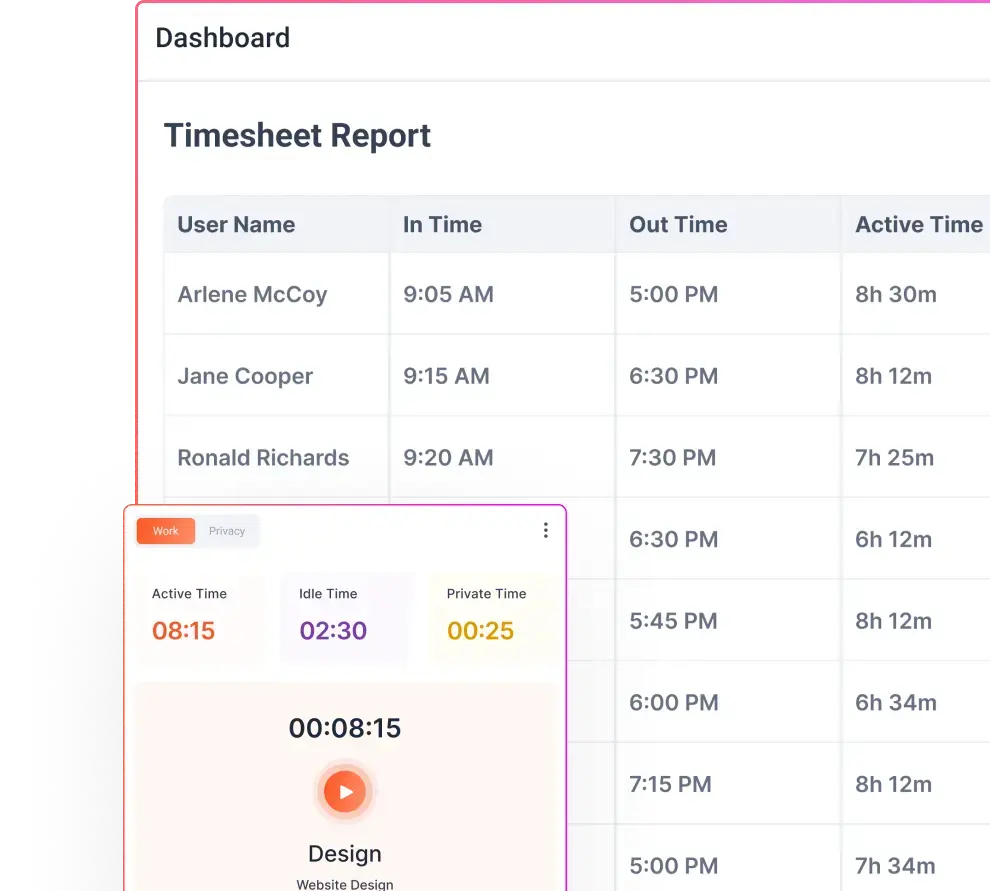
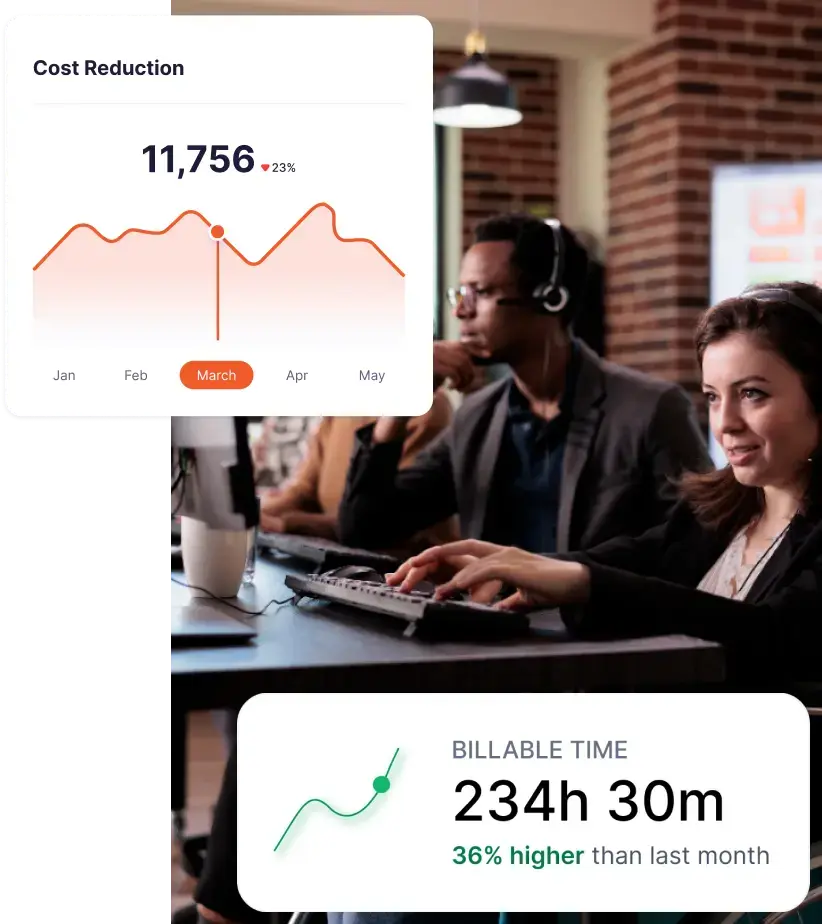
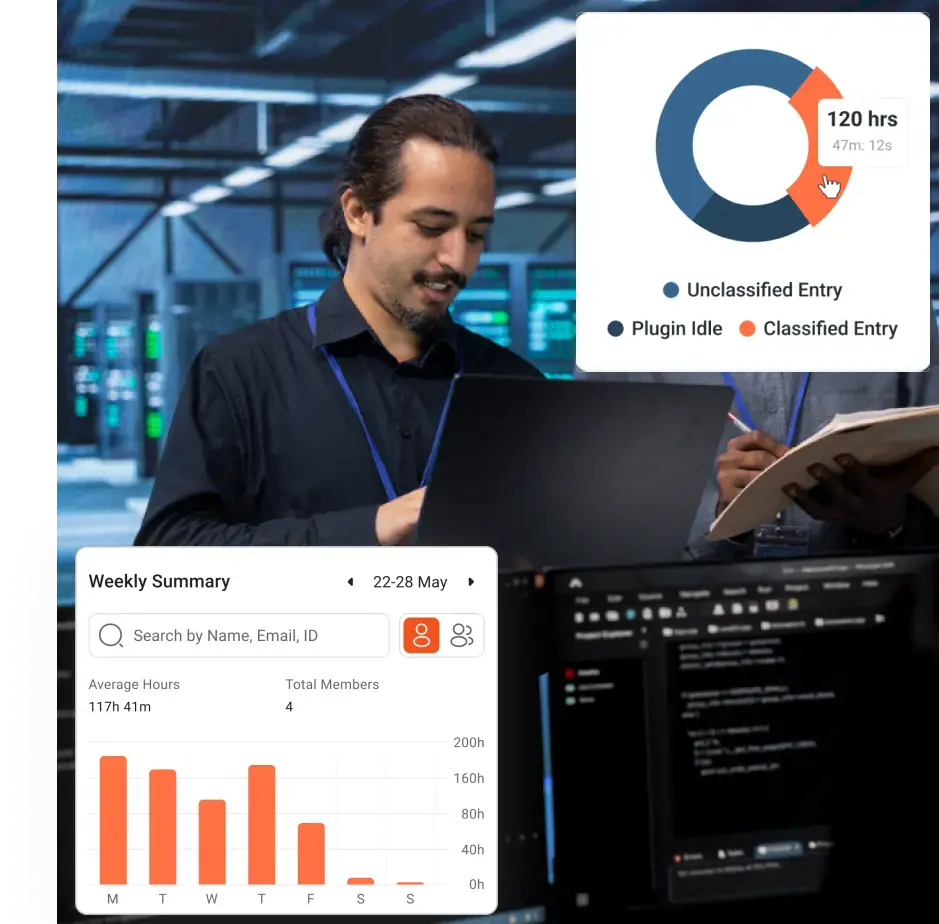
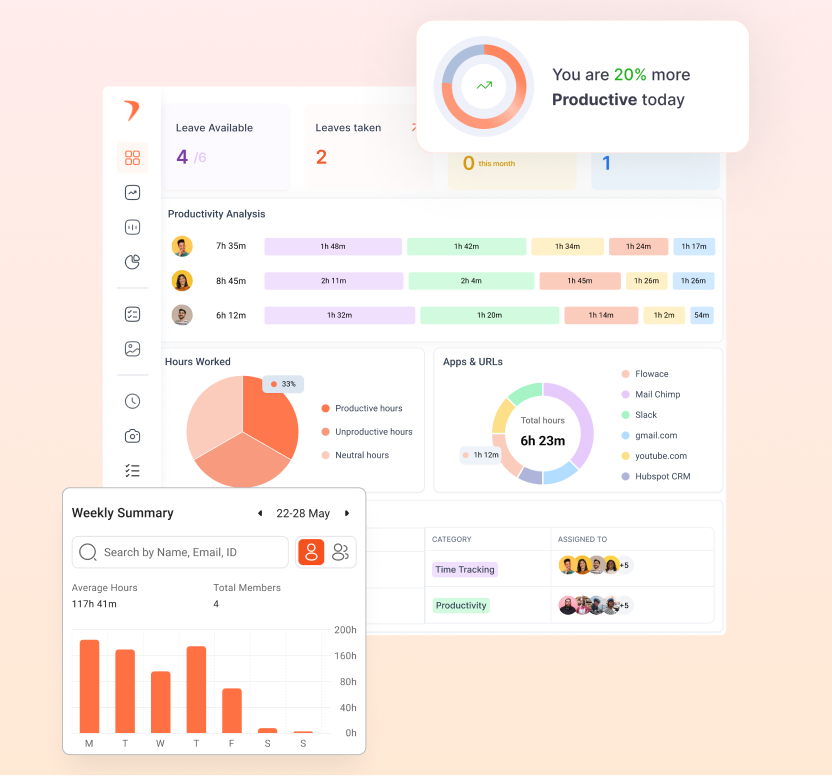
Once configured, Flowace dashboards clearly separate Active Work from Idle time, with detailed breakdowns by project, app usage, and billable versus non-billable hours. Your reports and invoices then reflect actual work and meeting engagement, not just cursor movement.
If you want to see how this works in your own environment, the easiest next step is to experience it live. Book a free demo with Flowace or start your free trial today and configure idle tracking the right way from day one.
FAQs
Why are video meetings often counted as idle in monitoring tools?
Because idle tracking only watches input. If team members just listen or talk without moving mouse/keyboard, the software thinks they’re idle. In reality, they’re working (meeting, brainstorming, etc.). That’s why you need exclusions. Otherwise an hour-long call with no clicks will show up as 60 minutes idle.
What happens if I disable idle detection entirely?
Idle detection exists to catch when someone truly stops working. Turning it off removes that safety check. Employees could pad hours (e.g. with mouse jigglers) and all time would be logged as active. This can lead to massive payroll waste and inaccurate productivity data. Instead of disabling idle, tweak its rules as described above.
How should training platforms be classified in monitoring?
Use your tool’s productivity labels. For instance, Flowace lets you mark apps/websites as Productive, Neutral or Unproductive. You might label mandatory e-learning as Productive (company-sanctioned work) and personal web learning as Neutral. This way, time on trainings won’t be treated as idle or as non-work in reports. The key is consistency: decide how much value your company places on training time.
How can employees game idle detection, and how do I stop it?
Common tricks include mouse-jiggler devices or scripts that fake activity. To prevent this, use additional data signals: enforce check-ins (Slack replies, chat pings), and leverage any random screenshot/screencast features. For example, Flowace and others can capture screenshots during flagged idle times, so you can see if someone was watching a training video or not. Flagging suspicious patterns (like constant mouse movement with no screen changes) also helps. Ultimately, clear policies and periodic audits are your best defense.
What if idle time misclassification messes up billing or payroll?
It can cause big issues. If billable work is marked idle, you lose revenue. If idle is ignored, you overpay. Even small errors compound: studies show inaccurate tracking costs roughly $60K per employee each year. And compliance is at stake – incorrect hours can violate labor laws (e.g. unpaid overtime). That’s why it’s crucial to sort out idle rules, so your timesheets and invoices reflect reality.
Is it better to use automatic time-tracking instead of manual timesheets?
Yes. Manual timesheets only log totals, so they can’t distinguish “productive vs idle” time. Monitoring tools break down each hour by app, project and idle minutes. For example, rather than seeing “8 hours billed,” you’d see “4h on Client A, 2h Slack, 2h idle.” This granularity catches issues (e.g. a 2-hour block of idle might signal help needed) that timesheets miss.
Can Flowace help manage idle time effectively?
Absolutely. Flowace lets you set idle rules and exclusions right in the dashboard. It automates what we described: blocking out Zoom/Meet from idle calculations, setting per-role timeouts, and even alerting users before they go idle. Flowace also provides detailed productivity reports (showing active vs idle time by project/app), so you can ensure accountability without manually policing everything. You can even run a free trial or book a demo to see how these features work in your own workflows.