How to Choose an Employee Productivity App



Published: October 2026 · Last Updated: October 2026 · Last Verified: 22 October 2026
An employee productivity app tracks work time, app and website use, and idle time on work computers. Before choosing one, compare what employees can see, what managers can track, and which devices the app supports.
This article compares what employees and managers can each see in Flowace, whether it runs on your team’s computers, and how to calculate what idle time is actually costing you.
What Employees Can See vs What Managers Can See in Flowace
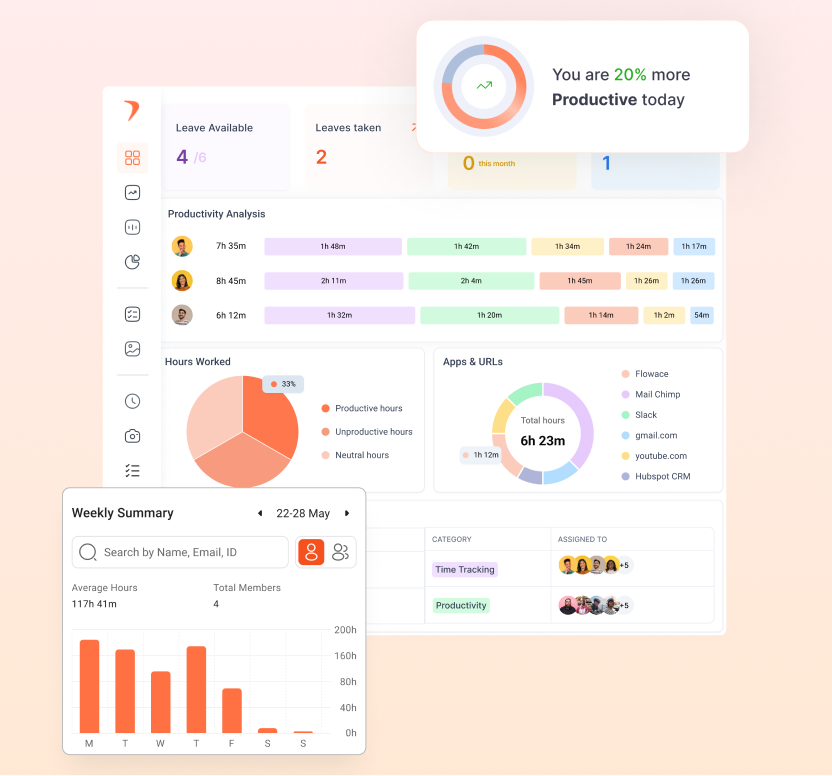
Flowace lets employees view their own productivity data, while managers can use dashboards and reports to review individual and team activity. The exact information available depends on the features enabled and each user’s access permissions
|
What It Shows |
What Employees Can See | What Managers Can See |
| Daily and weekly work activity | Their own active and idle hours for the day and week |
Individual and team activity reports |
|
App and website use |
Their own productivity data, according to their access | App and website usage by employee, team, and date range |
| Productivity ratings and alerts | Their own productivity data. Burnout and low-productivity alerts route to the manager automatically, not to the employee being flagged |
Productivity alerts for patterns such as low productivity and burnout |
|
Team activity status |
Not shown to employees. This view is built for managers | Live status showing who is online, offline, or idle across the team, with data syncing roughly every 5 minutes, plus workforce activity reports |
| Reports and exports | Can view their own tracked data |
Reports can be exported to CSV or Excel, including supported activity breakdowns |
This comparison shows the main difference between employee and manager visibility. The sections below explain how Flowace handles productivity data, alerts, and reports, and which access details teams should confirm before deployment.
What Does an Employee Productivity App Actually Do?

An employee productivity app tracks work activity on a computer and turns it into reports. It can record app and website use, work time, and idle time, helping employees understand their work patterns and managers spot areas for improvement.
How Does Flowace Track Employee Productivity?
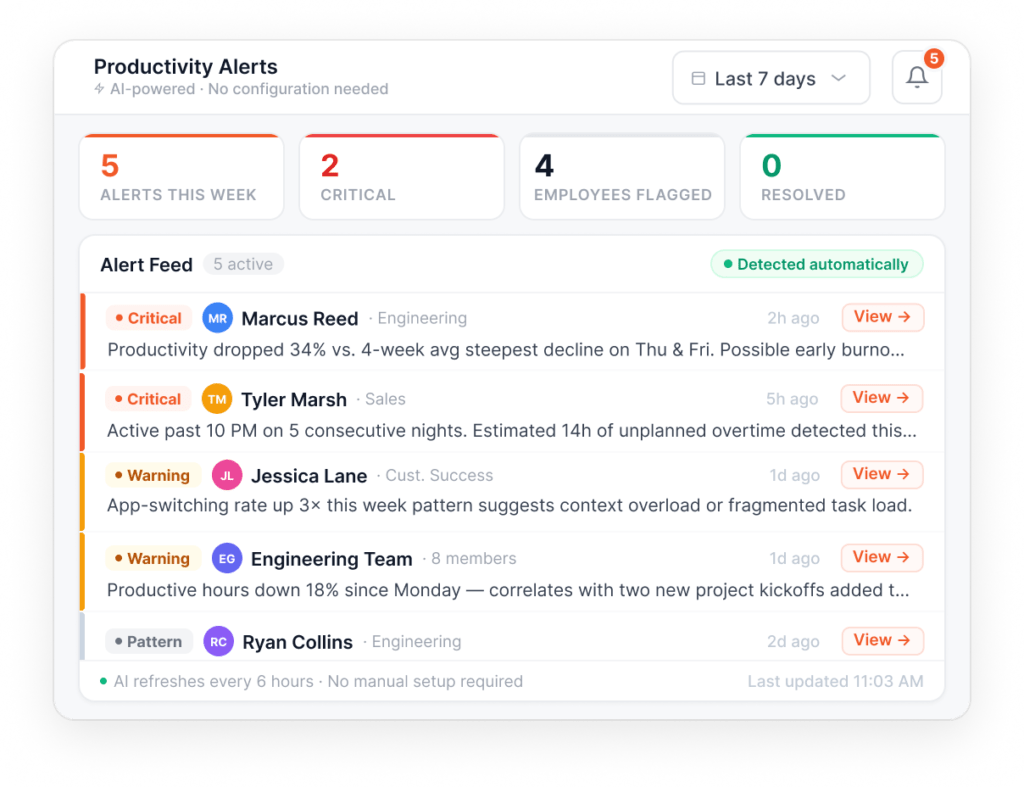
Flowace Productivity Insights follows five steps to capture work activity, sort it, and show useful patterns.
- Capture work activity: Flowace uses a desktop agent to record app and website activity automatically. It also tracks focus and idle time, so employees do not need to enter every activity by hand.
- Categorize apps and websites: Your team decides which apps and websites count as productive, unproductive, or neutral. These ratings can vary by team.
- Classify idle and away time: Flowace separates idle time, away time, and internet disconnections. Teams can set idle time limits and account for approved meeting apps.
- Send productivity alerts: Flowace can flag patterns linked to burnout, low productivity, and missing work hours. These alerts help managers review issues that may need attention.
- Show results in dashboards and reports: Employees and managers can use productivity data to review work patterns. Flowace also supports reports and data exports for further analysis.
Does Flowace Have a Mobile App?
Flowace does not have a mobile app. Its productivity tracking software runs on desktop computers, with support for Windows, macOS, and Linux.
If your team needs to track work activity on phones, check mobile support carefully before choosing a productivity app. If your employees spend most of their workday on computers, desktop tracking may cover more of their daily work.
Why Does Desktop Support Matter When Choosing an Employee Productivity App?
Desktop support matters because the software needs to run on the devices employees use for work. A desktop tracking tool can record activity on supported computers, while a phone-based tool may track a different set of activities.
Before you buy, check the operating systems your team uses, the data the software records, and whether its features match your team’s work habits. If employees work mainly on phones or tablets, confirm that the vendor supports those devices before making a decision.
What Is the Difference Between Flowace Interactive Mode and Silent Tracking?
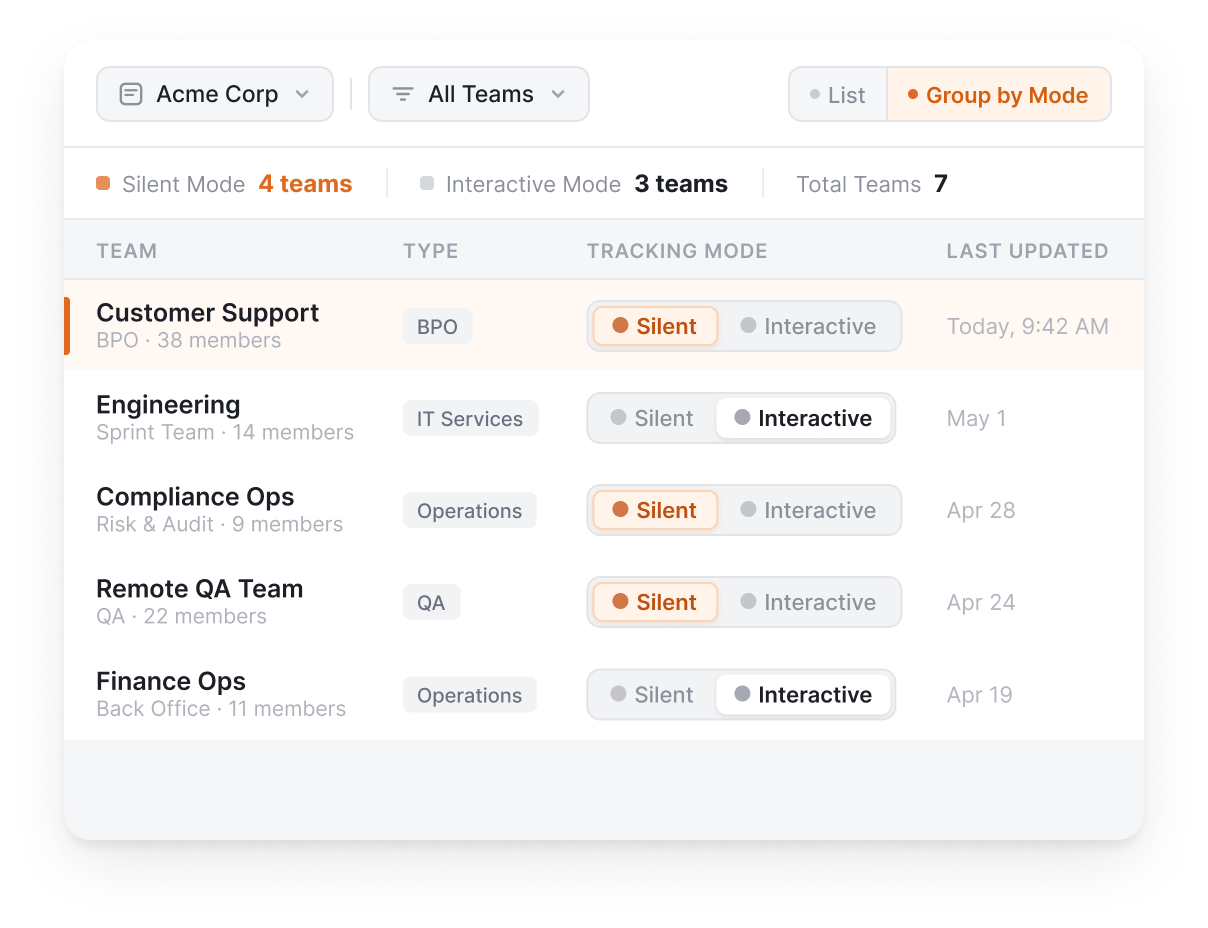
The difference between Flowace Interactive Mode and Silent Tracking is that Silent Tracking runs in the background with no user interface visible to the employee. Interactive mode shows an employee-visible app with a project bubble for tagging time.
Interactive Mode
Interactive Mode provides a visible application that employees can open and use while working. It suits IT services and remote teams that want a visible desktop tool as part of their work routine.
Silent Tracking
Silent Tracking runs in the background without an employee-facing interface. It allows organizations to monitor work activity on supported desktop computers.
- Best suited for: BPOs, shift-based operations, and teams with strict compliance needs.
- Team-level setup: Choose the monitoring mode based on each team’s needs.
- Flexible deployment: Choose Silent Tracking or Interactive Mode for each team and switch modes without reinstalling the software.
- Desktop support: Flowace supports Windows, macOS, and Linux.
Before deployment, explain what the software records, who can access the data, and how the company will use it. Make sure your monitoring policy follows applicable privacy and employment law. See our guide to employee monitoring laws.
How Does Flowace Protect Employee Privacy?
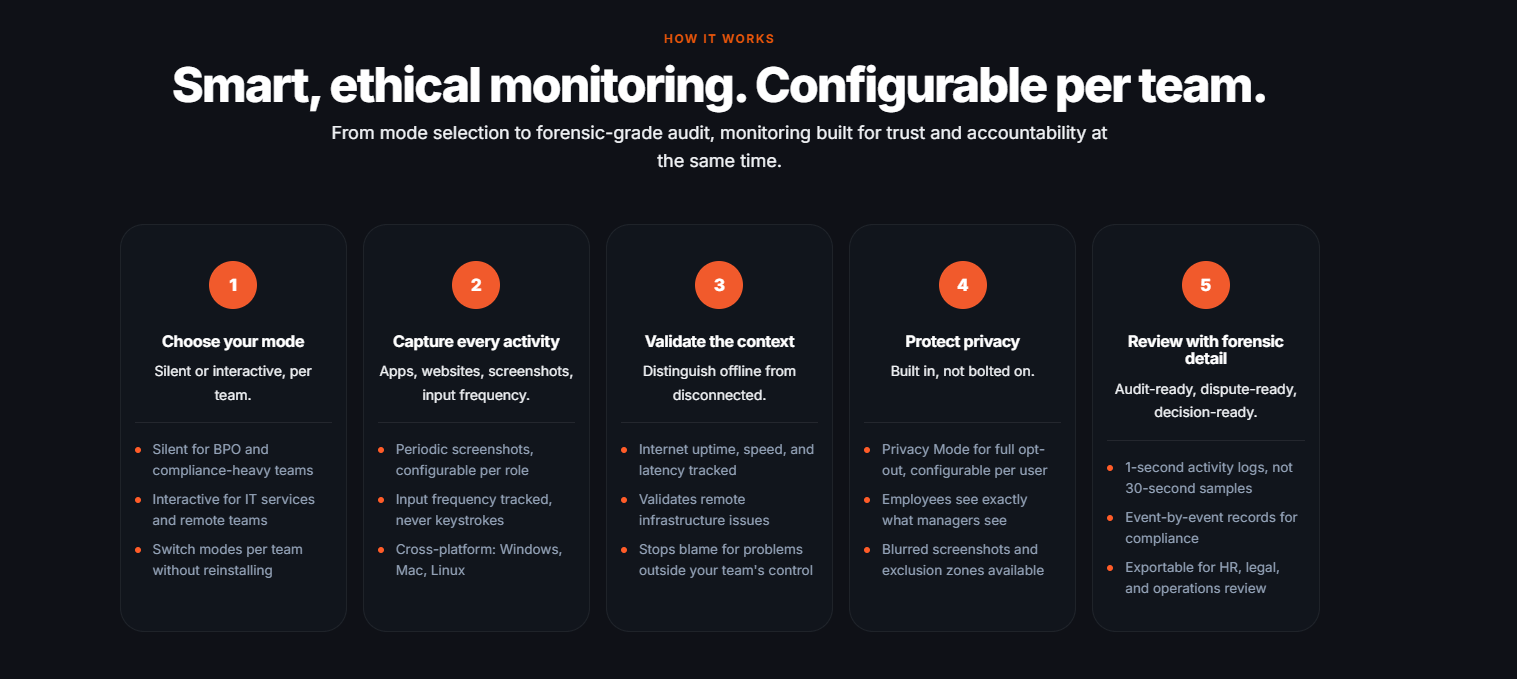
Flowace offers privacy features to help organizations manage employee monitoring and protect sensitive information.
- Privacy Mode: This is a toggle that pauses tracking while it’s on. No data is recorded, stored, or visible to employees or managers while Privacy Mode is active, which supports calling it functionally equivalent to not having the desktop app installed. Admins control whether Privacy Mode is available to a user through per-user permissions, and set the default for new users; where it’s enabled, the employee can turn it on themselves to pause tracking for a break or personal time.
- Employee visibility: Employees can view their own productivity data through their dashboard.
What Can Employees See in Flowace?
Employees can review their own productivity data in Flowace, depending on their access and the features enabled by their company. This can help them understand their work patterns and how they spend time on apps and websites.
The employee view may include:
- Tracked work time: A view of their recorded work activity.
- App and website activity: A breakdown of the apps and websites recorded by the desktop software.
- Productivity data: Information that helps them review their work patterns.
Employees should not be assumed to have access to every report or alert available to managers.
What Can Managers See in the Flowace Dashboard?
Managers can use Flowace dashboards and reports to review productivity data for individual employees and teams. The available information depends on the features enabled and the user’s access permissions.
The manager view can help teams:
- Review individual and team activity: Examine productivity data across employees and teams.
- Identify productivity patterns: Review trends that may need attention.
- Use productivity alerts: Review alerts for patterns such as low productivity or possible burnout, where these features are enabled.
- Export reports: Use supported report exports for further analysis.
This overview focuses on the main differences between employee and manager visibility. For a deeper look at report types, dashboard features, and tracking capabilities, see our employee productivity tracker article.
Turn workforce data into actionable insights that help your team work smarter.
Explore Productivity insightsHow Do You Calculate Employee Idle Time Costs?
You can estimate the labor cost linked to idle time by multiplying total recorded idle hours by the average hourly labor cost. You can use this formula with your own team’s data to estimate the cost over a day, a month, or another reporting period.
What Is the Formula for Employee Idle-Time Cost?
Estimated idle-time cost = Total idle hours × Average hourly labor cost
For a monthly estimate, multiply the average idle hours per employee per day by the number of employees, working days in the month, and average hourly labor cost.
A Worked Example, Using Flowace’s Published Idle-Hour Data
Flowace’s published TRST01 case study reports 1,697 idle hours across 43 users with active tracking data during the first measurement window, from July 13 to August 11, 2026 (a 30-day window).
That works out to about 39 idle hours per tracked user over the window, or roughly 1.8 hours a day across 22 working days. The per-person rate runs against an illustrative, unnamed team so you can see the full calculation end to end.
Step 1: Start with the per-person rate Idle hours
Per person per day (from TRST01’s published ratio): 1.8 hours
Illustrative team size: 30 people
Illustrative hourly labor cost: $27
Step 2: Find the team’s daily idle hours
1.8 hours × 30 people = 54 idle hours per day across the illustrative team
Step 3: Convert to a daily cost
54 hours × $27 = $1,458 in estimated idle cost per day
Step 4: Extend to a working month
$1,458 × 22 working days = $32,076 in estimated idle cost for the month
This figure describes a hypothetical 30-person team. It shows how to apply the formula. Swap in your own headcount and hourly cost to get a number that means something for your team.
What Does This Idle-Time Estimate Include?
The calculation uses recorded idle hours and an hourly labor cost. It does not measure every cause of lost work time, such as long meetings, switching between tasks, or work that the tracking software does not record.
Idle time also does not always mean an employee was wasting time. Employees may be reading, thinking, attending an offline meeting, or doing work away from their computer. Review the tracking settings and work context before drawing conclusions.
To estimate your own team’s idle-time cost, use your measured idle hours and actual average hourly labor cost. For a monthly estimate, use your team’s average daily idle hours, headcount, and working days. Flowace Productivity Insights can help you review recorded activity and idle-time patterns, giving you data to use in your calculation.
What Results Have Real Teams Seen With Flowace?
Flowace has published customer case studies showing how teams use its software to track work time, review productivity, and understand work patterns. Two examples are Leadzen.ai, which improved its reported productivity between 2024 and 2026, and TRST01, which introduced tracking across its remote team with employee privacy controls explained during onboarding.
Leadzen.ai Improved Productivity While Working Shorter Days
Leadzen.ai is a remote-first B2B sales intelligence company with a 20-person team. It switched from Time Doctor to Flowace in 48 hours to get a clearer view of team productivity and idle time.
According to Flowace’s published Leadzen.ai case study, the team reported these changes from 2024 to 2026:
- Productivity: Increased from 76.5% to 86.9%, a gain of 10.4 percentage points.
- Average workday: Fell from 12.73 hours to 9.84 hours.
- Idle time: Dropped from 14.2% to 12.3%.
- Migration time: The move from Time Doctor to Flowace took 48 hours.
Leadzen.ai CEO Karna Raheja explained why the team upgraded its plan:
“We started on the standard plan, but once we saw how much more Flowace could do for us, upgrading to Premium was an easy decision.”
Karna Raheja, CEO, Leadzen.ai
Head of Operations Sapnika Rao also described how the software helped the team track productivity more clearly.
“This has helped us track productivity of the team in a better way. Earlier inconsistencies could not be supported by data, however with Flowace in place, tracking is easy”
Sapnika Rao, Head of Operations, Leadzen.ai
These results show how Leadzen.ai’s reported productivity, average workday, and idle time changed between 2024 and 2026. They do not guarantee the same results for other teams.
TRST01 Onboarded Its Remote Team With Privacy Controls
TRST01 is a climate technology company with a fully remote team. Before adopting Flowace, the company relied on manual tracking to understand how employees spent their work time.
Flowace’s published TRST01 case study describes how the company introduced the software:
- 55 team members: The full team was onboarded in two sessions lasting one hour each, held on consecutive days.
- 43 actively tracked users: This was the number of users with active tracking data during the first measurement period, July 13 to August 11, 2026.
- 8,239 tracked work hours: The software automatically captured these hours during that period.
- Privacy controls: Each employee saw the Privacy Mode and Work Mode toggle during onboarding, with an on-screen reminder when Privacy Mode was enabled.
TRST01’s HR, Monali Das, described the onboarding experience as
“The onboarding felt smooth from the very first call. And once we got into AI time tracking, that is the one that really stood out for us.”
Monali Das, HR, TRST01
The case study also reports 1,697 idle hours becoming visible for the first time, a separate measure from the hours above.
What Can You Learn From These Two Flowace Case Studies?
Leadzen.ai and TRST01 illustrate two different reasons a team might adopt employee productivity software. Leadzen.ai used Flowace to review productivity trends over several years, while TRST01 used it to gain visibility into work activity across a remote team.
Their experiences can help you decide what to look for when comparing employee productivity apps:
- For productivity reporting: Check whether the software shows changes in productivity and idle time over time.
- For remote teams: Look for automatic tracking and reports that help managers understand work patterns.
- For employee privacy: Check what employees can see, how privacy controls work, and how monitoring is explained during onboarding.
Both offer useful examples of reported customer results, but they are not an industry-wide average or a promise of future performance.
Do Employees Know When Flowace Is Tracking Their Work?
Yes, employees can see the Flowace app in Interactive Mode. With Silent Tracking, the software runs in the background without an employee-facing interface. Flowace offers both modes, and companies can choose the mode for each team.
Can Employees Pause Tracking?
Yes, Privacy Mode lets employees pause tracking when this feature is available and enabled for their account.
Flowace recommends telling employees that monitoring is in place, including when Silent Tracking is used. Before rollout, explain what the software tracks, who can access the data, and how employees can review their own information.
Why Should Companies Explain Employee Monitoring?
Clear communication helps employees understand how monitoring works and what their company expects. Before installing Flowace, document the monitoring policy, explain which mode each team will use, and tell employees how to raise questions about their data.
How Do You Choose the Right Employee Productivity App?
Choose the right employee productivity app before comparing prices, check what each employee productivity app tracks, what employees and managers can see, and which devices it supports. Use this checklist to compare tools and decide which one fits your team.
What Should You Check Before Buying Employee Productivity Software?
- Check desktop and mobile support: Confirm which operating systems the software supports and what each version can do. Flowace runs on Windows, macOS, and Linux. Flowace does not have a mobile app, so teams that need a dedicated mobile app should consider this before buying.
- Check what employees can see: Look for a way for employees to review their own tracked time and productivity data. Confirm which reports they can access and whether their access differs from their manager’s.
- Check how productivity alerts work: Find out whether the software can flag issues such as missing work hours or low productivity automatically. Ask which alerts are available, who receives them, and whether you can adjust the settings.
- Check report and export options: Make sure you can review data for individual employees and teams and export reports for further analysis. Flowace’s reporting tools include app and website activity reports, exportable as CSV or Excel.
- Calculate the cost of recorded idle time: Use your team’s measured idle hours and average hourly labor cost to estimate the cost linked to idle time. Compare this figure with the software price, but remember that recorded idle time does not automatically mean lost output or recoverable savings.
- Check security and compliance claims: Ask vendors which certifications they hold, which standards their systems follow, and what evidence they can provide. Flowace’s current public claims include GDPR, ISO 27001, SOC 2 Type 2, and HIPAA-aligned practices.
These checks help you compare employee productivity apps based on your team’s needs, reporting requirements, device support, and budget. Test the software with a small group before rolling it out across the company.
Turn work activity into clear productivity insights with Flowace.
Start A 7-Day Free TrialFrequently Asked Questions About Employee Productivity App
1. Is there a free employee productivity app?
Yes. Some employee productivity apps offer free plans with limited features. Others offer a free trial of their paid features. Flowace offers a 7-day free trial.
2. Do employee productivity apps work for remote and hybrid teams?
Yes. Desktop productivity apps can track work activity on supported computers, whether employees work from home or in an office. Before choosing a tool, check its operating system support, tracking settings, and reporting features.
3. Does Flowace have a mobile app?
No. Flowace does not have a mobile app. Its productivity tracking software runs on supported desktop computers, including Windows, macOS, and Linux. If your team needs tracking on Android or iOS, check mobile support before choosing a tool.
4. Which employee productivity apps track app and website usage automatically?
Some employee productivity apps automatically record app and website activity on supported computers. Many also let teams classify apps and websites as productive, unproductive, or neutral. Check what each tool records, how the categories work, and whether employees can review their own data. Flowace specifically records app and website use automatically on Windows, macOS, and Linux, and teams rate each one as productive, unproductive, or neutral.
5. Can employees see their own productivity reports?
Some employee productivity apps let employees review their own tracked time and productivity data. Access varies by product and company settings. Before buying, confirm which reports employees can see and whether they can review or correct their recorded activity. In Flowace, employees see the same productivity dashboard their manager sees about them, covering their own tracked time, app and website activity, and productivity data.
6. How can managers track productivity without constantly checking dashboards?
Look for automatic reports, configurable alerts, and clear team-level summaries. These features can help managers spot changes in work patterns without checking every employee’s activity throughout the day. Flowace’s AI alert builder flags patterns such as low productive hours, missing hours, high away time, late starts, and burnout automatically, and routes them through the team’s reporting hierarchy, so managers do not have to check a dashboard to catch them.
7. What should you compare before choosing an employee productivity app?
Before choosing an employee productivity app, compare desktop and mobile support, employee data access, manager reports, idle-time tracking, privacy controls, security documentation, and pricing. A free trial can help you test these features with your team before committing to a paid plan.