Idle Time Tracking Software Setup, Settings & Reports



Published: August 2026 · Last Updated: August 2026 · Last Verified: August 2026
Idle time tracking software shows when a computer has little or no keyboard or mouse activity, helping teams understand how work time is being used.
This article covers how to set it up, configure thresholds and exclusions, and read idle-time reports before choosing a tool.
What Is Idle Time Tracking Software?
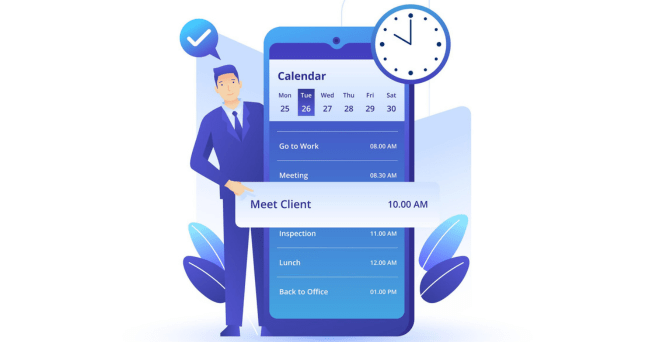
Idle time tracking software detects periods with little or no keyboard or mouse activity on a work computer and records them as idle time based on a set threshold. For example, if there is no detected activity for 10 minutes, the software can record those 10 minutes as idle.
Idle time does not automatically mean someone is slacking off. Someone may be on a phone call, reading a long document, attending a meeting, or thinking through a problem without touching their computer. That is why thresholds and app exclusions matter when interpreting idle-time data.
What This Software Actually Does
- Detects inactivity from keyboard and mouse activity
- Lets you set different idle thresholds for each role or team
- Excludes apps such as video calls or training tools from being counted as idle
- Can warn users before marking time as idle
- Reports active and idle time by person, team, and project
How Idle Detection Actually Works
Idle detection usually looks for keyboard and mouse activity. Some tools also consider which app is active on the screen. When no detected activity occurs for a set period, the software records that period as idle time.
In Flowace, once the threshold is reached, the whole inactive time is marked as idle. For example, if the setting is 10 minutes and someone is idle for 11 minutes, all 11 minutes are logged as idle, not just 1 minute. The same applies when the screen is locked or the laptop lid is closed. Both are treated as idle right away.
What Is the Difference Between Idle Time, Unproductive Time, and Away Time?
The difference between idle time, unproductive time, and away time comes down to what the person is doing and what the software detects.
Idle time means there has been no detected keyboard or mouse activity for a set period. The person may still be working away from the computer, such as during a phone call or while reading.
Unproductive time usually means the person is active on an app or website that the organisation has classified as unproductive. They are using the computer, but the activity may not be related to their work.
Away time generally refers to time when someone is away from their computer or desk. How software detects and labels away time varies by tool.
|
Term |
What It Usually Means |
Example |
| Idle Time | Little or no keyboard or mouse activity for a set period | Reading a document without typing |
| Unproductive Time | Active computer use on a site or app classified as unproductive | Browsing YouTube during work hours |
| Away Time | Time spent away from the computer or desk | Stepping away for a break |
Treating all three as the same can lead to misleading conclusions. A client call may appear as idle time, while an unrelated website may show active time, even though the two situations are very different.
Why Do Companies Track Idle Time?
A timesheet shows how many hours someone worked, but it does not show what happened during those hours. Idle-time tracking adds that visibility by showing periods with little or no computer activity. Remote work can make this harder to see.
Why Visibility Matters for Remote Teams
For distributed teams, activity data can give managers more context around logged hours.
How AM2PM Used Flowace to Reduce Idle Time
AM2PM, a 96-agent BPO, had a simple problem. Agents were logged in and being paid, but the company could not see how much of that time was actually productive. Team leads were also spending 2-3 hours a day on manual monitoring.
Flowace gave AM2PM a way to measure idle time, activity, and productive hours as the team scaled. AM2PM’s results across three consecutive quarters after using Flowace:
- Idle time: 24.9% → 15.1%
- Activity rate: 75.1% → 84.9%
- Productive hours: +14.6% over nine months
- Idle hours uncovered: 6,000
- Team size: 66 → 96 agents
- Additional headcount: None
The change mattered because AM2PM could finally see the gap between logged hours and actual work activity. Instead of relying on manual check-ins, team leads could use the data to identify idle periods, benchmark performance, and make better decisions about capacity and SLAs.
“Even while scaling, Flowace helped us uncover 6,000 idle hours and boost activity rates from 75.1% to 84.9%.”
Ankit Kapoor, Co-founder, AM2P
How Do You Calculate the Cost of Idle Time?
Use this formula:
|
Monthly idle time cost = Team size × Average monthly cost per employee × Idle time percentage |
To calculate the annual cost:
Annual idle time cost = Monthly idle time cost × 12
For example, if a 100-person BPO or IT team has an average monthly cost of ₹40,000 per employee and 20% idle time:
100 × ₹40,000 × 20% = ₹8,00,000 per month
That means the team has around ₹8 lakh in idle time cost every month, or ₹96 lakh per year.
How much does 1% of idle time cost?
For the same 100-person team, a 1 percentage point change in idle time costs:
100 × ₹40,000 × 1% × 12 = ₹4,80,000 per year
So, every 1 percentage point of idle time costs this team ₹4.8 lakh per year.
If idle time falls from 20% to 10%, the team could save around ₹48 lakh per year, assuming team size and employee cost stay the same.
What numbers do you need to calculate idle time cost?
You need three numbers:
- Team size: The number of employees included in the calculation.
- Average monthly employee cost: The average monthly cost of each employee. You can use salary and fixed allowances, or your company’s fully loaded employee cost if you track it.
- Idle time percentage: The percentage of logged work time classified as idle.
For example, with 100 employees, an average monthly employee cost of ₹40,000, and 20% idle time, the estimated annual idle time cost is ₹96 lakh.
This calculation helps BPO and IT teams put a clear financial value on idle time and estimate how much they could save by reducing it.
How Do You Find Where Employee Idle Time Is Coming From?
To find where idle time is coming from, look at the data by person, team, and project. A company-wide idle-time percentage shows the overall number, but it does not tell you where most of that idle time occurs.
Flowace’s idle-time reports show idle hours alongside active hours, productive hours, and attendance for the same period. This gives you more context when reviewing idle time and deciding where to look first.
For example, one team may have higher idle time because of the type of work they do, while another may have very little. Looking at idle time across different groups can help you understand the reason behind the numbers before taking action.
The next step is to set an idle-time threshold for each role. A threshold that works for data-entry work may incorrectly flag a manager who spends much of the day in meetings.
Want to see this broken down for your own team?
Book a DemoHow to Set an Idle Time Threshold
To set an idle time threshold, choose a time period that matches how long someone in that role can reasonably work without keyboard or mouse activity.
Data entry may need a shorter threshold because the work involves frequent typing, while a manager in back-to-back meetings may go 15 minutes without touching a keyboard and still be working.
|
Role |
Idle Time Threshold |
| Data entry, customer support, call center roles | 5 minutes |
| General office and knowledge work | 10 minutes |
| Managers, sales, and creative roles | 15-20 minutes |
These numbers are just a starting point. They may need to change based on the role.
For example, a designer may spend a long time working without using the keyboard or mouse. In that case, a longer time limit may give a better idea of their work.
Flowace also recommends setting idle time based on how each role works.
What if video calls are showing as idle?
A video call can create a long stretch with little keyboard or mouse activity, even when someone is actively working.
In those cases, check app exclusions and add tools such as video-conferencing or training platforms where appropriate. Flowace also supports idle alerts that can warn users before their time is marked as idle.
For a detailed walkthrough of exclusions and common false flags from calls and training tools, read our article on Fixing Idle Time False Positives.
The same issue comes up in real workplaces, where teams have to figure out how to handle meetings, different roles, and idle-time limits.
What People Are Saying Online About Idle Time Tracking
People often on Reddit ask how much idle time is normal and how to stop real work, like meetings, from being flagged as idle.
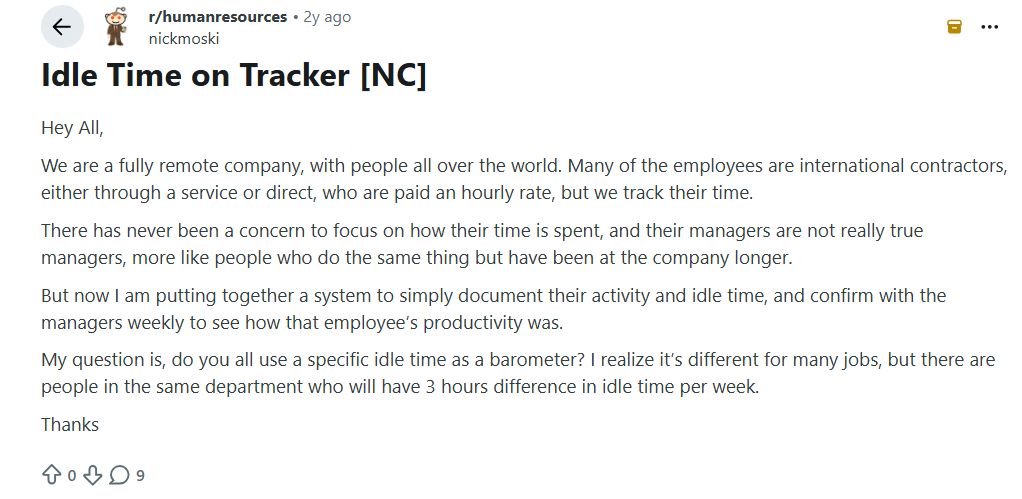
The discussion highlights an important point for setting idle thresholds. People in the same department can have very different idle-time totals, so a single number may need context before a manager treats it as a performance concern.
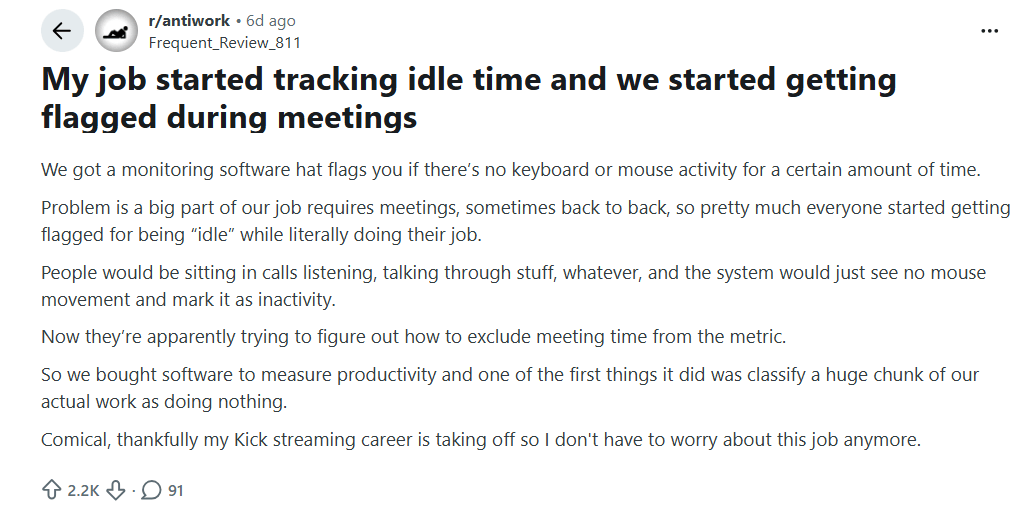
The discussion highlights a common issue with idle tracking which is a lack of keyboard or mouse activity does not always mean someone has stopped working. Meetings, calls, reading, and other passive tasks can create the same signal.
These examples show why the right threshold and app exclusions matter. Here’s how to set them up in Flowace.
How to Set Up Idle Time Tracking in Flowace
To set up idle time tracking in Flowace, open Idle Time Settings and configure the settings for each user. Choose the Idle Interval to set how long a user can be inactive before they are marked as idle. You can also turn Enable Idle Time on or off and choose whether to Notify User when they are approaching or reaching the idle limit.
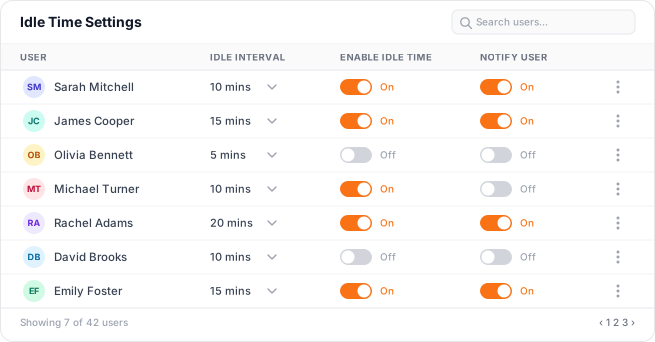
For example, in the image, Sarah Mitchell has a 10-minute idle interval, with both idle tracking and notifications turned on. These settings can be adjusted for each user based on their work needs.
How to Read an Idle Time Report
To read an idle-time report, look at idle time by person, team, and project, then compare the trend over time. A single company-wide percentage can hide where most of the idle time is coming from.
Idle time also appears in Flowace’s Attendance Reports. It is shown along with in-time, out-time, active hours, productive hours, unproductive hours, and hours logged for projects and tasks. This gives a complete view of how someone’s time was spent.
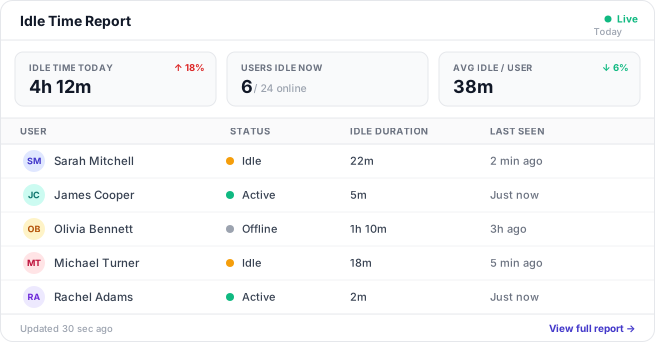
The idle time report shows how many users are sitting idle, the average idle time per user, and each user’s status, idle duration, and last seen time. The report updates regularly to show the latest activity.
Check Your Settings Against the Report
The report also helps you check whether your threshold and app exclusions are working as intended. If idle time looks unusually high, review the threshold first, then check whether work-related apps such as meeting or training tools need to be excluded.
Want to try idle time tracking with your own team?
Start Free 7-Day TrialWhat to Look for in Idle Time Tracking Software
Before choosing idle time tracking software, check how it handles thresholds, exclusions, alerts, activity checks, privacy, and reports.
1. Role-based idle thresholds
Choose a tool that lets you set different idle thresholds for different roles. One setting for everyone can make people with longer periods of passive work look more idle than they really are.
2. App and Website Exclusions
Look for a tool that lets you exclude specific apps, such as video calls or training platforms, from idle tracking when there is little keyboard or mouse activity.
3. Idle Alerts
A warning before someone is marked idle can help prevent mistakes before their time is recorded as idle.
In Flowace, this only works in the interactive desktop app. The silent app does not show alerts because it has no visible screen to display a notification.
4. Activity Detection Frequency
Ask how often the software checks for activity. Many vendors do not clearly state this, so check before choosing a tool. Flowace checks activity every second.
5. No Keystroke Content Capture
Idle tracking should detect keyboard activity without recording what someone types. Check the vendor’s privacy information to see what data the software collects.
6. Detailed Reporting
Look for reports that show idle time by person, team, and project. One company-wide number can hide where most of the idle time is coming from.
One Thing to Check Before You Buy
A single company-wide idle percentage can be hard to use when you have several teams. If the software cannot show where the idle time comes from, it becomes harder to spot patterns and know what needs to change.
Is Idle Time Tracking Software Worth It?
Idle time tracking software can help remote teams, BPOs, customer support teams, and other distributed teams see how work time is being used. It is most useful when managers need more context around logged hours.
Before choosing a tool, check its idle thresholds, app exclusions, alerts, privacy controls, detection method, and reports. Set thresholds by role and account for passive work such as meetings, calls, and reading.
For Flowace, you can set custom idle intervals, exclude apps and websites, use idle alerts, and view idle time in dashboards and reports.
Want to see how Flowace handles idle time tracking?
Explore Productivity Insights SoftwareFrequently Asked Questions About Idle Time Tracking Software
1. What is idle time tracking software?
Idle time tracking software detects keyboard and mouse activity on a work computer and marks a period as idle after a set amount of time without detected activity. The threshold can vary by role and team.
2. What is the difference between idle time and unproductive time?
The difference between idle time and unproductive time is that idle time means there has been little or no keyboard or mouse activity for a set period, while unproductive time means someone is using an app or website marked as unproductive.
3. What idle time threshold should I set?
You can choose a time limit that fits the way your team works, such as 5, 10, or 15+ minutes. Start with 5 minutes for data entry and support roles, 10 minutes for office work, and 15-20 minutes for managers and creative roles. If someone spends more time away from their keyboard or mouse, use a longer time limit.
4. Does idle time tracking record what I type?
No, Flowace tracks that keyboard activity happened, rather than the content being typed.
5. Can I exclude calls and meetings from idle time?
Yes. You can exclude apps such as Zoom, Microsoft Teams, or training platforms from idle tracking when they are used for legitimate work.
6. Is idle time tracking legal?
Yes, idle time tracking can be legal, but you must follow the rules where your employees work. New York Civil Rights Law § 52-c, for example, has required written notice before monitoring computer or internet activity since May 2022. This isn’t legal advice. See our full state-by-state breakdown in Employee Monitoring Laws.