What Is Idle Time at Work? Definition and Examples



Published: October 2026 · Last Updated: October 2026 · Last Verified: 23 October 2026
Idle time is a period when a monitored computer shows no keyboard or mouse activity for a set amount of time, even though the employee is still clocked in. It shows a lack of detected computer activity, but it does not by itself confirm that the employee stopped working.
This article explains what is idle time, how idle time is detected, what can count as idle time, what a normal range may look like, and how to calculate your idle time percentage.
What Counts as Idle Time with Four Examples?
What counts as idle time? Idle time is usually recorded when a monitored computer detects no keyboard or mouse activity for the set idle interval. That can happen during real work, especially when the work does not require using the keyboard or mouse.
Here are four common examples:
- Phone calls: Someone takes a phone call while their laptop sits untouched for several minutes. The computer may record that period as idle time.
- Waiting between calls: A support agent finishes one call and waits for the next customer. If there is no keyboard or mouse activity during the wait, that time may appear as idle.
- Reading or thinking: Someone reads a long document, reviews information, or thinks through a problem without using the keyboard or mouse. The software may record that period as idle.
- Reviewing on-screen work: Someone reviews a design, spreadsheet, or document on screen for ten minutes without touching the keyboard or mouse. The computer stays on and connected, so the software may record that period as idle, even though the person is actively reviewing the work.
How Is Idle Time Detected?

Idle time is recorded when a monitored computer shows no detected keyboard or mouse activity for the idle interval set in the tracking software. The full inactive period may then appear as idle time, depending on how the software handles the idle interval.
For example, if the idle interval is set to 10 minutes and the computer shows no detected activity for 11 minutes, the report can show that inactive period as idle time.
A locked screen or a closed laptop lid more often falls under away or offline tracking rather than idle detection, since the tracking agent may stop reporting activity altogether once the device is locked or closed. Idle time applies specifically to periods when the computer stays on and connected but shows no keyboard or mouse input, such as reading, planning, or reviewing on-screen work.
What Can Affect Idle-Time Detection?
Several settings and work situations can change how much idle time appears in a report:
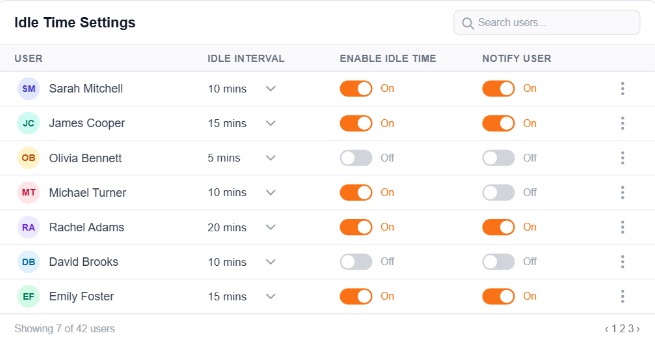
- Idle interval: A shorter interval can flag inactive periods sooner, while a longer interval waits longer before marking a period as idle.
- Work type: Reading, phone calls, meetings, and other work that does not involve keyboard or mouse activity can create idle periods.
- App or activity settings: Some tracking systems allow specific apps or activities to be handled differently. Check your software’s settings before assuming that every meeting or call will be recorded as idle.
- Computer status: An inactive computer that stays powered on and connected can create an idle period because there is no detected keyboard or mouse activity. A locked screen or a closed lid more often triggers away or offline tracking instead of idle time.
For Flowace-specific settings, see the Flowace Help Center.
If calls or meetings are regularly showing up as idle time, review the tracking settings first. Legitimate work can involve little or no keyboard or mouse activity, so idle-time data needs to be read in context.
How Much Idle Time Is Normal at Work?
For computer-based work, there is no single percentage that applies to every role. Real-world data varies widely because a sales rep, support agent, developer, and manager can have very different amounts of time away from the keyboard or mouse.
Flowace’s published customer data gives some useful real-world reference points. In Flowace’s published case studies, teams started at roughly 24% to 35% idle time before any changes were made. AM2PM brought its rate down to 15.1% over nine months.
- AM2PM, a 96-agent BPO, saw idle time fall from 24.9% to 15.1% over nine months. During the same period, the company grew from 66 to 96 agents, while productive hours increased by 14.6%.
- A 750-user talent platform found that 35.3% of its logged hours were recorded as idle during its first week of measurement. The data gave the company a baseline for reviewing where time went.
- A global insights firm with 1,391 employees saw idle time increase from 24.1% to 30.1% over nine months. Across its 22 teams, the company also found a 57.7 percentage-point gap in productivity between its highest- and lowest-performing teams.
How should you judge your own idle time?
Use these numbers as reference points, then compare your own team’s trend over time.
A few comparisons work better than one raw number, such as the following.
- The same team from week to week.
- Teams doing similar work.
- Changes before and after a process or staffing change.
- Repeated patterns rather than one unusual day.
For example, 30% idle time for a support team and 30% for a manager may reflect very different work patterns. Calls, meetings, reading, planning, and waiting between tasks can all affect the number.
A single day’s idle percentage gives limited context. A consistent pattern across several weeks is more useful for finding workflow problems or changes in team capacity.
How to Calculate Idle Time Percentage
How do you calculate idle time percentage? Divide the number of idle minutes by the total logged minutes, then multiply the result by 100.
| Idle time percentage = (Idle minutes ÷ Total logged minutes) × 100 |
Example
Say an employee is logged in for 8 hours, which equals 480 minutes. The monitoring software records 72 minutes with no detected activity.
Idle time: 72 minutes
Total logged time: 480 minutes
Calculation: 72 ÷ 480 × 100 = 15%
The employee’s idle time percentage for that day is 15%.
That number shows how much of the logged time had no detected keyboard or mouse activity. By itself, it does not show whether the employee completed their work or why the inactive periods happened.
What Employees Say About Idle-Time Monitoring
One Reddit discussion highlights employees’ concerns about idle-time tracking, especially when meetings or other work away from the keyboard are counted as inactivity.
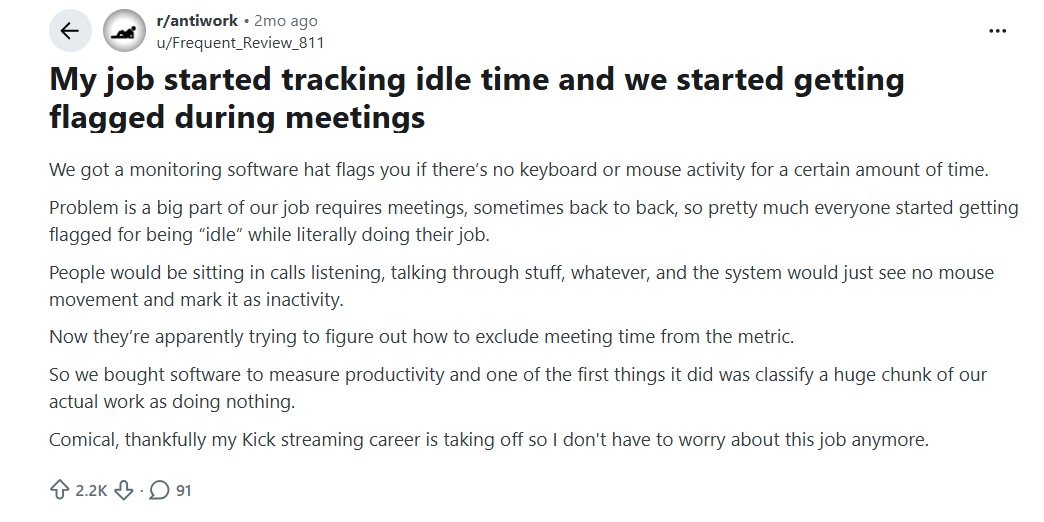
Reddit post about an employee being flagged as idle during work meetings.
A Reddit user describes how their workplace started using idle-time monitoring based on keyboard and mouse activity. They say employees were frequently flagged as idle during meetings, even though they were actively participating in calls.
This shows why idle-time data needs context and the right settings. This is exactly why the configuration options described above matter because without the right idle interval and app exclusions, time spent actively working through a meeting or a call can get misread as lost time.
How Flowace Helps Teams Understand Idle Time
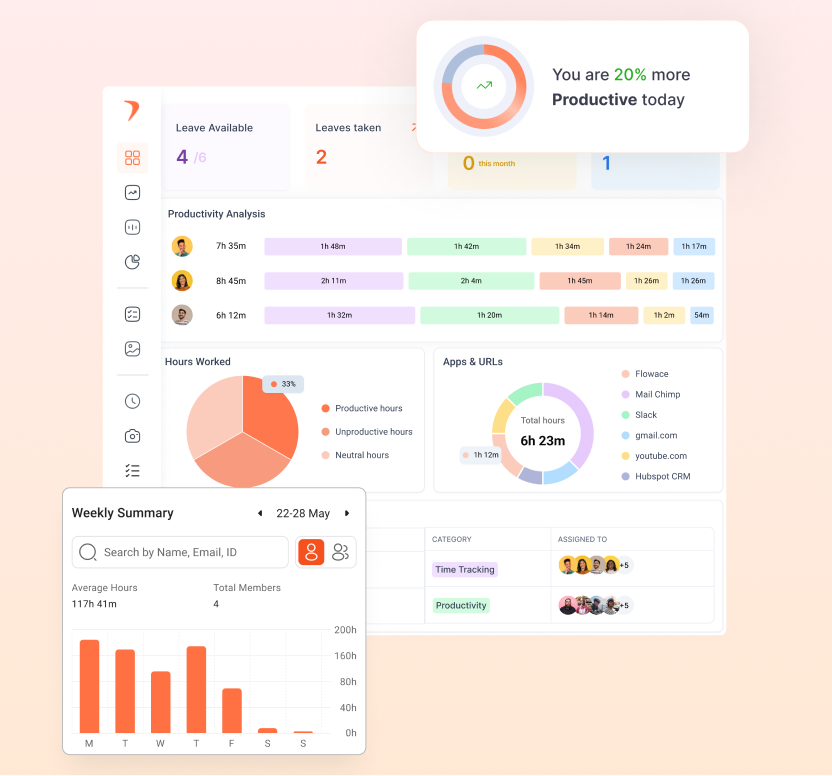
Flowace shows idle time alongside active hours, productive and unproductive time, app and website activity, and other work data. This gives managers more context when reviewing an idle-time number.
That wider view can help teams spot patterns such as workloads that need attention, idle settings that are too short, or work activities that are being marked as idle. Flowace also lets teams set idle thresholds and exclude specific apps or websites from idle detection when they involve legitimate work without regular keyboard or mouse activity.
Get the full picture behind your team's work activity with Flowace.
Explore Flowace All FeaturesFrequently Asked Questions About What Is Idle Time
1. What is idle time in employee monitoring?
Idle time is a period when a monitored computer shows no detected keyboard or mouse activity for a set amount of time. The employee may still be working during that period, such as during a meeting, phone call, or while reading.
2. What counts as idle time at work?
Idle time can include periods when there is no detected keyboard or mouse activity. Common examples include taking a phone call, waiting between tasks, reading a document, attending a meeting, or reviewing on-screen work without touching the keyboard or mouse.
3. What is the difference between idle time and unproductive time?
The difference between idle time and unproductive time is that idle time measures a lack of detected keyboard or mouse activity, while unproductive time refers to activity on an app or website classified as unproductive. The two measurements describe different types of work activity and can appear separately in productivity reports.
4. How do you calculate idle time percentage?
To calculate idle time percentage, divide idle minutes by total logged minutes and multiply by 100. For example, 72 idle minutes out of 480 logged minutes equals 15%.
5. Does idle time mean an employee is not working?
No. Idle time only shows that the monitoring software detected no keyboard or mouse activity for a set period. Someone may still be working during that time, such as in a meeting, on a phone call, reading, planning, or doing other work that does not require keyboard or mouse activity.
Related Reading
- Idle Time Tracking Software Setup, Settings and Reports for how to configure thresholds, exclusions, and reports.
- Fix Idle Time False Positives for a practical playbook on stopping real work from getting flagged as idle.