Hubstaff Migration Checklist: Move Without Data Loss



Key Takeaways:
- Switching from Hubstaff is a strategic transition, requiring careful planning to avoid data loss, payroll issues, and team resistance
- Start by auditing your data and export only what matters: active users, ongoing projects, and essential timesheets
- Set up your Flowace workspace first with correct company settings, team structure, and roles to avoid import errors
- Communicate the “why” clearly to your team to reduce pushback and build trust during the transition
- Assign a dedicated migration lead to manage exports, imports, and troubleshooting
- Follow a structured 3-phase process: export from Hubstaff, clean and standardize data, then import into Flowace
- Pay close attention to data preparation by fixing missing fields, inconsistent naming, and formatting issues
- Ensure success with strong onboarding, including training sessions, walkthroughs, and support resources
- Use the transition to unlock advanced features like custom alerts, work categories, raw activity logs, and flexible monitoring
- Flowace offers a modern interface, deeper analytics, role-based tracking, and better pricing transparency, making it a meaningful upgrade over Hubstaff
Switching time‑tracking platforms is a strategic move rather than a simple software swap. You have to protect your historical data, avoid billing and payroll disruption, keep your team onboard and, ideally, move to a tool that offers better visibility without adding administrative burden.
You need to preserve historical data, avoid payroll or billing disruptions, keep your team aligned, and upgrade visibility without adding extra admin work.
In this guide, you’ll learn how to migrate from Hubstaff step by step without losing critical data, disrupting operations, or creating team pushback.
Why migrate off Hubstaff at all?
Hubstaff emerged as one of the earliest productivity and time‑tracking tools, but the workforce analytics landscape is evolving quickly. Nd you might be looking for:
- Privacy‑first features: Flowace offers Work and Privacy Modes that let you balance accountability with respect for employee privacy. You can configure screenshot frequency, choose which roles are subject to screenshots, and even make them optional.
- Simpler, more modern interface: The Hubstaff interface can feel cluttered and often requires multiple add‑ons to unlock reporting and advanced features. Flowace is designed as a single platform with integrated dashboards and configurable alerts.
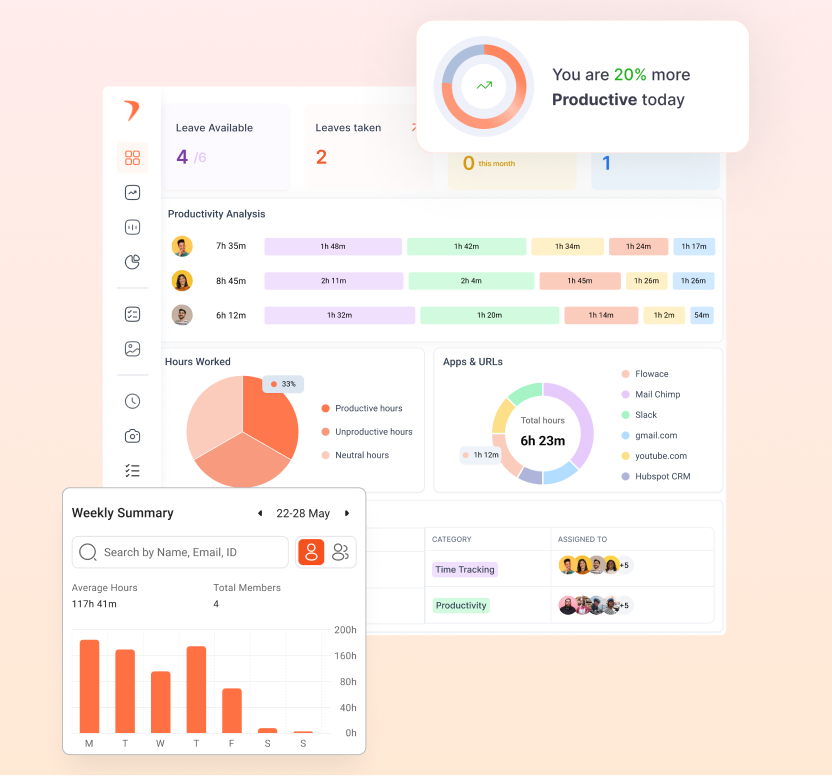
- Advanced analytics: Instead of just time sheets and screenshots, Flowace provides detailed productivity breakdowns, customizable dashboards and app/website usage analytics.
- Clear pricing: With Hubstaff, you may find yourself paying more for add‑ons. Flowace’s pricing tiers bundle features, so you don’t have to pay extra for analytics.
Moving away from Hubstaff isn’t about starting from scratch. It’s about upgrading to a platform that better supports how you want your team to work. The following checklist guides you through a seamless migration.
Pre‑Migration Checklist: Lay the Groundwork
This phase determines whether your migration will be smooth or stressful. Spending time up front to audit data, prepare your new workspace and communicate with your team minimizes surprises later.
1. Audit your current data
Before you start moving anything, decide what you actually need to take with you. Exporting every record from Hubstaff may seem safe, but it creates unnecessary clutter. Focus on:
- Active users and roles: Export the user list with their roles and permissions from Hubstaf. For each user, note whether they need access to Flowace and what level of permission they should have.
- Projects and clients: Identify active projects and clients that will continue after the transition. Archive or ignore outdated projects and tasks.
- Timesheets and attendance records: Decide how much historical time‑tracking data you need for payroll or reporting. Keeping only essential records speeds up import and reduces the chance of errors.
2. Set up your Flowace account
Before importing any data, ensure your Flowace workspace is ready:
- Company profile: Create your organization in Flowace and configure the basic settings such as time zone, workdays and schedules.
- Organizational structure: Set up departments, teams and reporting lines. Flowace’s template requires certain fields (user email, client/project names) during import, so matching your structure ahead of time prevents import errors.
- Admin access: Make sure you have administrator rights to Flowace so you can create users and import data.
3. Inform your team
The biggest source of migration stress is lack of communication. If people feel that monitoring will get stricter or their data might be lost, pushback grows. Draft an announcement email that explains why you’re switching and how it benefits the team. Flowace’s template suggests reassuring your colleagues about:
- Cleaner interface and less clutter
- More transparent productivity insights
- Less intrusive monitoring focused on outcomes rather than screenshots
- Better project management and reporting tools
- Preservation of historical data, full training and support
4. Assign a migration lead
Nominate a single person—ideally someone with admin access and good attention to detail—to own the process. Having one point of contact prevents confusion and ensures accountability. This person will coordinate exports, imports and training, and will troubleshoot any issues that arise.
Data Migration Process: A Phased Approach
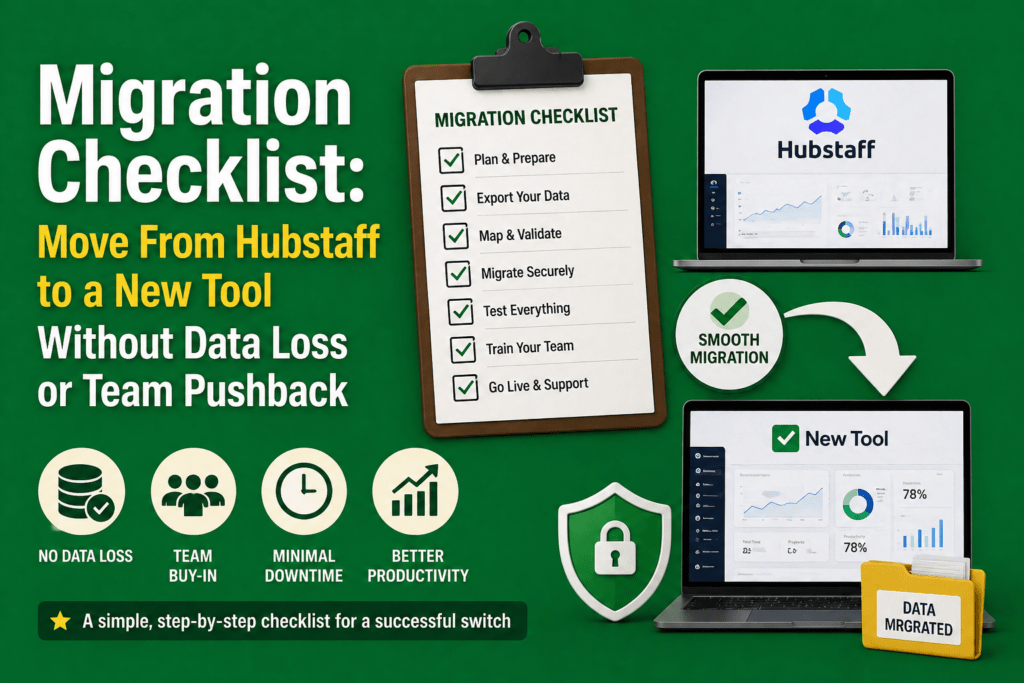
Breaking migration into phases reduces anxiety and lets you maintain control. While migrating from Hubstaff to Flowace, we recommends a three‑phase process: exporting data from Hubstaff, preparing data, and importing into Flowace.
Phase 1: Exporting data from Hubstaff
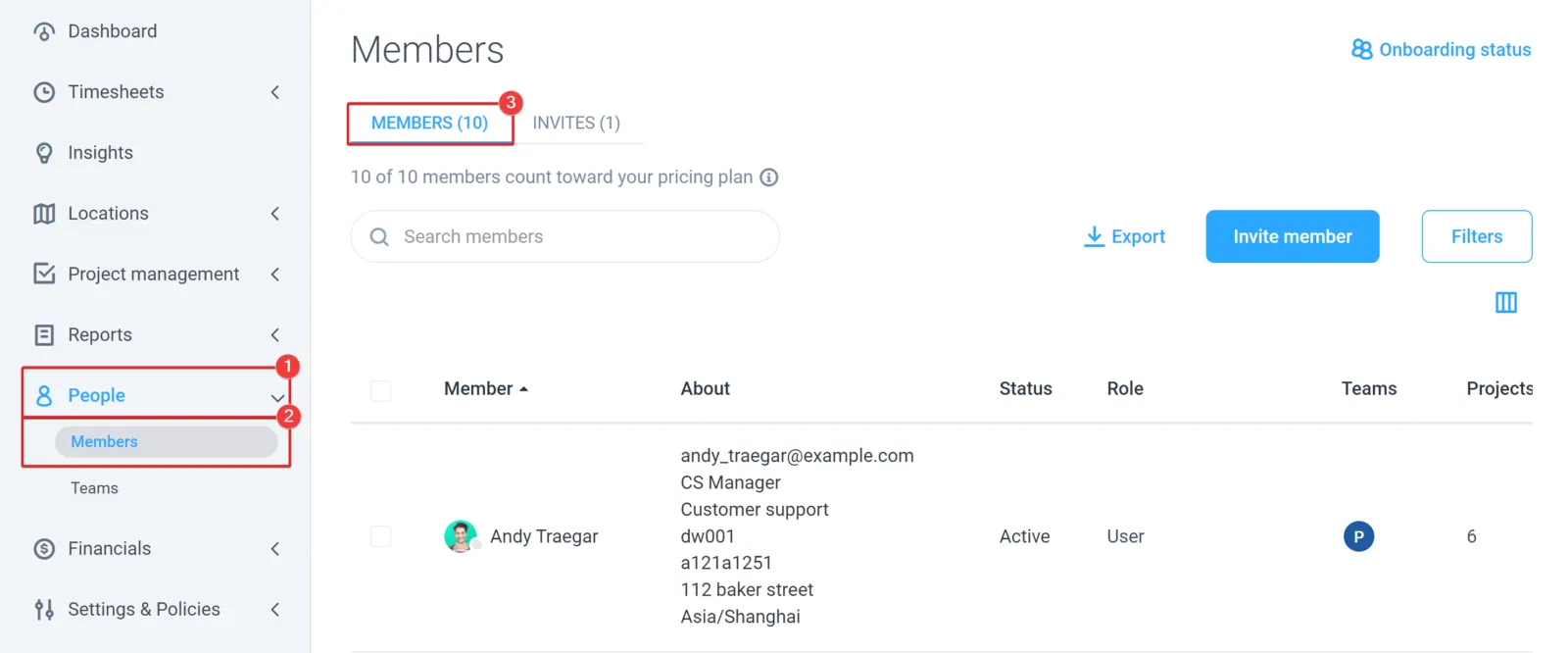
Use Hubstaff’s export features to pull your critical data into CSV files.
Exporting user lists:
- Log in to Hubstaff as an administrator.
- Navigate to People > Members.
- Select the important fields and click Export.
- Download the CSV file containing user names, email addresses and roles.
- Save the file with a clear name, such as Hubstaff_Users_Export_YYYY‑MM‑DD.csv
Exporting project data:
- Go to Reports > All Reports > Projects.
- Select Export and choose the desired fields.
- Ensure you’re exporting only active projects.
- Save the file with a name like Hubstaff_Project_Task_Export_YYYY‑MM‑DD.csv
Repeat a similar process if you need to export tasks, clients or time logs. Label each file clearly so you know what it contains.
Phase 2: Prepare your data for Flowace
Raw CSV files from Hubstaff often need cleaning and formatting so that they import smoothly. This step is where many migrations stumble. Here’s how to prepare:
Clean your user data:
- Open the CSV in Excel or Google Sheets and verify that email addresses are correctly formatted and free of spaces or invalid characters.
- Standardize role names to match Flowace’s role structure (Admin, Manager, Member, Silent User).
- Remove inactive users you don’t plan to migrate.
- Ensure column headers match Flowace’s template. Download the template from Flowace’s help center for reference.
Watch out for common pitfalls:
- Missing required fields: Flowace requires certain fields like user email and project names. Ensure no cells in these columns are empty.
- Special characters: Remove or replace special characters in names and descriptions that might cause import errors.
- Inconsistent naming: Standardize variations (e.g. “Project Alpha,” “Proj Alpha”) so Flowace doesn’t treat them as separate projects.
Phase 3: Import data into Flowace
Once your CSV files are cleaned, you’re ready to bring them into Flowace. This step is intuitive if you prepared properly:
Importing users:
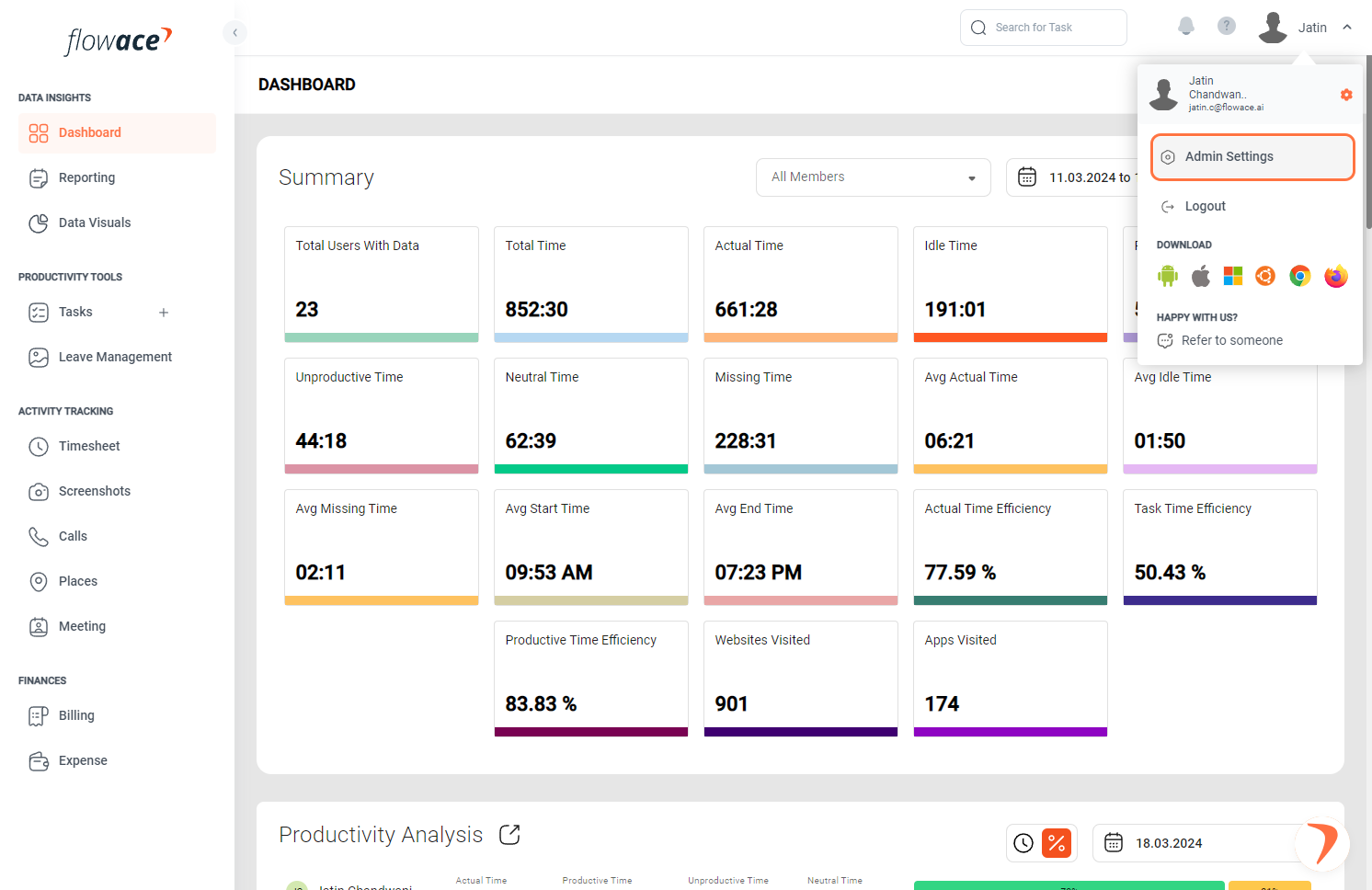
- Log in to Flowace as an administrator.
- Navigate to Admin Settings > Users.
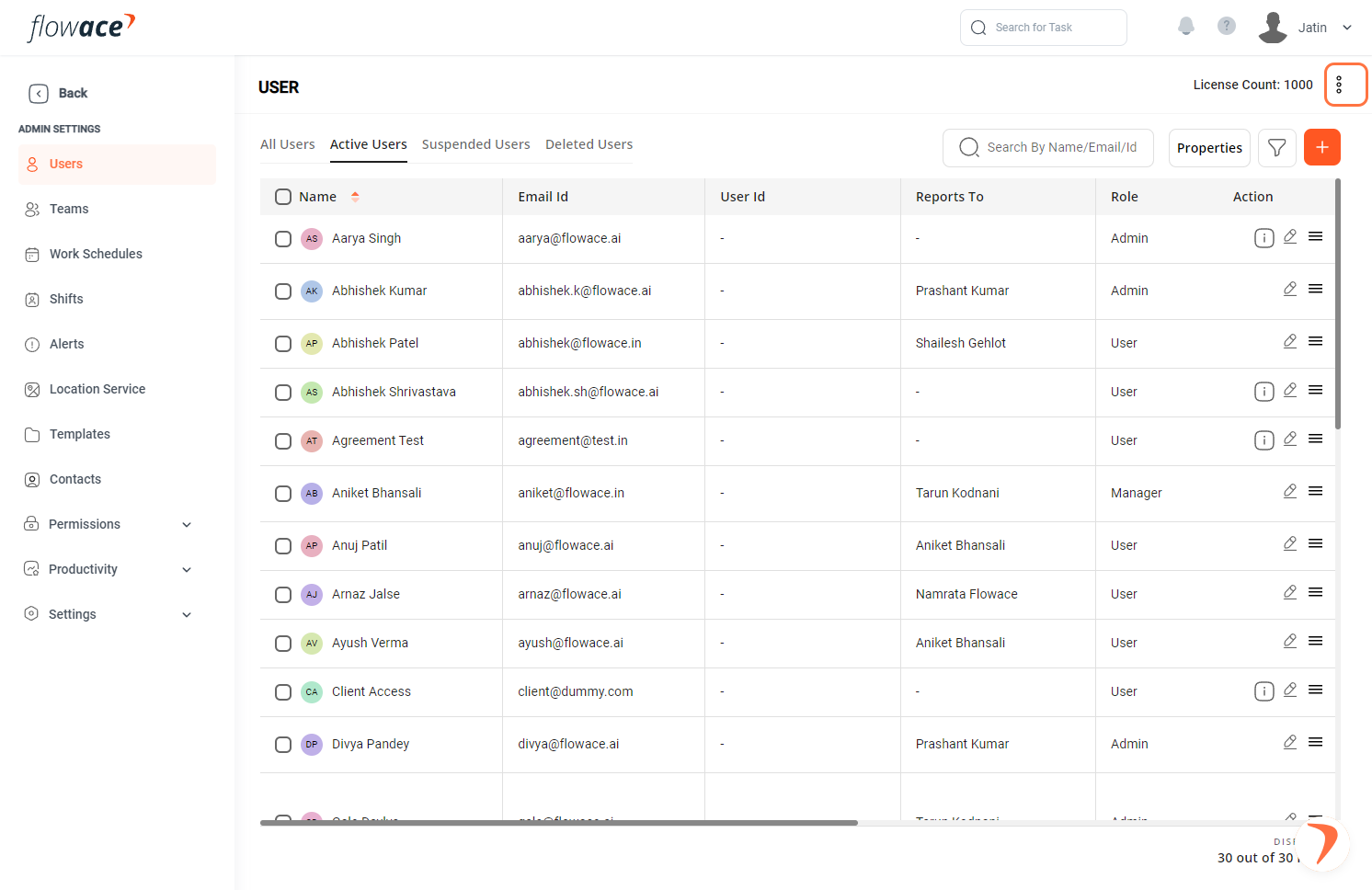
- Upload the user CSV after verifying the data.
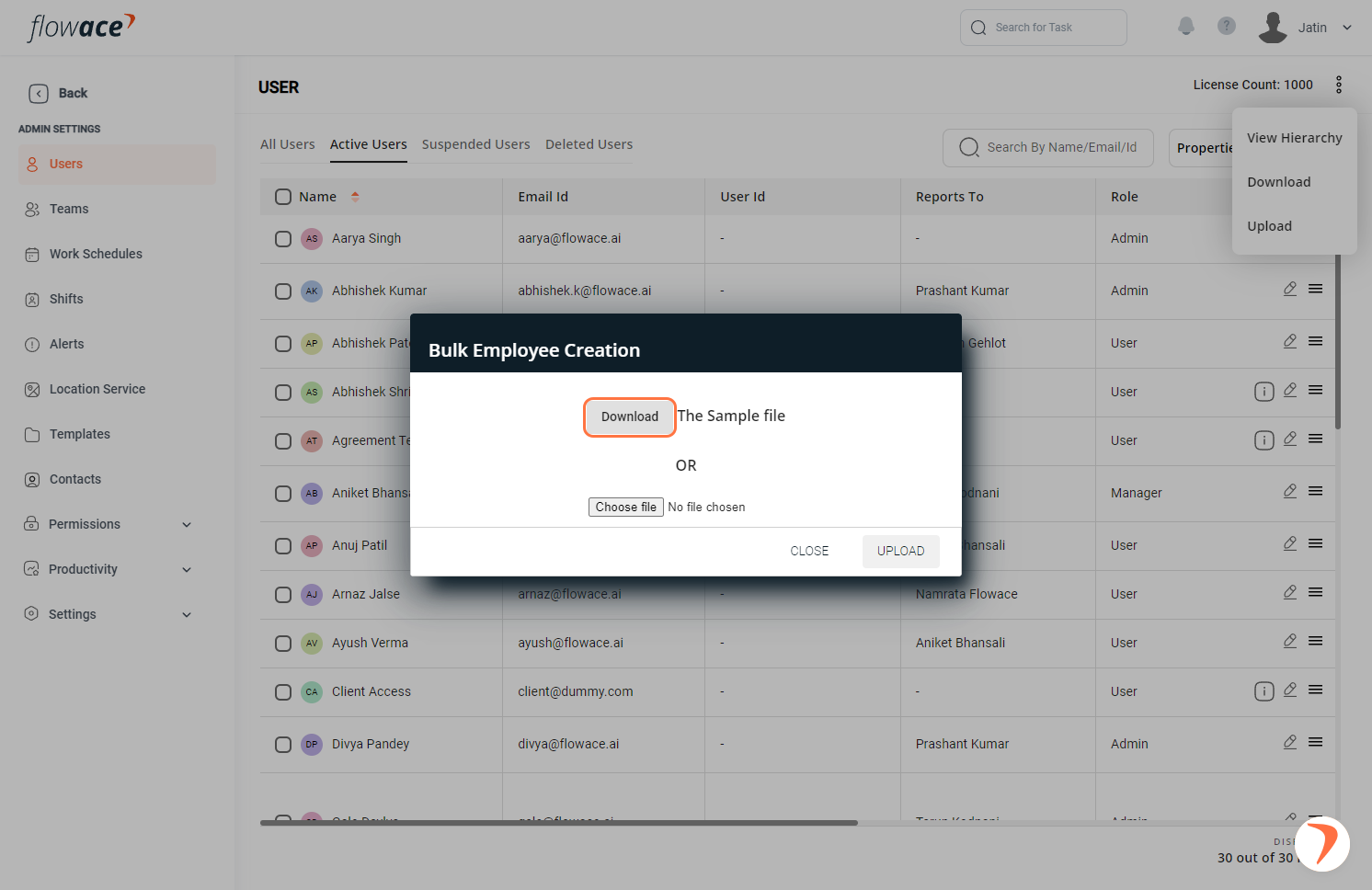
- Complete the import.
Please refer the following link for more details: https://help.flowace.ai/en/article/how-to-upload-users-in-bulk-163cmzr/
Importing projects:
- Go to Projects and Tasks in Flowace.
- Click the three‑dot options menu and select Upload.
- Upload the project CSV after verifying client/project/task names and assigned team members.
- Complete the import.
Common import errors and how to fix them:
- User email already exists: This means a user with that email is already in your Flowace system. Remove them from the import file or update their information directly in Flowace.
- Required field missing: Check for empty cells in required columns such as email, date, client name or project name, fill them in and try again.
With your data imported, you’ve completed the hardest part. Now it’s time to focus on getting your team comfortable with the new platform.
Post‑Migration Configuration & Onboarding
A migration succeeds only if your team adopts the new tool. Comprehensive onboarding reduces resistance and ensures people know how to use the new features.
Team orientation
Organize a welcome call or video that covers:
- How to log in to the new tool for the first time.
- Key differences from Hubstaff (emphasize the positives: cleaner interface, better insights, and less intrusive monitoring, etc.).
- How to start and stop time tracking.
- Where to view productivity insights and dashboards.
- How to manage tasks and projects.
- Who to contact with questions
Provide links to help articles and recorded sessions for those who can’t attend live.
Schedule training sessions
Plan short group sessions (about 30 minutes) where team members can see the new tool in action and ask questions. Record these sessions for anyone who can’t attend.
Set up new features unavailable in Hubstaff
When you move to Flowace, you are not just replicating your existing setup. You are unlocking capabilities that give you deeper control and better visibility without adding friction.
Flowace, for instance offers several capabilities that aren’t part of Hubstaff’s core product:
- Custom alerts and workflows: Set up alerts for low productivity, late attendance, high idle hours and suspicious activity. Build multi‑step approval workflows for leave requests or expenses.
- help.flowace.ai.Custom work categories: Create categories for communication, documentation, design and other work types. Rate apps and websites based on productivity across teams or individuals.
- Raw activity logs: Unlike the standard screenshot‑only approach, raw logs provide granular activity data that helps team leaders audit work. This feature can be enabled or disabled by role.
- Screenshot monitoring: Configure screenshot frequency, choose which roles require screenshots and set start/end times.
- Integrations: Connect Flowace with your existing HRMS or payroll tools via Admin Settings > Integrations.
Hubstaff vs Flowace: Key differences
Flowace’s migration guide includes a comparison table that highlights the differences between the two platforms. Here are the highlights:
| Feature | Hubstaff | Flowace |
| User interface | Functional but can feel cluttered; often requires multiple add‑ons | Modern, intuitive design; all features integrated seamlessly |
| Reporting depth | Basic reports focused on time tracking; limited customization | Advanced analytics with customizable dashboards; no add‑ons required |
| Screenshot monitoring | Screenshots per 10 minutes standard | Configurable frequency and optional by team or role |
| Productivity tracking | URL‑based categorization; rates apps and websites as productive or unproductive | Comprehensive tracking with custom work categories and detailed classification |
| Employee experience | Robust time tracking and monitoring features | Similar features, but with a more modern, user‑friendly interface |
| Integrations | Limited third‑party connections | Extensive ecosystem with major HR and payroll tools |
| Pricing model | Per‑user pricing with feature limitations on lower tiers | Transparent, value‑based pricing; more features accessible at each tier |
| Support and onboarding | Standard documentation and email support | Chat, email, dedicated onboarding specialist and comprehensive knowledge base |
The combination of configurable privacy options, modern analytics and better onboarding support is why many teams choose Flowace over Hubstaff.
Final Takeaway
Moving away from Hubstaff is more than a platform change. It is a chance to simplify your workflows, protect your historical data, and give your team a better experience with more useful visibility. With the right migration plan, you can switch without disrupting payroll, losing important records, or creating unnecessary pushback. Flowace gives you a cleaner interface, more flexible productivity insights, configurable privacy controls, and features that go beyond basic time tracking, making the transition well worth it.
If you are planning to move off Hubstaff, this is the right time to see what Flowace can do for your team. Start a free trial and explore a platform built to help you migrate smoothly while giving you more control, better reporting, and a more modern way to manage work.
FAQs:
Will there be any downtime during migration?
No. Hubstaff and Flowace can run in parallel. You can continue using Hubstaff while setting up Flowace and choose a cutover date that suits your team. Most organizations experience no productivity disruption when they follow this phased approach.
Is my team’s historical data safe?
Yes. Any data you export from Hubstaff remains secure in your exports, and Hubstaff retains your historical data according to their retention policies.
How is Flowace’s approach to privacy different?
Flowace believes productivity tracking should empower teams, not surveil them. Unlike Hubstaff’s frequent mandatory screenshots, Flowace offers configurable screenshot settings and a work/privacy mode that respects employee privacy. You can adjust screenshot frequency, make screenshots optional for certain roles and provide complete transparency about what’s tracked.Many organizations find they need less intrusive monitoring when they have better analytics.
What support is available if we get stuck?
Flowace offers chat support during business hours, comprehensive documentation and video tutorials, a dedicated onboarding specialist and an email support team with a 24–48 hour response time. For more complex migrations, Flowace’s migration assistance service pairs you with a specialist who walks you through each step.
Can we try Flowace before fully committing to the migration?
Yes. Flowace offers a 7‑day free trial with full access to all features. Run a pilot with a small team to validate that Flowace meets your needs.
What happens to our Hubstaff subscription during migration?
You should continue to manage your Hubstaff subscription separately until your migration is complete. Many organizations finish in one to two weeks, then cancel Hubstaff at the end of the billing cycle to avoid overlap charges.