Employee Website Monitoring Software Explained



Published: October 2026 · Last Updated: October 2026 · Last Verified: 23 October 2026
Employee website monitoring software tracks the websites and URLs employees visit during work and organizes that activity into categories. Teams can use the data to understand browsing patterns and see how work time is being spent.
This article focuses on three parts of website monitoring i.e. website and URL reporting, blocklists, and allowlists. It explains what each one does and where they differ.
What Employee Website Monitoring Software Actually Tracks
Employee website monitoring software tracks the websites, URLs, and apps employees use and the time spent on them. Depending on the tool, that activity can be organized into categories so teams can understand browsing and app-use patterns.
This article focuses on website and URL reporting, blocklists, and allowlists. Screenshots and keystroke logging are separate monitoring capabilities.
Flowace does not log keystrokes, while takes screenshots at set intervals only when the feature is enabled.
What Is Website and URL Category Reporting?
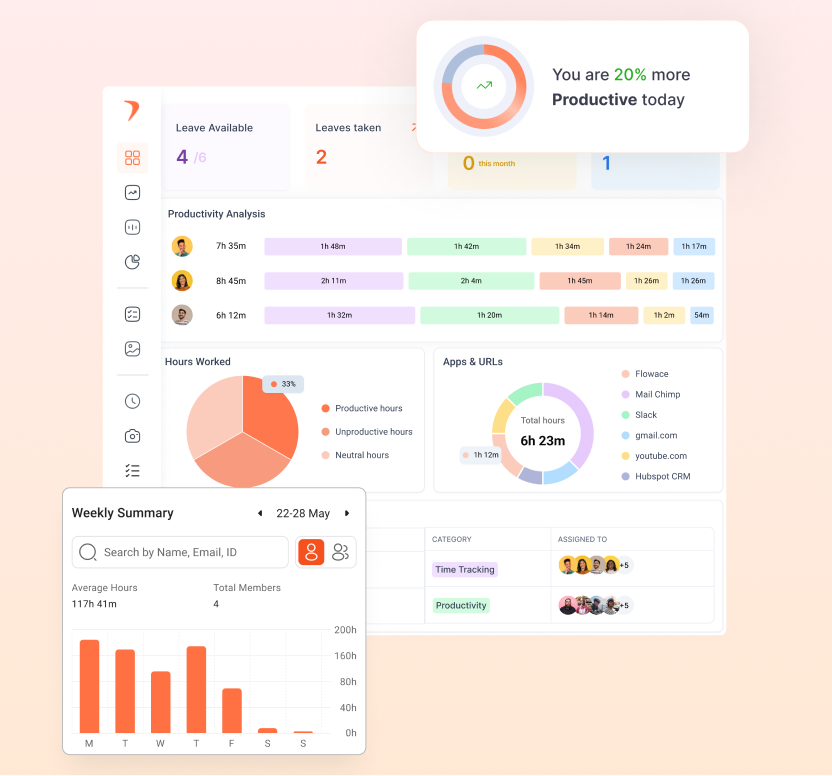
Website and URL category reporting shows which websites and apps employees use, how much time they spend on them, and how that activity is classified.
In Flowace, tracked apps and URLs are grouped into Work Categories and can be rated as Productive, Neutral, or Unproductive.
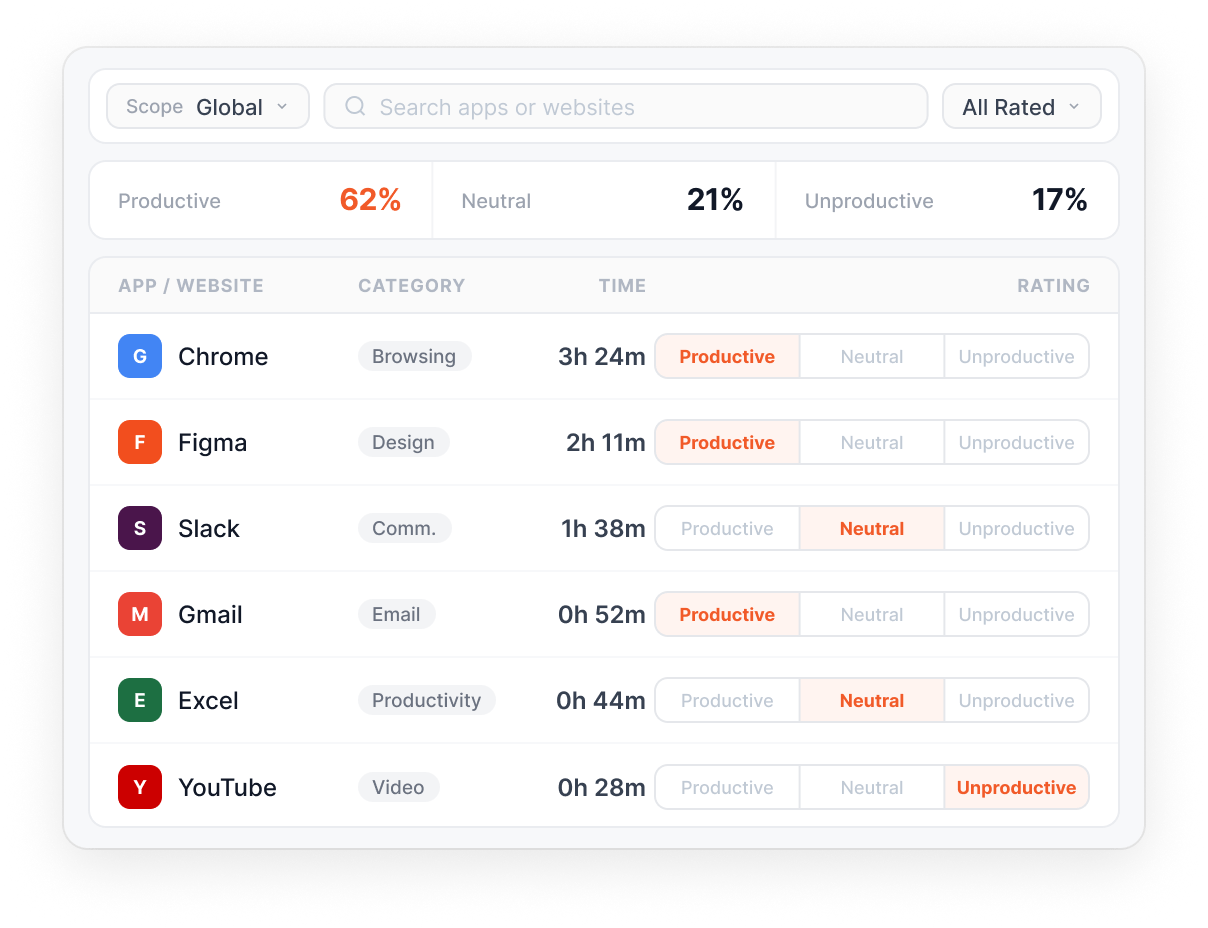
These are example classifications. Admins can define how apps and websites are rated for the company, a team, or individual employees.
The result is a report that shows where time is being spent without requiring a manager to review every URL individually.
How Do Productive, Unproductive, and Neutral Categories Work?
Flowace lets admins rate apps and websites as Productive, Neutral, or Unproductive based on how they relate to the work being done. These ratings can be configured for the company, teams, or individual employees.
For example, LinkedIn may be relevant to a sales team’s work but less relevant to another role. The right rating depends on how the tool is used.
The Neutral category is useful for apps and websites that a team does not want to count as either productive or unproductive. Neutral time is still tracked, but it does not affect the productivity score.
See how Flowace categorizes website and app activity for your team.
Start A Free TrialReporting vs Blocking Which Does Your Team Need?
Flowace tracks and reports on website and app activity. Website blocking is a separate function handled by tools such as firewalls, DNS filters, or device management platforms.
Reporting and blocking solve different problems. Reporting shows what websites and apps are being used and how that activity is classified. Blocking restricts access to specific websites or categories.
What Does a Website Blocklist Do?
A website blocklist prevents access to specific websites or categories while leaving other sites available. It uses a default-allow approach, where everything remains accessible except the sites or categories on the blocklist.
A blocklist can target:
- An exact URL blocks a specific page.
- A domain blocks an entire website.
- A category blocks a group of sites, such as gambling or streaming websites.
Blocklists can be useful when a company has specific websites it wants to restrict, such as known distracting or restricted sites. Flowace itself does not set up or enforce blocklists; for that, you’d pair it with a firewall, DNS filter, or device management tool.
What Does a Website Allowlist Do?
A website allowlist only permits access to approved websites or apps. It uses a default-deny approach, where access is limited to items on the approved list.
Allowlists are more common in controlled environments such as shared kiosks, call center desktops, and devices with strict access requirements.
|
Blocklist |
Allowlist |
|
|
Default behavior |
Everything is open except listed sites | Everything is blocked except approved sites |
| Best fit | General office use and known problem sites |
High-security or locked-down devices |
|
Maintenance |
Lower; add sites when needed |
Higher; approve each new site or tool |
Where Does Website Reporting Fit In?
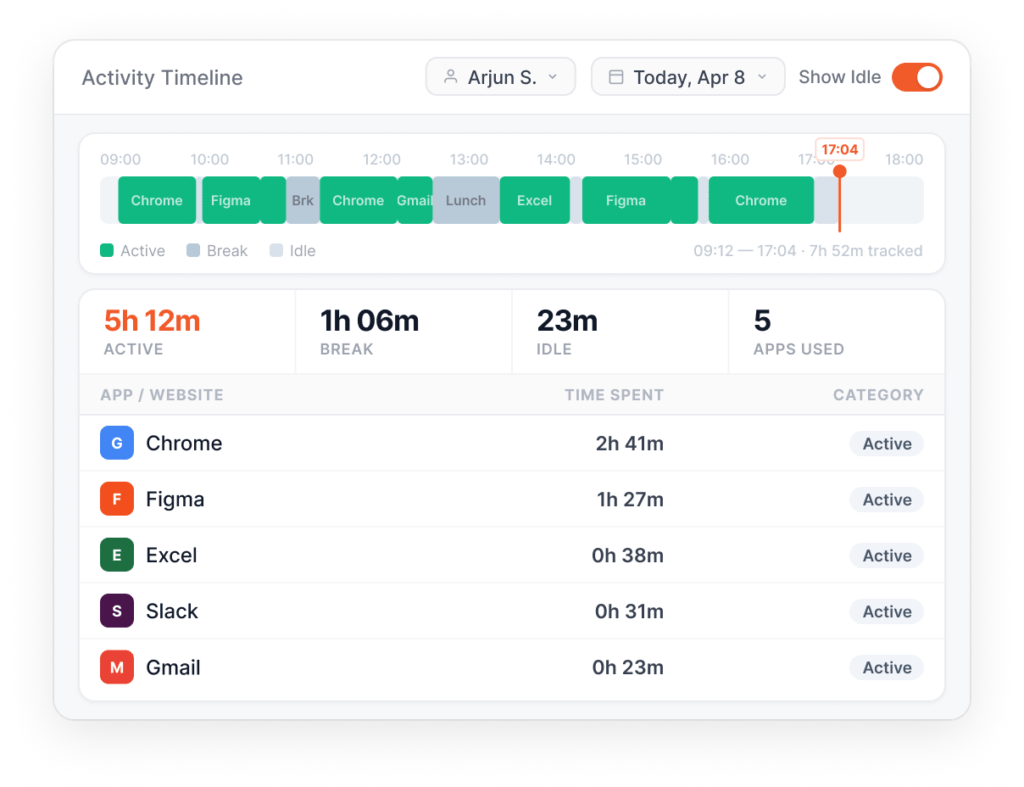
Website reporting shows which sites and apps employees use, how much time they spend on them, and how that activity is categorized. Flowace provides this type of reporting rather than website access controls.
This data can help teams understand browsing patterns, review how websites are categorized, and identify areas that may need attention. If a team also needs to restrict access to certain websites, a separate firewall, DNS filter, or device management tool can handle that part.
How Much Non-Work Browsing Happens at Work?
The figure combines unproductive website and app activity, so it should not be treated as a website-only benchmark. In the US, WorkTime reports a higher figure of 4%.
YouTube was the most common unproductive website in five of the six countries included in the study.
How Do You Calculate the Monthly Cost of Non-Work Browsing?
Multiply the employee’s monthly non-work hours by the fully loaded hourly cost, then multiply that amount by the number of employees.
Using a 3% non-work activity rate, an 8-hour workday, and 22 working days per month:
Non-work minutes per day: 480 minutes × 3% = 14.4 minutes
Non-work hours per month: 14.4 minutes × 22 days ÷ 60 = 5.28 hours
Cost per employee: 5.28 hours × your fully loaded hourly cost
Team cost: Cost per employee × number of employees
For the hourly cost, use a figure that reflects your actual employer cost.
For a 50-person team, that works out to about $14,250 per month.
What Does 3% of Work Time Actually Mean?
Three percent works out to about 14 minutes in an 8-hour workday. Some non-work browsing can happen during normal breaks and may be completely expected.
The useful question is whether the data shows a repeated pattern worth reviewing. For example, a team might see repeated non-work activity on the same site, during the same part of the day, or across several weeks.
That is where website activity reporting can provide more useful context than looking at a single session. A five-minute visit during a break and a repeated two-hour pattern are very different situations.
How Should Companies Use Employee Website Activity Data?
Companies should use employee website activity data by looking for patterns across teams and over time before making decisions about individual employees.
A repeated pattern across a team may point to a workflow issue, unclear expectations, or a policy that needs review. A single flagged session usually provides much less context.
Tell employees what website and app activity is being tracked, how categories are assigned, and why the data is being collected before monitoring begins. Clear rules make the purpose of monitoring easier to understand and give employees a better idea of how the data will be used.
What Should You Look for in Website Monitoring Software?
When evaluating website monitoring software, look for clear website reporting, flexible categories, useful team-level reports, and a clear explanation of what the software actually tracks.
Key features to compare include:
- Configurable categories: Check whether website and app categories can be set by role, team, or employee instead of using one fixed list.
- A Neutral category: A Neutral option lets teams track activity without forcing every website or app into a Productive or Unproductive label.
- Clear reporting and access controls: Check whether the software reports website activity, blocks websites, filters access, or supports a combination of these functions.
- Detailed reports: Look for reports that can be viewed by employee, team, website or app, and time period rather than only showing one company-wide total.
- Clear monitoring features: Check whether screenshots, keystroke logging, or other monitoring features are included and whether they can be enabled or disabled based on your needs.
For a broader comparison of vendors and their features, see our guide to the best employee monitoring software for US teams.
Compare these features with your team’s needs and see if Flowace fits your workflow.
Start A Free TrialFrequently Asked Questions About Employee Website Monitoring Software
1. Can a company see which websites an employee has visited?
Yes, employee website monitoring software can record the websites and apps used on monitored devices or during monitored work activity. What an employer can monitor depends on the software, device or network setup, company policy, and applicable laws.
2. How do you block employees from accessing certain websites?
Companies can block websites by URL, domain, or category using tools such as firewalls, DNS filters, and device management software. A URL can block one specific page, a domain can block an entire website, and a category can block groups of sites such as gambling or streaming websites. Flowace doesn’t provide this kind of blocking itself; it reports on website and app activity, so you’d pair it with a firewall, DNS filter, or device management tool to actually restrict access.
3. What is the difference between a website blocklist and an allowlist?
The difference between a website blocklist and an allowlist is that a blocklist allows access to most websites except the sites or categories on the list. An allowlist limits access to approved websites and blocks everything else.
Blocklists are generally easier to manage for general office use, while allowlists can suit locked-down devices and controlled environments.
4. Does employee website monitoring software block websites or report on them?
Some only report on website use, some only block, and some do both. Flowace reports on website and app activity and doesn’t block sites; for blocking, use a firewall, DNS filter, or device management tool.
5. Can a website be marked as Neutral instead of Productive or Unproductive?
Yes, Flowace supports Productive, Neutral, and Unproductive ratings for apps and websites. The Neutral rating can be used for activity that a team does not want to count as either productive or unproductive, and Neutral time does not affect the productivity score.
6. Does website monitoring software record my screen too?
No, website and URL reporting does not itself record the screen. Some employee monitoring platforms also offer screenshots or screen recording as separate features, so check the specific product before buying if screen capture is important to you.